Customer Media
Highlights
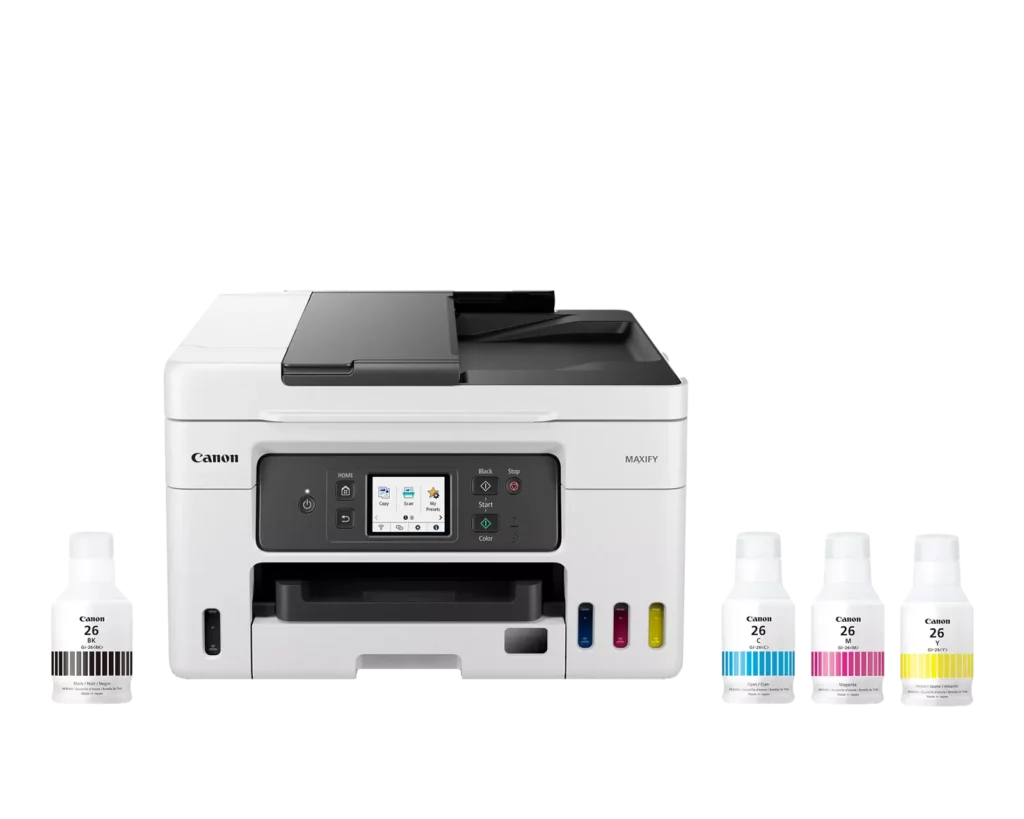
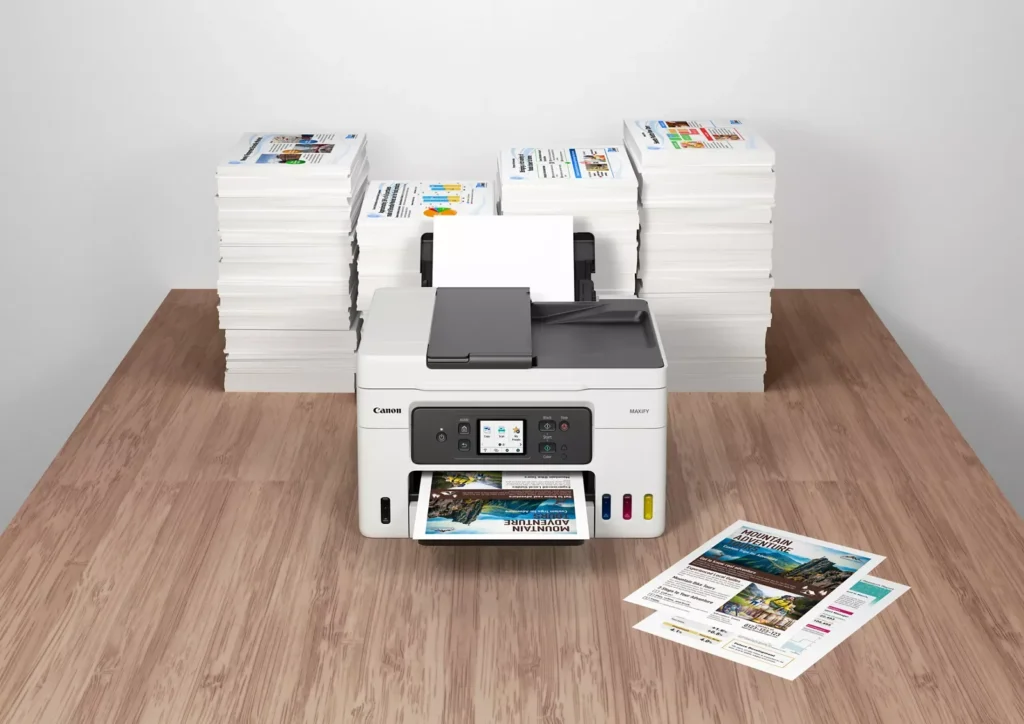
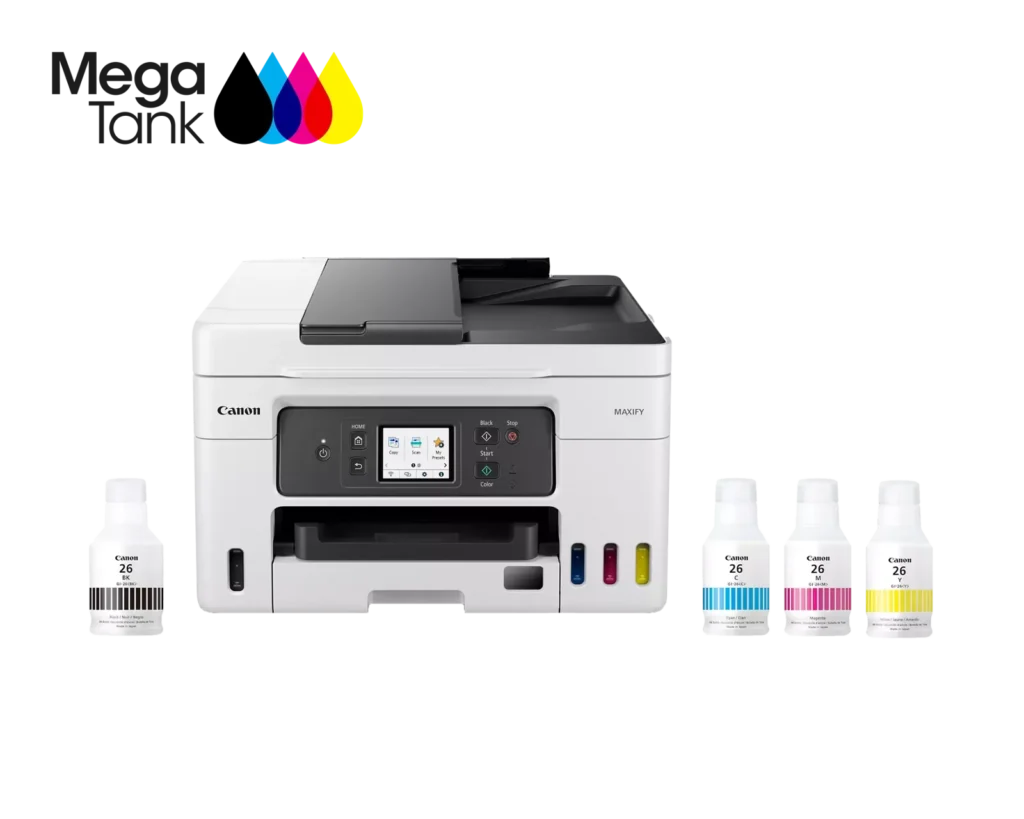
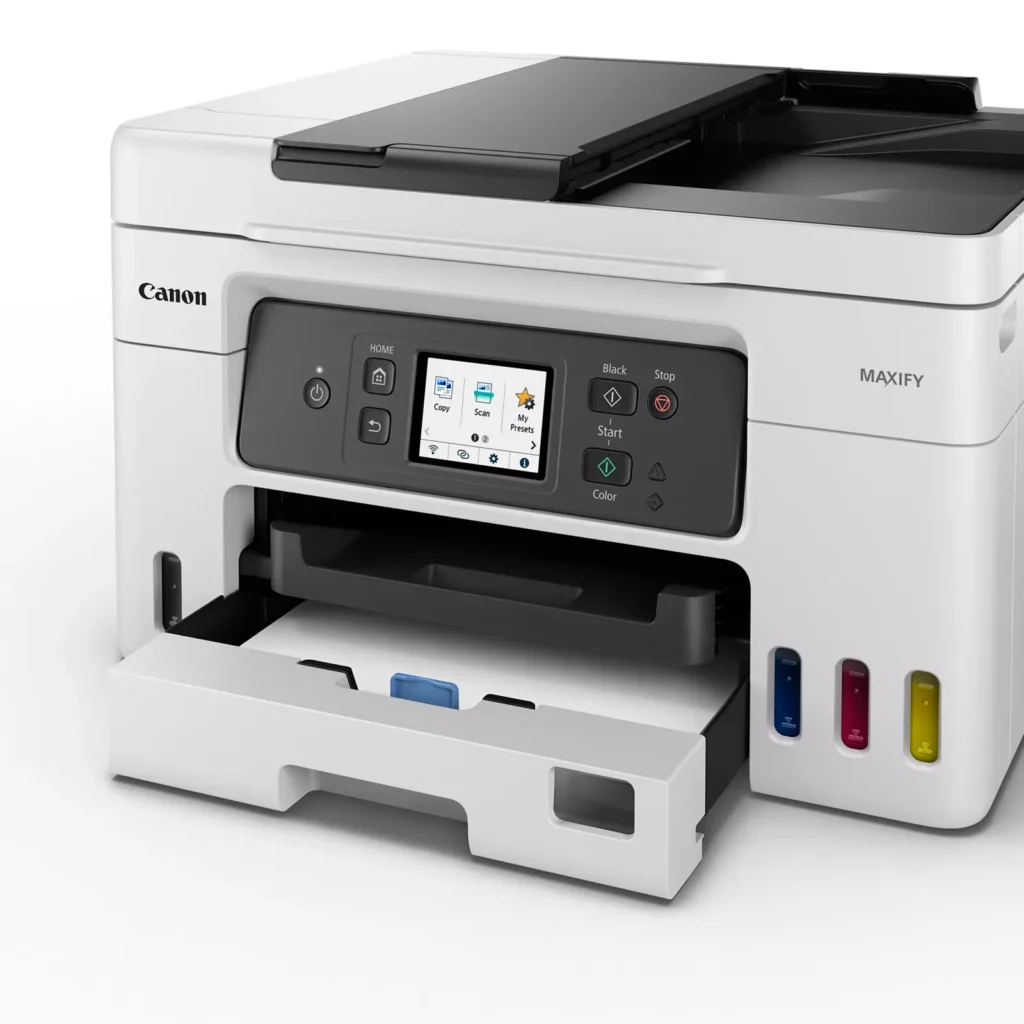
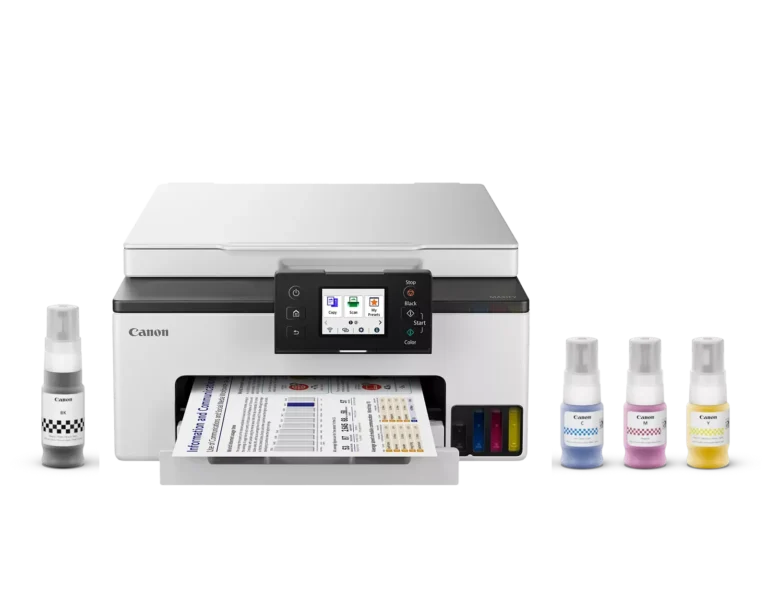
| High Page Yield and Low Running Costs | The MegaTank refillable ink system delivers an impressive yield of up to 6,000 black and 14,000 color pages with a single set of ink bottles. This high-capacity design results in a low cost per print of less than 2 cents per page, significantly reducing the total cost of ownership compared to traditional cartridge-based printers. |
|---|---|
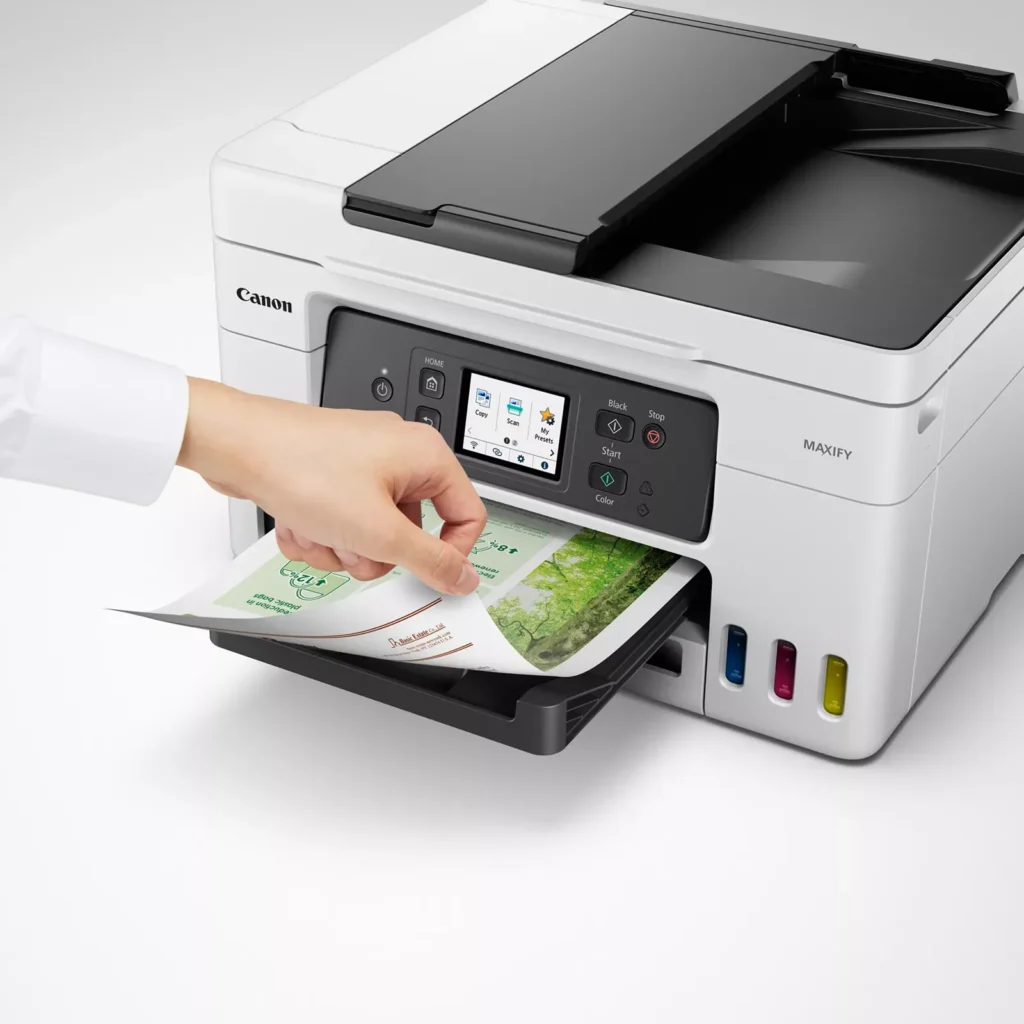
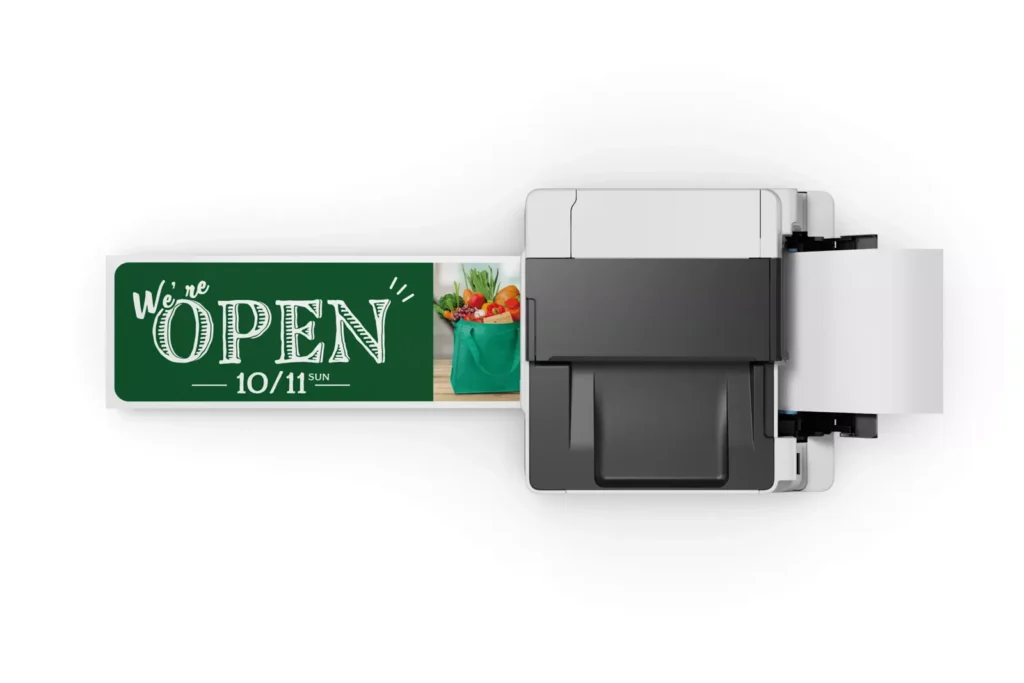
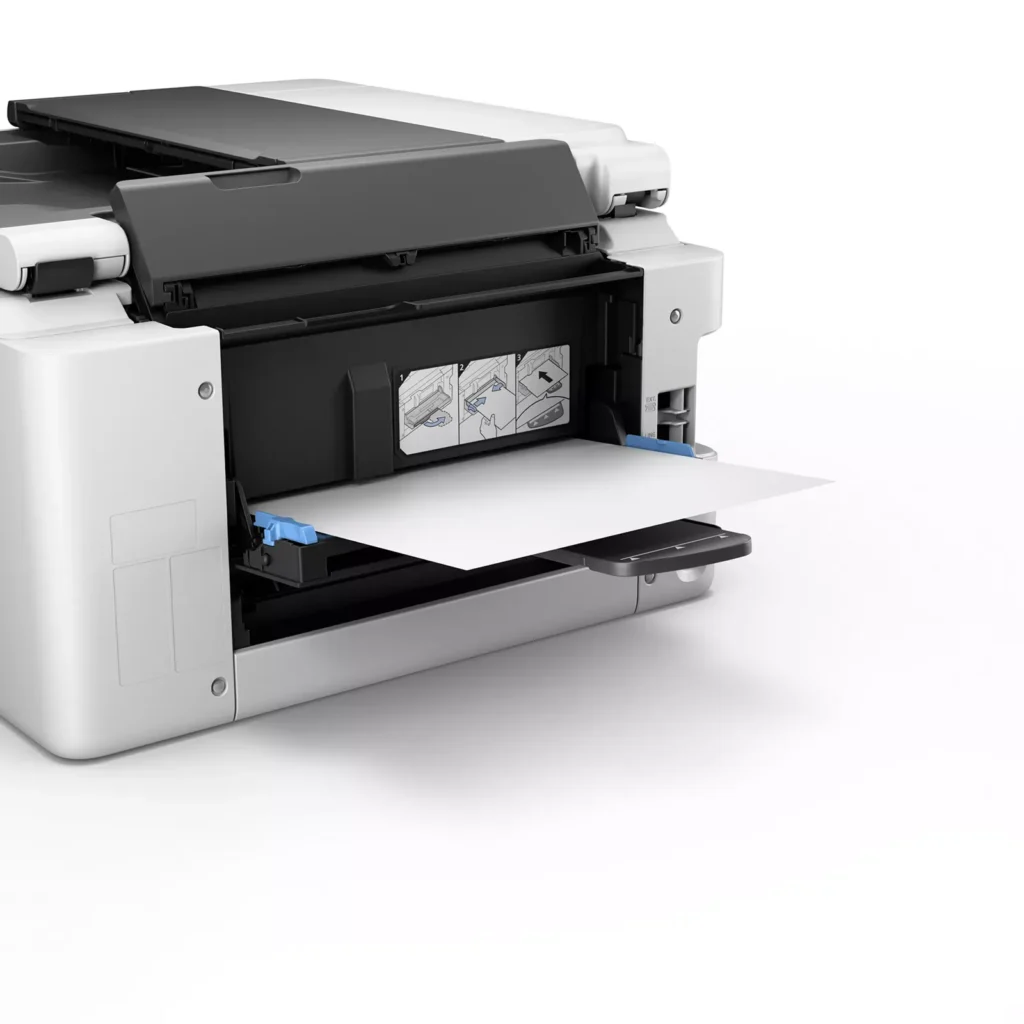
| Versatile 3-Way Paper Feeding | Equipped with a 250-sheet bottom cassette and a 100-sheet rear tray, this printer also features a unique rear flat tray designed for thicker media. This allows for seamless printing on a wide variety of materials, including envelopes, banners up to 47 inches, and heavy cardstock up to 0.7mm thick. |
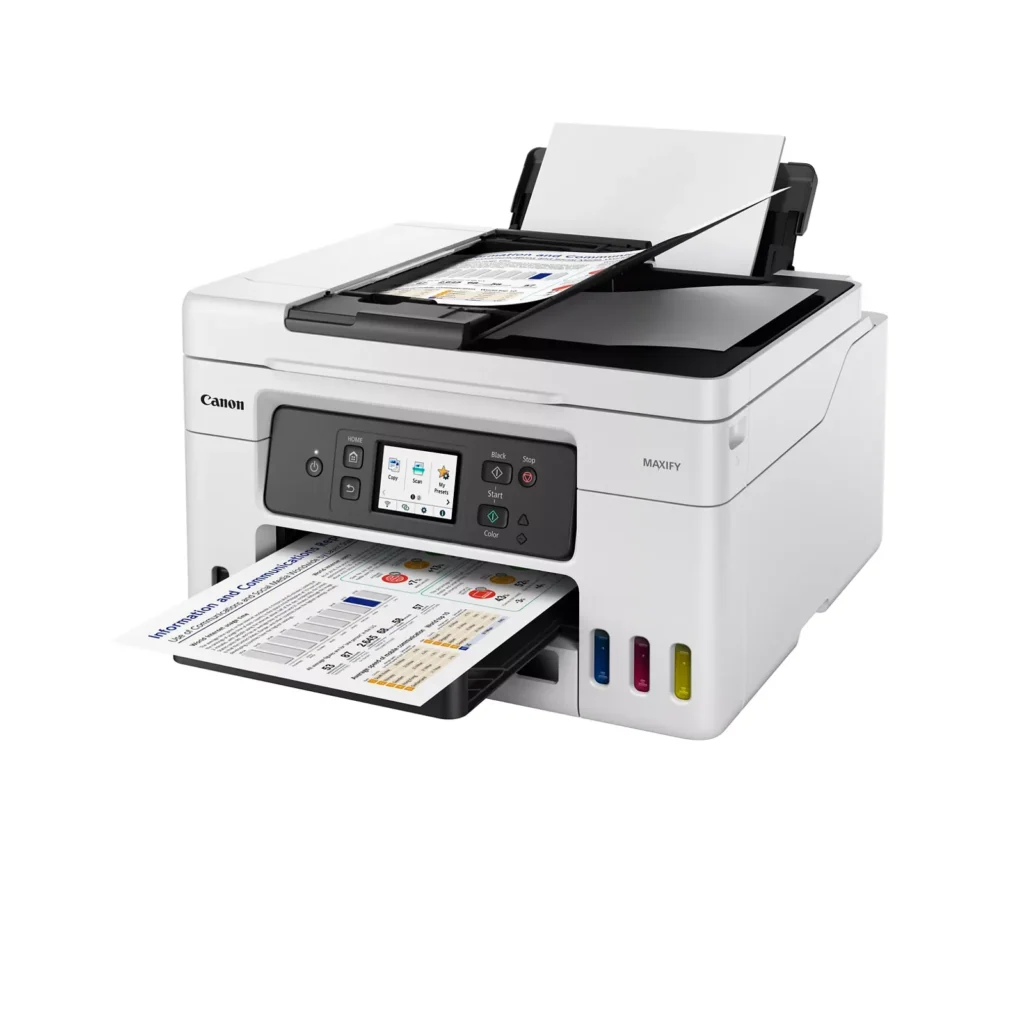
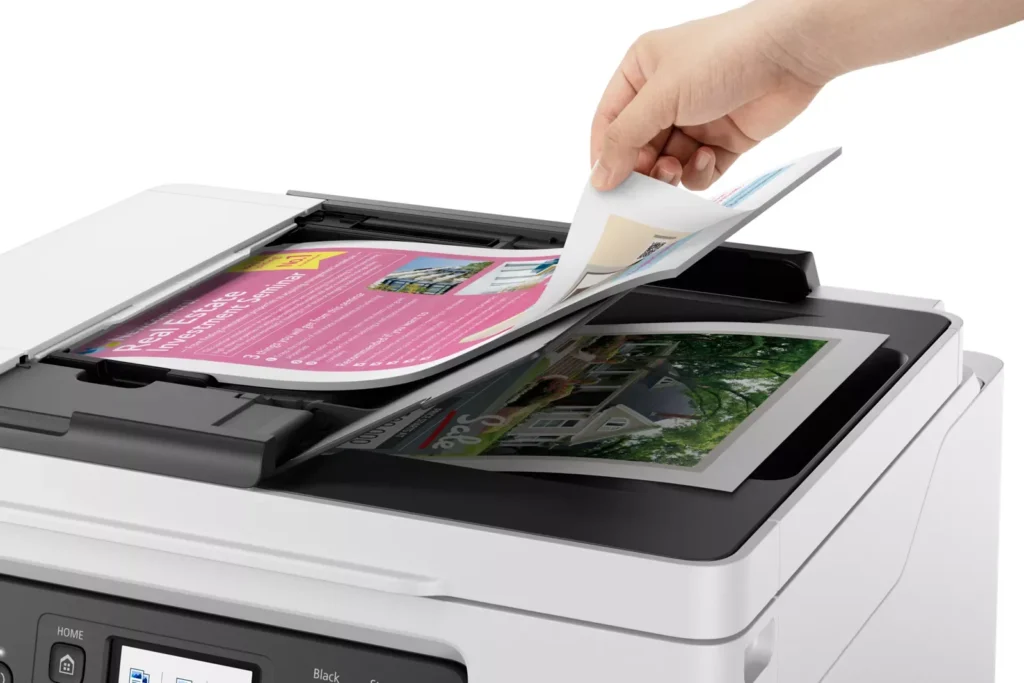
| Fast Business-Class Performance | Boost office productivity with print speeds of up to 18.0 ipm in black and 13.0 ipm in color. The integrated 35-sheet Automatic Document Feeder (ADF) streamlines multi-page scanning, copying, and faxing tasks, while the first print-out time is as fast as 8 seconds. |
| Durable 4-Color Pigment Ink System | Utilizing a 100% pigment-based ink system, the GX4020 produces sharp, laser-like text and vibrant graphics that are highly resistant to smudging and highlighters. This ensures professional-quality documents that are durable enough for frequent handling in a busy office environment. |
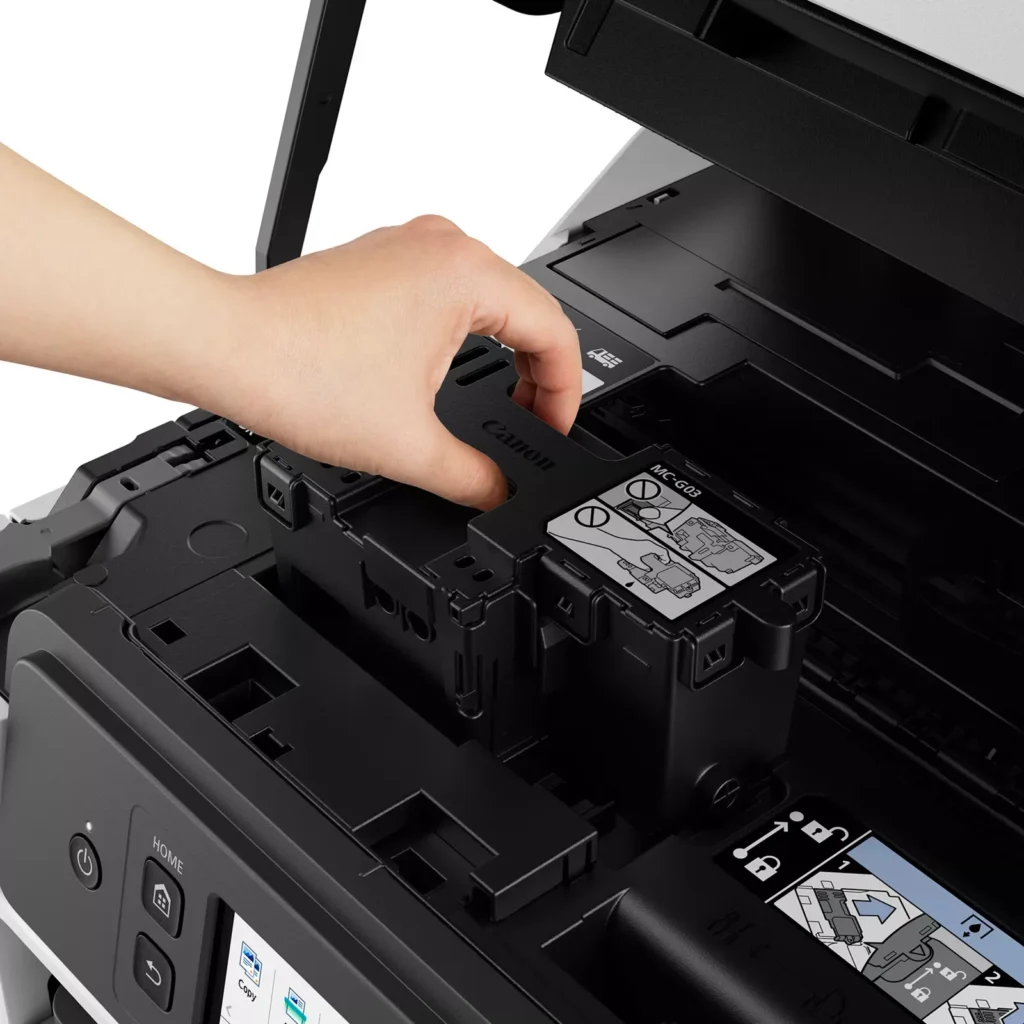
| User-Friendly Maintenance and Reliability | Designed for minimal downtime, the printer features a user-replaceable print head and maintenance cartridge that can be swapped without a service call. It is further backed by a 3-year or 80,000-page limited warranty, providing long-term peace of mind for small business owners. |
Pros & Cons
Pros
- Exceptional Ink Efficiency: The MegaTank system offers a massive ink capacity that lasts for thousands of pages, with a mess-free refill process that significantly reduces long-term operating costs compared to cartridge-based models.
- High-Quality Print and Scan Results: Reviewers consistently praise the printer for producing crisp, professional text and vibrant colors on various media, including glossy photos, stickers, and heavy cardstock.
- Versatile Media Handling: The device features multiple paper sources, including a high-capacity front cassette and a rear tray, allowing users to keep different paper types loaded simultaneously for diverse projects.
Cons
- Persistent Connectivity Issues: A significant number of users experienced frequent WiFi disconnections, difficulty with AirPrint, and a complex setup process that often required manual IP configuration to remain stable.
- Slow Operational Performance: The printer is noted for being slow to wake from sleep mode, having a sluggish touchscreen interface, and taking a long time to process and print documents, especially in high-quality mode.
- Limited Scanning Features: While the printer supports automatic duplex printing, the document feeder lacks automatic duplex scanning, requiring users to manually flip pages to scan both sides.
You might also like
Customer Reviews
Showing reviews 221-230 of 261
-
Canon hits us with another winner!!!!
MemphisTechieRN January 8, 2023Review source: BestbuySo the title gives away a bit of the review of the Canon – MAXIFY MegaTank GX4020 Wireless All-In-One Inkjet Printer with Fax – White, all because it is all so simple and easy. From setup to usage.
With the Canon – MAXIFY MegaTank GX4020 Wireless All-In-One Inkjet Printer with Fax – White – you get a “PIABAB” Or for those that don’t like acronyms – a printer in a big (bleep) box.]
The Canon – MAXIFY MegaTank GX4020 Wireless All-In-One Inkjet Printer with Fax – White has only one major setup step and that is to feed it its ink supply! I’m a major fan of the “MegaTank” line, as well as others who are now waking up. We no longer want to buy piddly (sp) amounts of ink for enormous prices. The Canon – MAXIFY MegaTank GX4020 Wireless All-In-One Inkjet Printer lets you feed the basic colors (Black, Yellow, Cyan, and Magenta) and it seems like it will never run out of ink no matter what you throw at it!
The second step of setup is through your operating system, and that is simply having it find the printer and the driver. And then a couple of small network steps and you are done! You have a printer with an endless supply (or what seems like it) of ink.
My neighbors saw it being delivered, and they aren’t uber nerds: like myself, or even nerds. The next weekend their daughter was coming home from the service for a visit. They desperately wanted a “Welcome home” banner made but didn’t have the $$$ to pay to have a “Big Box” store make and print one out. I’ve made a few in the past using (multiple) legal-sized sheets of paper. The Canon – MAXIFY MegaTank GX4020 made the job so much simpler! We had a great time in my heated garage designing the perfect banner, then I had (we’ll call her Jade) press print, and then Jade and her husbands’ eyes lit up when my wife brought out the (almost fully constructed) banner. The colors were bright and vivid, the text crisp. And this giant banner (13 legal-sized sheets of paper IIRC) did not even put a dent in the ink supply. Before, I would be having a stroke wondering “how much blue, or how much black this is using”.
Those fears are gone forever with the Canon – MAXIFY MegaTank GX4020 Wireless All-In-One Inkjet Printer with Fax – White. The fact that it is ALSO a copier is icing on the cake as my neighbor needed a copy of her daughter’s birth certificate. Cut out, you can not tell which one is which; that is how great the Canon – MAXIFY MegaTank GX4020 is! Keep in mind I’m not advocating using this printer for dubious purposes (you will get caught, and you will go to jail) I’m just pointing out the print quality. And when I think about it, I think it was set on just “normal” as well!
Unfortunately not having a “regular” phone line I was not able to test out the fax feature. But if it’s like everything else – it’s great!
To sum it up, Canon hit it out of the ballpark with the MAXIFY MegaTank GX4020 Wireless All-In-One Inkjet Printer with Fax – White. This will be an upgrade from any printer you’re using today!
Hit up a local best buy or order on the website! It’s worth it!Read More
-
Solid performance; mistake-proof set up; full manual online
Incentivized Incentivized review: The reviewer received a benefit for sharing feedback.Mustang January 8, 2023Review source: AmazonI can’t say enough good stuff about this printer. It comes with a quick start guide and was super simple to set up. The amount of ink you get with this printer is really amazing. You fill each reservoir with the appropriate color which you can see on the front of the printer. Each ink bottle has a unique shape on the top of the bottle so that you can only dispense it in the correct reservoir…completely mistake proof! Once all that is complete it automatically runs itself through a set up and alignment process, and it’s ready to go. It communicated seamlessly with our laptops and cellphones. If you want additional information you need to go online to access the manual, which was very easy to do. I used the manual just to set it to hibernate rather than turn itself off so that it’s always ready. It prints quickly, is quiet and the scan and copy features are easy to use. We’ve had it in regular use now for a few weeks and performance is solid so far. After having a number of printers over the years with various issues, this thing is a dream and just does what it’s supposed to. I can’t recommend it highly enough. Very pleased with it!
-
Great printer – good design – Setup is hard – read on for tips
Incentivized Incentivized review: The reviewer received a benefit for sharing feedback.G. Adkins January 8, 2023Review source: AmazonThis is a great printer, and I love the “truth” in the design. Setup is harder than it should be, but I’ll provide you some tips below to save you a ton of time. I’m an IT professional and it took me 3 hours to set it up. With the tips below, you will be ready in 30 minutes.
I quit using ink jet printers probably 10 years ago because I hated the design. The printer was cheap and came with about three drops of ink. When you went to buy a new ink cartridge, the cartridge cost as much as the printer! You ended up paying many times the cost of printer in overpriced consumables.
The second thing I hated – as an infrequent user of the printer – every time I went to use it, the print head was clogged and you had to spend time unclogging it, wasting even more of the precious ink. So I hated them and switched to color laser and never looked back.
Until now.
This printer is designed truthfully, and I love that idea. Sure you pay 2x the cost of a competitor for the printer (an actual realistic cost of the device) but the consumables are CHEAP and HUGE. You get a giant bottle of a color for just over 30 dollars. Amazing. This is the way it should be. I’ll be sure to update the review if I get a clogged print head.
Even after all that – the printer is faster and prints better than my laser printer. Watch the video for more explanation and print speed/quality comparison.
There are a couple of things I don’t love. It doesn’t use a normal IEC style power cord, it uses a figure 8 style. When I was moving another printer out of the way for this one, that required extra work for me, I was hoping to just use the same power cord.
Second, the paper eject tray is quite flimsy and sticks out the front. I’m afraid it will get broken, because you have to keep it in the extended position. If you don’t, it ejects the paper with such force it just throws them in the floor. I demonstrate this at the end of the video.
Here is another tip. After you set it up and print a few pictures, go back through the calibration setting. It will improve the quality of your prints quite a lot by doing it a second time after a few prints. To do this, select the GEAR on the main page, then select MAINTENANCE, then Print head alignment – auto. This will take a few minutes and use 2 pieces of paper.
Now on to the setup tips to make your install go much easier.
1) There is no manual in the box. To read the manual you must go online. The quick start card gives you the URL.
2) When you unpack the box, there is a plastic guide on top of the printer. The manual nor quick start guide give any indication what it’s for, or where it goes. It goes on the rear of the printer, near the hinge. If you look at my pictures, you’ll see there is a slot where you can insert one end and gently bend the other to pop it in place.
3) When you open the top, you have to raise it up about an inch and the leg holding it up will drop back allowing you to close the top. Do not force it. It has a soft close mechanism, so you can just lift it up and then release it. It will gently go down into place.
4) When it tells you to fill the yellow tank, FILL ALL OF THEM. Yes, fill the Yellow, Magenta, Cyan AND BLACK. The diagram on the printer shows filling the yellow tank and closing the lid. It refuses to continue the setup unless you FILL ALL OF THEM. I got stuck here a LONG time. I repeat – It will not continue until you fill all the tanks. Trust me here. When you fill all the tanks, close the lid, then it will continue. The graphic is confusing and incomplete.
5) Filling the tanks is easy and straightforward. You’ll notice they have a valve inside to keep them from spilling, and each color has a specific shape so you can’t mix them up. The ink flows in quite quickly, probably 30 seconds per bottle. My black bottle had a little left inside, so I’ll put the rest in after using it a while.
6) The printer comes with a default password, and the password is the SERIAL NUMBER of the unit and IS CASE SENSITIVE. Enter the letters in UPPER CASE or it will not work. This is not obvious, and I only found it in one small section of the manual. Finding the serial number is not obvious either. To find the serial number, on the front panel press the (i) icon for information. Then select SYSTEM INFORMATION. Write down the serial number or take a picture with your phone.
7) To change/remove the administrator password select the GEAR icon for settings, then select PRINTER SETTINGS, then scroll down to ADMINISTRATOR PASSWORD SETTINGS (it is off the screen, you have to scroll down to see it). Here you have to enter the current password (the serial number, with the proper case) and then you can change or remove the password. My printer is at home, so I just removed the password.
8) Set the time zone. When you set up the mail settings (to scan to email for example) it will complain unless you set the time zone. This is not a normal EST/EDT; PST/PDT. It is a GMT offset. To set the time zone – press the GEAR icon, then PRINTER SETTINGS, then OTHER PRINTER SETTINGS.
To set the date and time, select DATE/TIME SETTINGS.
To set Daylight Savings time ON/OFF (it isn’t automatic) select DAYLIGHT SAVINGS
To set the time zone, SCROLL DOWN (it is off the screen) to TIME ZONE. In the USA, you need to select UTC- (it defaults to UTC+) and then put in the proper offset.
Here are the proper values for USA.
EST – UTC- 5
CST – UTC- 6
MST – UTC- 7
PST – UTC- 8
AKST- UTC- 9
HST – UTC-109) To set up email with GMAIL, you have to do a few things inside your Gmail account first. YOU MUST HAVE 2-STEP VERIFICATION TURNED ON TO USE GMAIL WITH THIS PRINTER. You have to set up an app password and you cannot set up an app password unless you turn on 2-step verification. This took a while to figure out – since the printers error messages are not helpful. This step is easiest to do on a desktop/laptop computer.
a) Log into the Gmail account you want to use with the printer.
b) Click your account icon in the top right of the Gmail window. (not the very top account, the one next to the GEAR and DOTS across from the search bar.
c) Click Manage your google account.
d) Click SECURITY on the left side menu
e) Scroll down to 2-Step Verification and turn it on. The easiest one to use is text messages to your cell phone. Most secure is a hardware key. Complete the setup for 2-Step Verification.
*Note- you can select “Don’t ask for 2-step on this device” the next time you log in – so it won’t ask you every time.
f) Select App Passwords (Right under 2-Step Verification you just set up)
g) Click “select app”, select “Other (custom name)” Enter “Canon Printer” or something similar. Click GENERATE. Use this password to put in the printer settings. You might want to copy this to another document so you’ll have it for later.10) Set up the printer for email – This is easiest to do on a desktop/laptop. You’ll need to install the software per the instructions.
a) In the app that was installed on your computer (Canon Inkjet Smart Connect) select the 3 bars at the top left of the window. Select “Printer Management”, then “Device Information”
b) Click the button for “Open Remote UI”. If you set up a password (or didn’t change it) you’ll need to enter it here. Click “Log In”, and then OK. (Ignore the warning)
c) Click Printer Settings, then “Set mail server / test connect”, then “Set mail server”
d) Enter the sender address. This is the email address you are using. The format is xxx@gmail.com
e) Set the outgoing mail server to smtp.gmail.com
f) Set the port number to 465
g) Click the check box for “Secure Connection (SSL)
h) Click the radio button for “SMTP authentication” and click OK.
i) In the next screen enter the email address again in the format xxx@gmail.com
j) Put the app password you created in the previous step in the OUTGOING PASSWORD and click ok. It’s far easier if you copy/paste in here (the spaces don’t matter) since you can’t actually see the password.
k) It will return to the previous screen like it didn’t save, but it did. Click PRINTER SETTINGS on the left again.
l) Select “Set mail server/ test connect” again.
m) Select “Test connection to mail server” and click YES. It should say communicating, then “Connection Succeeded”. If this didn’t work, go back through the steps and make sure you have the app password correct. You may want to delete and recreate the app password.That is it! Your printer is now quite a nice functional printer.
-
Very Classy
DITGUY17 January 7, 2023Review source: BestbuyI have been utilizing the Canon MAXIFY MegaTank GX4020 to assist me with my flyer printing for Real Estate business I’ve bee in for about 3 years. The setup is as simple. You do have to pour the ink into the tanks so take your time to try not to spill anything. Once you put ink in the tanks, you really can not move the machine, or the ink can spill.
I have not had any issues with jamming either, nor streaks on my flyers. The print quality of the Canon MAXIFY MegaTank GX4020 very is crisp. I do use quality glossy paper as well. The printing speed is fast, and does not stutter. The size of the Printer is a little larger, but it will still look nice on an office desk. I do like the windows on the front of the machine that shows the actual level of the inks. Scanning documents is also a good feature. Uploading documents has never been as simple and consistent. I typically send them to my email, but I have the folder setup on my desktop as well.
I do use both Apple and Windows operating systems, and both work great.
-
Wi-Fi printing issues but prints beautifully
Incentivized Incentivized review: The reviewer received a benefit for sharing feedback.Ryan A January 7, 2023Review source: AmazonWe love how well this printer prints. The only issue we’ve experienced is with the Wi-Fi connection. If you connect directly it prints beautifully.
-
A great home office alternative to laser printing.
Gadgeteer January 6, 2023Review source: BestbuyPackaging/Delivery/Setup:
This printer was shipped with just the product box and no outer packaging/box. To no one’s surprise, the box arrived damage, but the printer was well-padded enough where it didn’t affect the printer.Taking the printer out of the box, the first thing that stuck out is that it’s a nice size but not overly commanding (I should preface this comment with I have a medium-duty business printer that is easily the size of 3-4 of these high and two deep). It’s also insanely lighter, comparably but still feels substantial (or high quality). The design feels modern and is eye-catching.
The setup was painless. This all-in-one supports AirPrint and the screen provides the instructions (or you can scan a QR code and access them online). With AirPrint, you pretty much just connect it to the same WiFi as your Apple products and they should “discover” the printer without having to jump thru hoops or download anything extra.
Filling the inks was a lot easier than anticipated. I remember the old school ink refill kits that used to come with a syringe, and I was highly traumatized by these. I recall ink going everywhere and the consistency of the ink being too thin so it leaked out of the cartridges and effectively ruined the printer. I’m happy to report these re-fillable printers have come a long way and replacing the ink is as easy as aligning the bottle over the corresponding color and pressing down into the “inlet” with no mess.
Printing/Copying/Scanning
Some things that stuck out to me: (printing) LOVE the multiple paper trays (front and rear). The manual feed is kinda useless because it only does one sheet a time, but I do like the option of having multiple trays. I print more shipping labels than anything else, so I’d be likely to put these in the main tray and regular paper in the rear tray. I do wish (just thinking of placement against a wall) that there was an option to purchase stackable trays so both trays could be front-facing. (scanning) I was surprised to discover that this printer supports duplexed scanning. Copy and print speeds were good, but the weird thing is the print quality is worse than my larger laser (about 1/2 the resolution). Equally interesting, the scanner quality on this blows my larger laser out of the water (easily 2-4x the resolution).Some final things to consider:
(1) The warranty on this is pretty funky. At first glance, 3 years is eye-raising, but then they go all car manufacturer on you and put a “orrrr 80,000 sheet” warranty on it. So after doing some math, a box of paper is 10 reams or 5,000 sheets. This means your warranty could end considerably earlier if you use more than 16 boxes of paper in any period of time.
(2) Something that’s common on these small-business focused inkjet all-in-ones is to have consumable components that are required to be maintained outside of the ink. This is very much in-line with what you’d expect on a business all-in-one laser, but if you look at most consumer printers, they don’t require maintenance cartridges or print heads. The maintenance cartridge was explained to me as a reservoir for ink dispelled when the printer is calibrating etc. And the print head is over $150 to replace on an already $500 (MSRP) machine so just be aware of the cost of operation/ownership.
(3) WiFi included is dual-band! And this printer is actually a little quieter than my laser.
(4) From a design perspective (in regards to the touch screen/printer software) Canon made a lot of great decisions in regards to usability and this printer is intuitive and easy to use/operate for the average user.Read More -
Fully featured High Quality All-in-one Printer
SUHD January 5, 2023Review source: BestbuyCanon – MAXIFY MegaTank GX4020 Wireless All-In-One Inkjet Printer with Fax is a great all-around printer suitable for small business office or home use. Thanks to its network connectivity, you can easily print to it from multiple devices on your home network. Unlike another popular printer brand that decided to eliminate USB connectivity altogether, Canon made the right decision to keep USB connectivity, so you can still have it directly connected/wired to your legacy desktop PC. USB will also come in handy for the scanning functionality.
The setup is very simple, using the built-in color LCD and following step by step instructions to get the printer setup on your Wi-Fi network if you so choose. Since there are no ink cartridges, all you have to do is pour the ink from the four bottles into the tanks that are equipped with a “keyed nozzle” that only fits the respective colors. Don’t be afraid, it’s not a messy procedure at all. It’s also pretty cool that you can physically see the actual ink levels on the front of the printer. It would truly be great if I didn’t have to worry about ink for the next 2 years with low to moderate printing volume and that’s achievable thanks to the MegaTank design that yields up to 6,000 pages in black and white and 14,000 in color prints.
Print quality is sharp even on regular paper, use photo paper and you’ll get picture perfect glossy prints. Speed is faster than other inkjet printers I’ve used with up to 18ppm for black and 13 for color.
Some additional Pros:
* Easy to use touch-screen color LCD
* Automatic Document Feeder (ADF) double-sided scanning for up to a stack of 35 sheets
* Automatic 2-sided printing, saves paper and trees
* Wireless smartphone and chromebook printing
* Full functionality Canon PRINT app, Apple AirPrint and Mopria Print Service
* Multiple paper feeding options – bottom (250 sheets), back and top, depending on paper and print type
* All connectivity options, USB, wired Ethernet, WiFi, Bluetooth, Web
* Legacy FAX functionality built-in (still requires an analog phone “land-line”
* 3-years parts and labor warranty – most others only offer 1-yearRead More -
A beast of a machine
Incentivized Incentivized review: The reviewer received a benefit for sharing feedback.Helpful January 5, 2023Review source: AmazonThis printer is top notch.
A hefty, office style printer with a huge variety of features that all seem to work great, it puts out very nice prints and pretty much everything about it has been painless.
Most operations you may want to handle on it can be managed on the touch screen, including filling the ink reservoirs, complete with onscreen instructions, I would imagine even the less tech savvy person would have little trouble with it.
It’s fast too, taking longer in many cases seemingly to ready and load the paper than it does to output the print.
The scariest aspect of it is probably how costly the ink is as a full fresh set of ink would run you a bit over $100, but I think that between the sheer volume of prints it purports to be able to output, many thousand on a fill, and the fact that the inks will likely run out at differing rates, that shouldn’t be a big problem.
Additionally, while the printer is quite large, it’s not full on copy machine size or something, it’s just going to make that little ink jet sitting in your computer hutch look like a toy, it demands its own sizeable desk space.
I’ve had a handful of printers over the years and they’ve always been pains that put out disappointing results and tended to die on me before they rank out of ink. Between the out of box warranty, sheer volume of ink and general quality, this is probably the first printer I’m NOT worried about that with, and actually happy with all around.
-
Easy setup, quality printing
AsiaLovely1 January 4, 2023Review source: BestbuyThis cannon despite appearing to be bulky, and potentially too heavy was quite easy to get into my office. The packaging was perfect, and includes pretty much everything you need for a small/office environment. Setup was a breeze straight out of the box, and o decided to go with the QR code setup. Remember to follow the instructions as they read, so you don’t miss any packaging, or insert the ink incorrectly. Within about 15 minutes I was up and ready to go.
The display is of decent quality, and responsive. Visually, the printer looks nice in the office, and the print quality is really good for an all in one printer. I had no problems printing test documents from my phone wirelessly, and no issues getting the printer connected to my internet. The only feature I haven’t tried, or need at the moment is the fax, but it’s handy to have.
What I love most is that for a all in one printer, the setup was easy, it takes up a decent amount t of space without being too much, and it prints at a pretty good speed. You won’t regret your purchase, and I’m glad to have this Cannon to replace a different model and brand.
-
Great prints. A lot of settings to go over.
BeingHonest January 3, 2023Review source: BestbuyPro:
-Clean print quality
-Sharp and vibrant colors
-Lots of supported paper typesCon:
-App looks outdated
-Manual duplex copying
-Not the fastest printer
-Errors annoying to clearThe Printer
The printer has good build quality. It is bigger and heavier than other printers I’ve had. From the front, the ink levels are clearly seen. The scanner can expand up to about an inch for thicker scans. There are three paper feeders, one is the front tray, a top one for longer paper and envelopes, and a rear one for thicker stock. Another feeder for copying folds out at the top. The front touch screen panel, unfortunately, doesn’t tilt up, but otherwise works well. There’s ethernet and USB ports on the side and the phone jack in the back.Setting Up
I had a bit of trouble setting up the printer after unboxing, loading the ink, and downloading the drivers and apps. The auto wireless setup didn’t detect the printer on the network and I had to manually set it up taking a few tries, because I didn’t realize I had to go into settings and enable the wifi. Entering the password was like old school texting using only the numeric buttons. Once I finished setting up the wifi, finishing the set up and priming the printer was straightforward. Priming it did use up about a fifth of the color inks.Printing and Copying
The print quality is good with clear text and vibrant color. It is slower than my Brother printers but not too bad. While the print quality is clean, the color accuracy can be off with blues and greens being darker, while reds a bit paler. I also noticed that doing two sided prints will result in text being fuzzier, perhaps from the smearing of the ink.Copying is fast however two sided copies have to be manually done. It will scan from the feeder, but then the page has to be inserted again for the other side.
Scanning is a bit slower but is simple on the machine. Using the desktop app gives you more settings and image control, but feels like using software from a decade ago.
When an error happens, usually from either running out of paper or using the wrong paper settings, it takes a while to process it and continue the print. You can’t cancel the print at the machine and many times the error message doesn’t pop up on the computer.
Conclusion
It’s not the fastest and not the easiest to navigate the settings but despite some of the minor annoyances, the overall results are good. The versatile printer is a good all in one suitable for a home office. The print quality is sharp and the colors vibrant, and it supports many paper mediums. The big ink tank is advertised as lasting 10,000 prints so it should last quite a while.Read More