Customer Media
Highlights
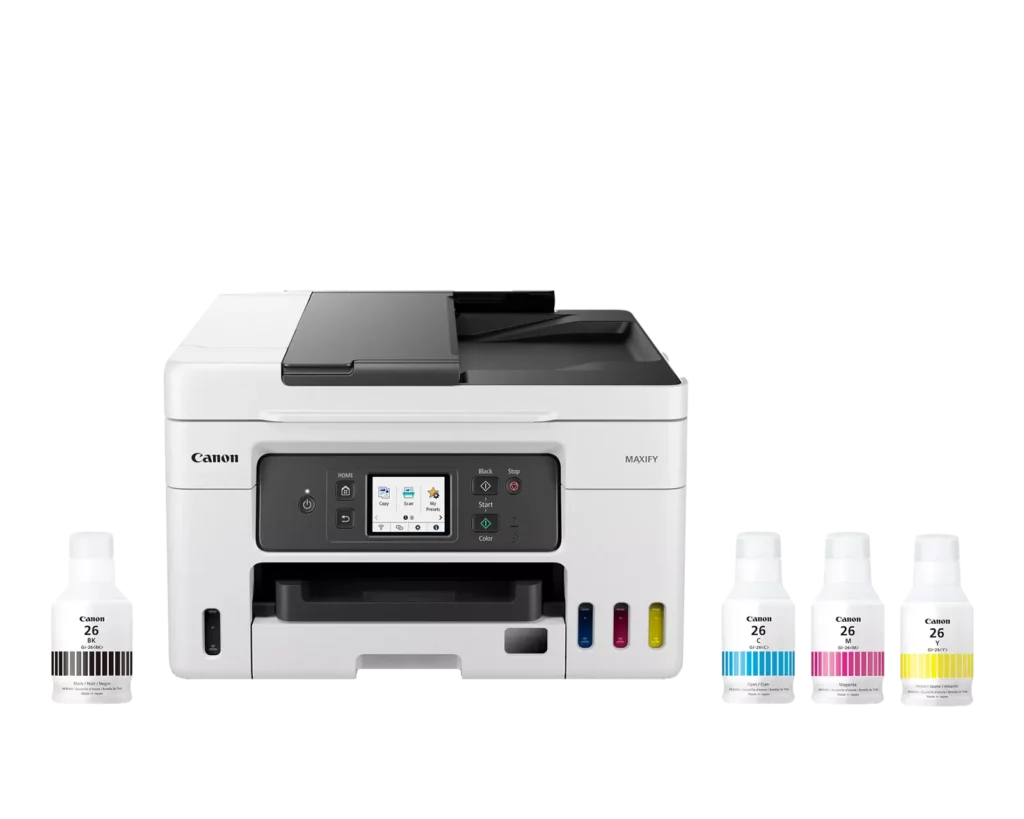
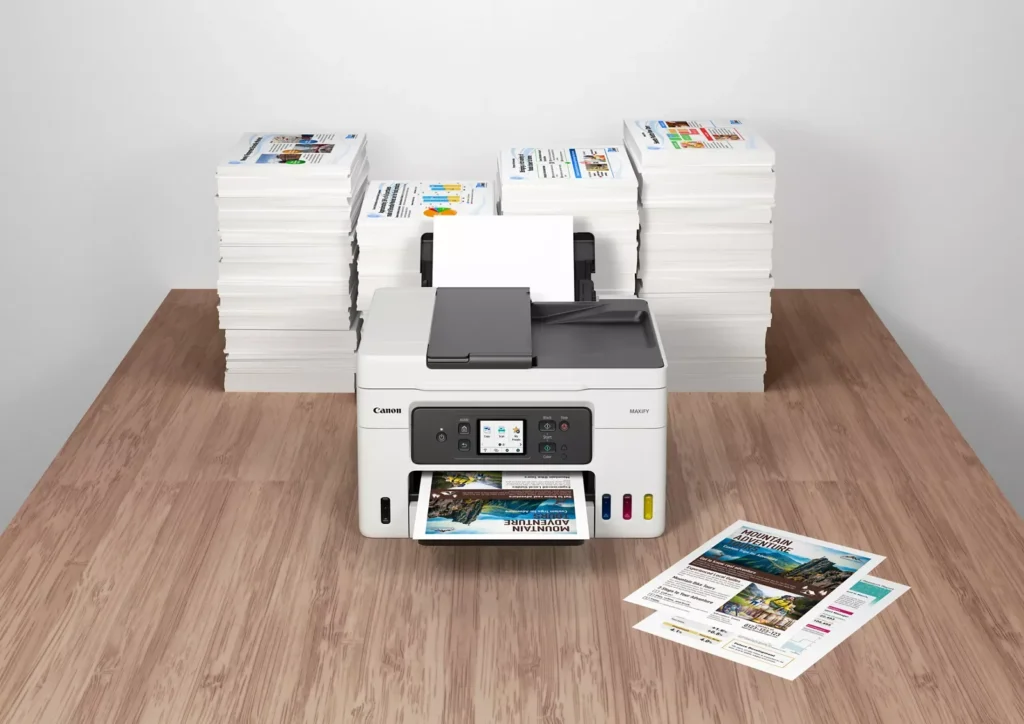
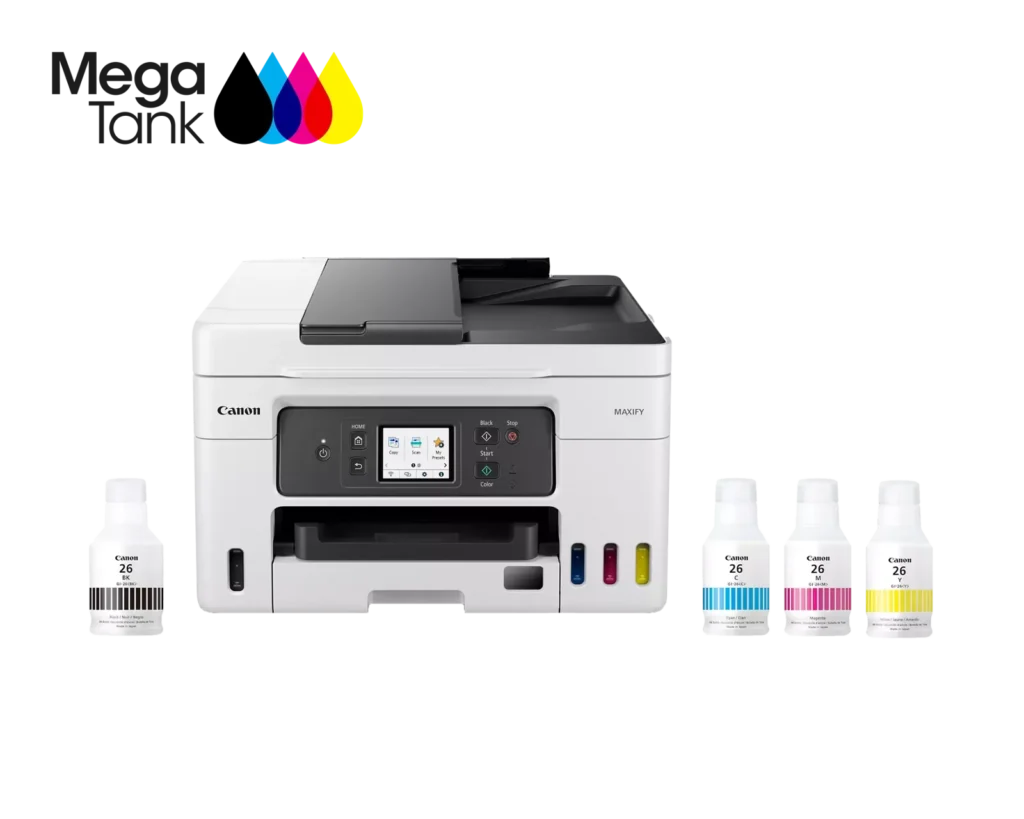
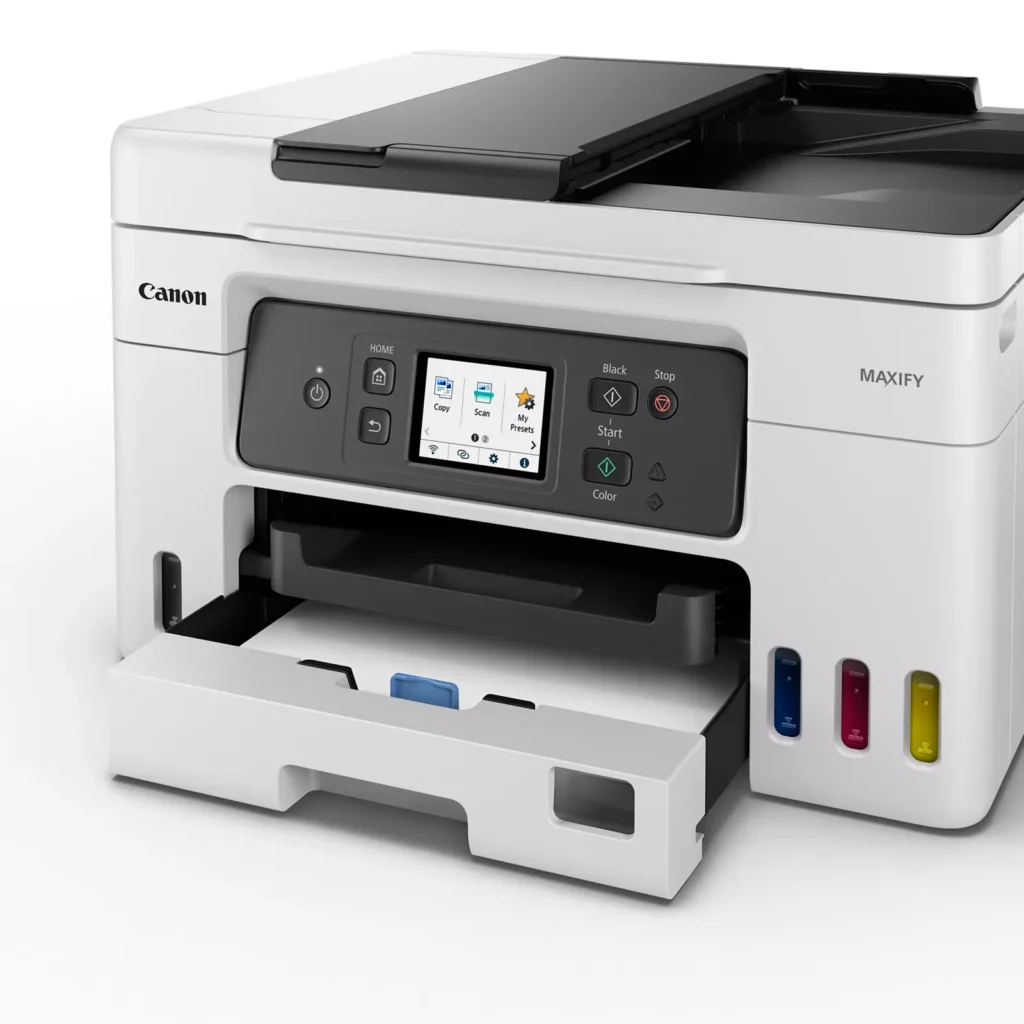
| High Page Yield and Low Running Costs | The MegaTank refillable ink system delivers an impressive yield of up to 6,000 black and 14,000 color pages with a single set of ink bottles. This high-capacity design results in a low cost per print of less than 2 cents per page, significantly reducing the total cost of ownership compared to traditional cartridge-based printers. |
|---|---|
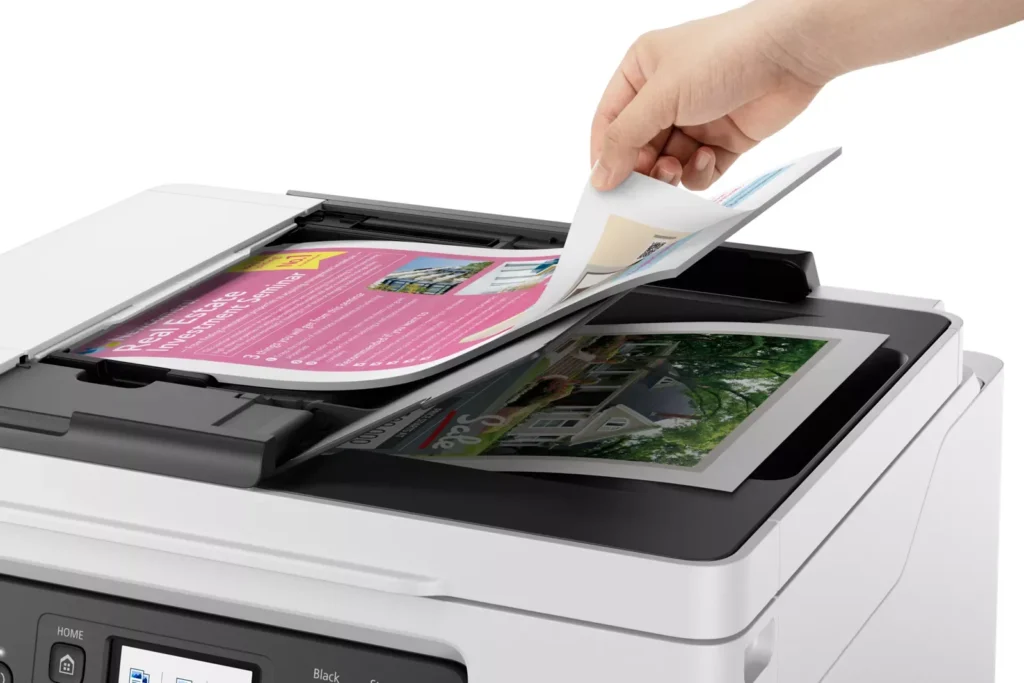
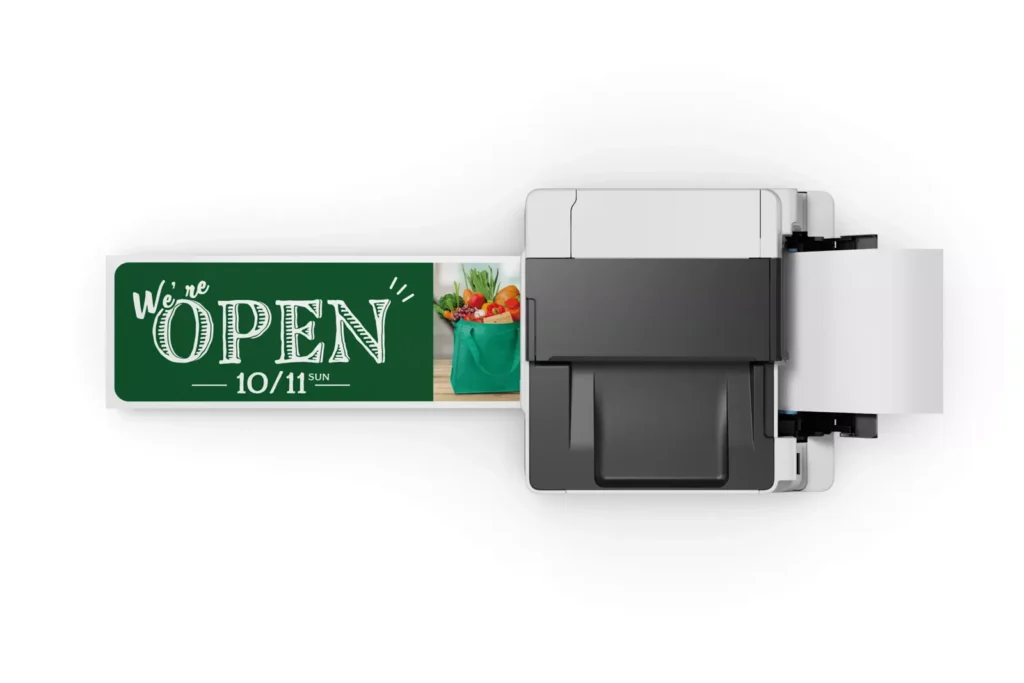
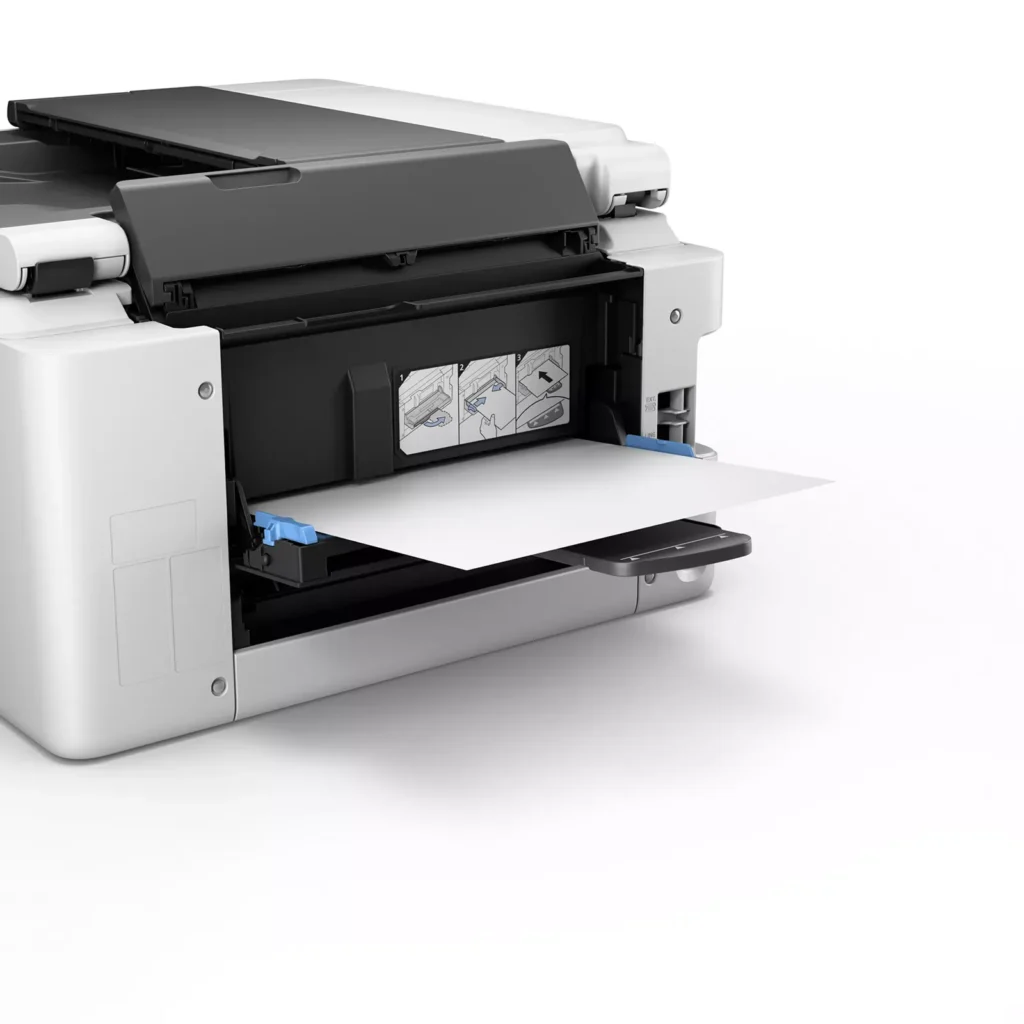
| Versatile 3-Way Paper Feeding | Equipped with a 250-sheet bottom cassette and a 100-sheet rear tray, this printer also features a unique rear flat tray designed for thicker media. This allows for seamless printing on a wide variety of materials, including envelopes, banners up to 47 inches, and heavy cardstock up to 0.7mm thick. |
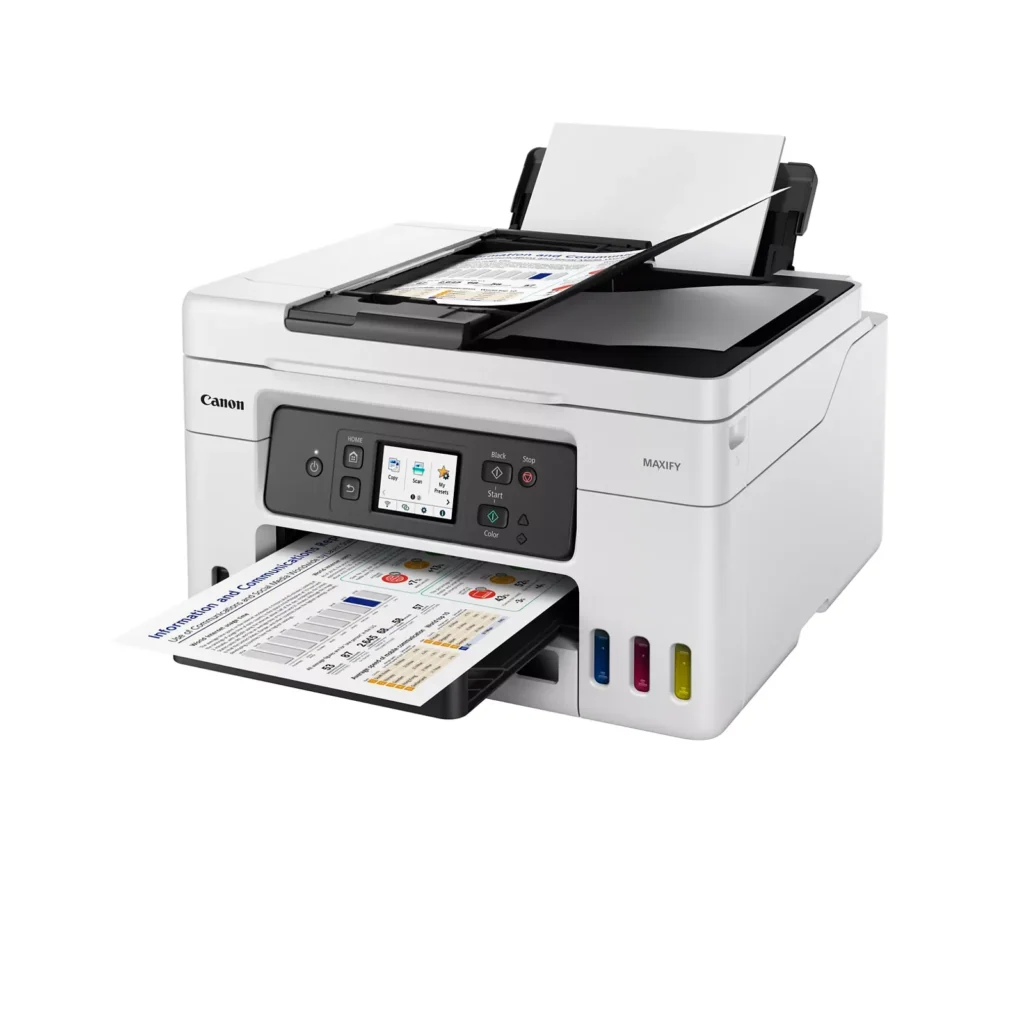
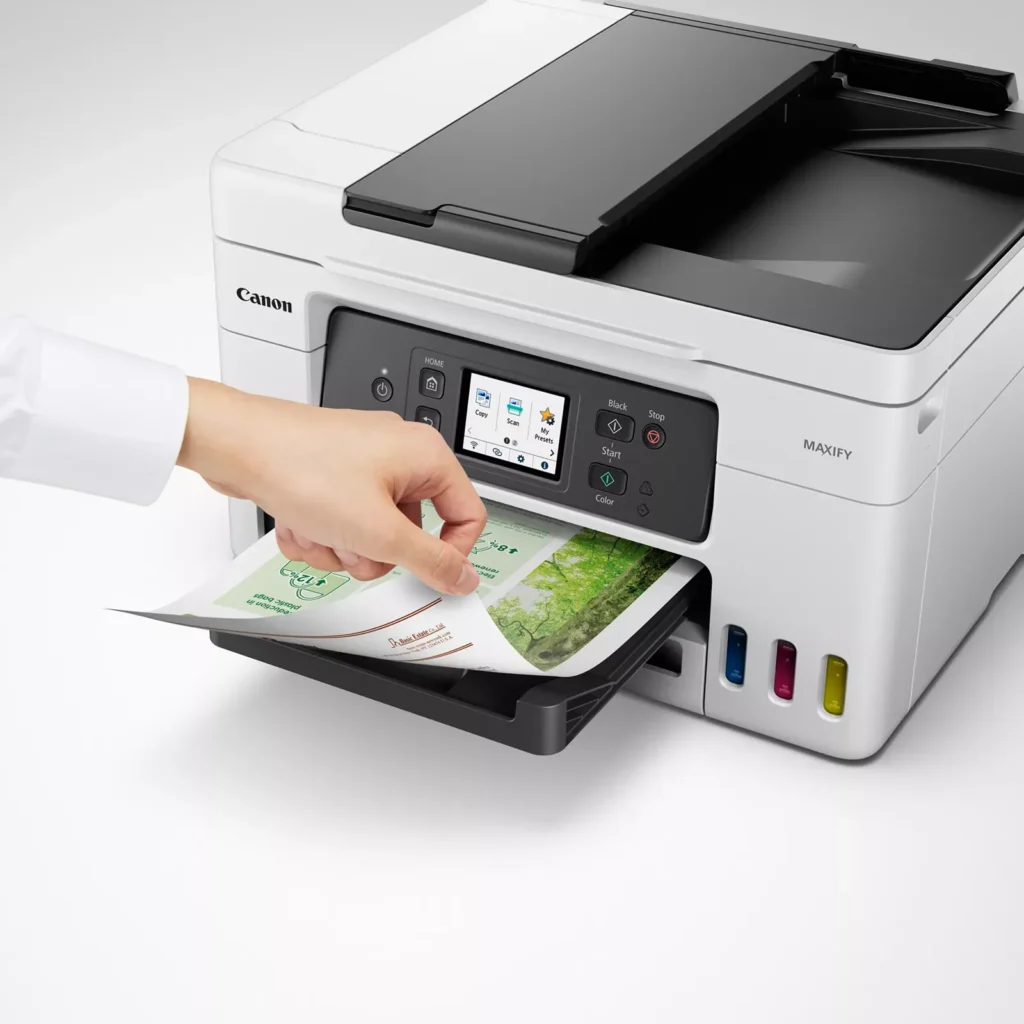
| Fast Business-Class Performance | Boost office productivity with print speeds of up to 18.0 ipm in black and 13.0 ipm in color. The integrated 35-sheet Automatic Document Feeder (ADF) streamlines multi-page scanning, copying, and faxing tasks, while the first print-out time is as fast as 8 seconds. |
| Durable 4-Color Pigment Ink System | Utilizing a 100% pigment-based ink system, the GX4020 produces sharp, laser-like text and vibrant graphics that are highly resistant to smudging and highlighters. This ensures professional-quality documents that are durable enough for frequent handling in a busy office environment. |
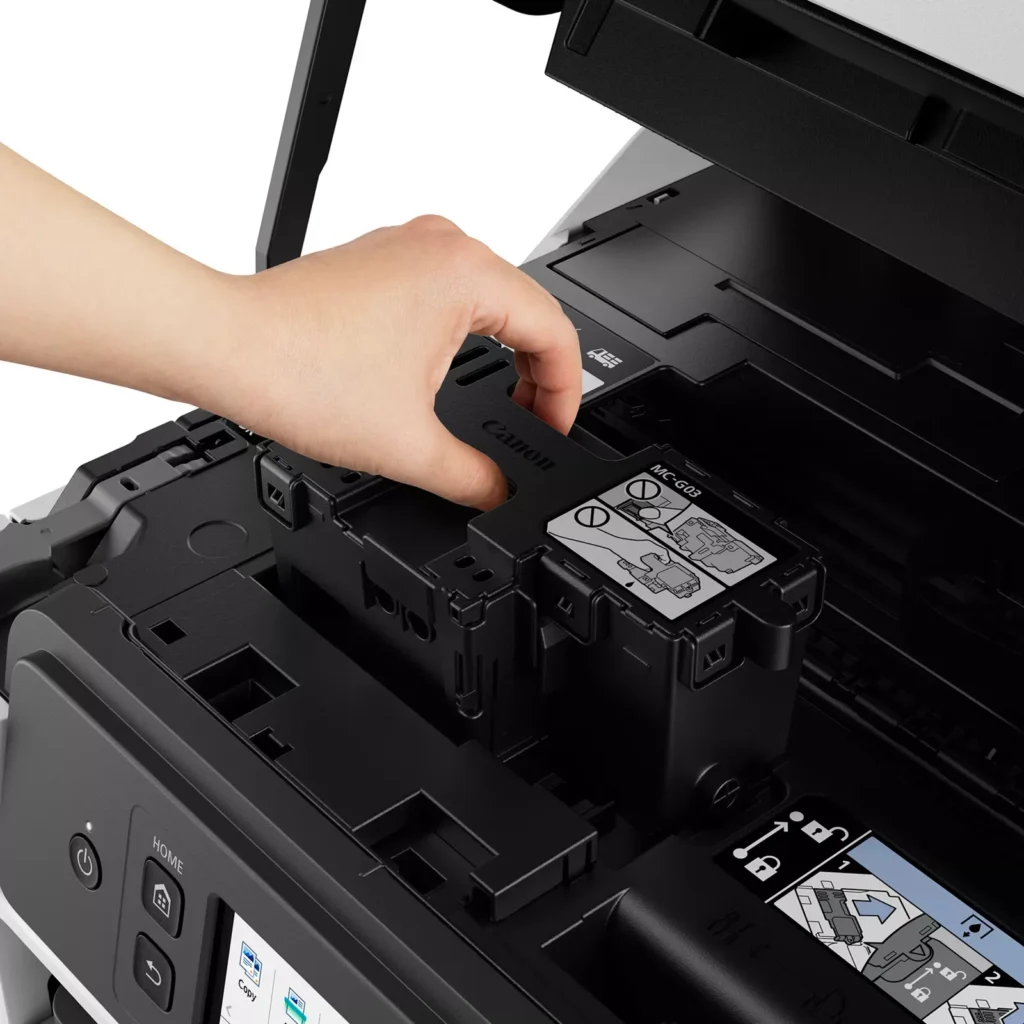
| User-Friendly Maintenance and Reliability | Designed for minimal downtime, the printer features a user-replaceable print head and maintenance cartridge that can be swapped without a service call. It is further backed by a 3-year or 80,000-page limited warranty, providing long-term peace of mind for small business owners. |
Pros & Cons
Pros
- Exceptional Ink Efficiency: The MegaTank system offers a massive ink capacity that lasts for thousands of pages, with a mess-free refill process that significantly reduces long-term operating costs compared to cartridge-based models.
- High-Quality Print and Scan Results: Reviewers consistently praise the printer for producing crisp, professional text and vibrant colors on various media, including glossy photos, stickers, and heavy cardstock.
- Versatile Media Handling: The device features multiple paper sources, including a high-capacity front cassette and a rear tray, allowing users to keep different paper types loaded simultaneously for diverse projects.
Cons
- Persistent Connectivity Issues: A significant number of users experienced frequent WiFi disconnections, difficulty with AirPrint, and a complex setup process that often required manual IP configuration to remain stable.
- Slow Operational Performance: The printer is noted for being slow to wake from sleep mode, having a sluggish touchscreen interface, and taking a long time to process and print documents, especially in high-quality mode.
- Limited Scanning Features: While the printer supports automatic duplex printing, the document feeder lacks automatic duplex scanning, requiring users to manually flip pages to scan both sides.
You might also like
Customer Reviews
Showing reviews 241-250 of 261
-
Great Printer with Small Limitations
Dalton December 30, 2022Review source: BestbuyThis printer does a great job of being what it was designed for, a great home office printer. Setting up the printer was easy and I didn’t run into any problems following the on screen instructions. Setting up the wireless was flawless. Filling the tanks was as easy as turning the bottles upside down and placing them on the tanks. Because the bottles are keyed, you can’t fill the tanks with the wrong colors and there is no mess filling them. The bottles are probably more environmentally friendly than cartridges.
The print quality is sharp and the colors vibrant. The speed was very fast. The paper tray can hold a lot of paper. The print quality of photos is very good but don’t expect the same quality as a photo printer. Also, the printer cannot print borderless photos which is unfortunate.
The ADF is only single sided however, it will ask you to place all the documents in the ADF, will scan them all, then ask you to place them all face down, then scan them all and print all pages double sided. This is basically almost as easy as a real two-sided ADF.
I did run into some minor problems that are worth pointing out.
When trying to print from certain applications, such as Outlook, it insisted you print from the rear tray. Even if you are printing 8.5 x 11 and have paper in the main tray and have the print properties set to use the main tray, it still insists on printing from the rear tray so be prepared to load paper into the rear tray when needed. Hopefully this is just a bug that will be fixed.
When trying to print 4×6 photos from the rear tray, even if you load the photo paper correctly into the rear tray and have it set for 4×6 paper, it will tell you that the wrong size paper is loaded. The only way to get around it is to force it to bypass the paper check. Again, hopefully this is just a bug that will get fixed.
In the printer settings, you must set what size paper is used in each tray. In the above cases, switching between printing letter paper from say Outlook and then switching to printing photos requires you to navigate a few screens on the printer’s screen to set the paper size and type. You can’t just load in the right paper and go if you change sizes.This is a great printer I would recommend as long as you are not printing photos. And hopefully Canon will fix the couple of bugs I encountered.Read More
-
The Only All-In-One Printer You'll Ever Need
mstanleynh December 30, 2022Review source: BestbuyI’ve had several All-In-One printers from different manufacturers over the years, but I’m now hooked on the Canon MegaTank printers. Canon’s new MAXIFY MegaTank GX4020 Wireless All-In-One is the perfect small or home business do it all printer. The printer utilizes tank technology and gets away from replacing cartridges. For me, this is a win-win as the printer boasts page yields up to 6K in black & white and 14K color and I don’t have to worry about replacing and recycling all those cartridges!
Unboxing – The printer is well made, and Canon’s build quality is evident in this printer. Included in the box is the printer, power cord, 4 x ink bottles, a fax cable and instruction material. The printer was well packaged and easy to unbox and get ready for setup.
Setup – Canon has done a great job of providing an easy setup process whether the unit is being run via ethernet or WiFi. My printer is setup on a Mac and was easy to install by selecting “add new printer” in System Preferences. Within minutes it was connected and printing via WiFi. I also downloaded the Canon PRINT app on my iPhone 13 Pro and setup AirPrint as well. This is an important aspect for me as much of my work is done on Apple mobile devices and the ability to print from or scan to these devices is essential.
Filling the printer with the supplied ink couldn’t be any easier. The bottles are key coded so you can’t put the wrong color into the printer. It’s as simple as picking the color ink, lining it up with the proper tank and connecting the bottle to fill. There is no chance of spilling or creating a mess!
Print Quality – My usage is primarily home office for real estate, so I need the ability to print on legal/letter paper and print color flyers and marketing materials. The Canon MAXIFY GX4020 handles all my requirements and then some. It prints on business card stock all the way up to oversized marketing signage. Black & White printing is above average, and the output far exceeds my needs/expectations. Although this isn’t a photo printer, the output quality on photo paper was impressive as well for an office AIO. I’ve actually printed and hung a number of my travel photos around the house.
Features – The GX4020 will print up to 1200 x 600 DPI, has a 2.7″ LCD touch control panel, supports WiFi, mobile printing/scanning and duplex printing. There’s a multiple paper trays and feeders to provide up to 350 pages in the printer. There’s also a document feeder for the scanner, which is an absolute must in my office. It holds up to 35 pages, so scanning a large document or agreement is a snap. The GX4020 also supports FAXing, which seems a bit antiquated, but is still needed occasionally. If you need to fax documents, then this printer would be an excellent option.
Pros:
– Easy to setup and operate
– High paper/output yield due to MegaTank use
– Great build quality and 3 year / 80K page warranty
– Support for AirPrint and other mobile devices and apps
– Print speed and output quality is superb
– 2.7″ touch LCD for operation
– low operating cost based on output capacities
– Fax capability if needed
– Works with Alexa and Google AssistantCons
– Initial cost of ownership on the higher side, but will average out over multiple years of usageAll-in-all the Canon MAXIFY GX4020 All-In-One printer is a great solution for a small or home office environment. It’s easy to set up and operate and will help to reduce printing costs over time with the use of MegaTank technology. If you’re in the market for this type of printer I would certainly recommend the Canon GX4020!Read More
-
Excellent all around printer for the home office!
Bren December 30, 2022Review source: BestbuyThis printer is exactly what was needed in my home office environment. Between the efficient printing, scanning, and fax ability on this printer, I feel that all facets are covered with excellence by this printer with cannon.
I have trialed various printers throughout my time both in school and in my professional work life and I have determined that printers like this that use ink bottles are my favorite in terms of overall cost efficiency for the volume I actually print at. Buying ink cartridges is costly and disposing of them is harsh on the environment. I like ink bottles because I can purchase exactly what I need and see myself how the stored volume in the container is being utilized in the print cycle.
This Maxify GX4020 printer from Canon performs with excellence and actually retains a relatively small footprint considering its utility and functionality. In consideration of the competition that is in the market for printers, I am very glad to own this one! Thanks for reading and I hope these are some encouraging words towards your purchase decision!
-
Perfect All-In-One printer for my home office!
JohnR December 30, 2022Review source: BestbuyFor an All-In-One printer, I found the set-up of the Canon Maxify GX4020 to be surprisingly easy. The machine was packaged nicely in the box and was relatively easy to remove and get set up in my office. This printer comes with minimal paperwork; the manual (if needed) is found on the canon website via a QR code. The only thing missing in the setup instructions is a reminder to remove the orange packing tape. Once the tape is removed, you are ready to connect the power cord; press the ON button; and follow the instructions on the printer’s screen. The set-up process is pretty neat, as you are prompted and instructed on a screen that you can also interact with via touch inputs.
Since the paperwork indicates that the ink will stain if spilled, I was somewhat concerned about adding the ink. My concerns were unfounded, as carefully removing the lids and adding the ink was quick and easy. The on-screen instructions only show adding one ink color at a time, but each of the 3 colors and the black are all added the same way. The way the bottles are made seems to keep the ink in until they are placed in the printer, meaning spilling them wasn’t a problem at all.
There are three (yes, that’s three!) paper trays. The Cassette is for plain paper and the Rear Tray is for envelopes, photo paper, or legal paper. I haven’t used the Rear Flat Tray, but the manual indicates that it is for Paperboard.
After adding the ink and the paper, I connected to my Wi-Fi using the printer’s touch screen. It was easy enough, but the password entry was reminiscent of old school texting (not fun!). With the Wi-Fi connected, I tried printing from an Apple computer, a PC, and my iPhone. Everything printed as it should. Also, there is the option for double-sided printing. On the printer screen, touch Settings, then Feed Settings to change the paper size and type for the printer trays. There is a setting labeled Detect Paper Setting Mismatch, which is automatically enabled, so I disabled it. Using the touch screen to adjust settings is simple, and so far I haven’t found the printer to be difficult to use.
Next, I tried the scanner. On my Apple computer I opened the Printers & Scanners, clicked on the Canon GX4020, then I clicked Open Scanner and scanned from my computer. On the PC, I downloaded a Microsoft Scan app and used it to scan. On my iPhone, I downloaded the Canon PRINT app using the QR code on the printer’s screen. Both the flatbed and the feeder scanned nicely: I didn’t have any jams with the feeder, but for double-sided images, I had to scan side one and then flip the pages for side two. Copying is accomplished pretty similarly to scanning and was very easy to do.
The print quality is phenomenal. I printed some sheets with text and some graphics, and everything was clear, crisp, and well defined with great colors. Next, I tried printing out some glossy photos using some photo paper I had. These really turned out awesome and looked pretty similar to photos you might get developed from the store. With the copying feature, I copied some color documents I had, and the results were vivid and sharp. Overall, there doesn’t seem to be any task that this printer can’t handle.
I haven’t had a reason to use the fax feature yet, but so far this seems to be a great multifunction printer. I especially like that the Canon Maxify GX4020 can print 6,000 pages in black and white, or 14,000 pages in color (according to their website) on a new “full ink bottle set”. With the set-up ink included in the package, it can print 5,000 black and white pages, and 5,000 color pages. Canon also states that this printer has a 3 year or 80,000 sheet warranty, meaning it will likely last the average user for a very long time.
Speaking of lasting a long time, the build quality on this printer seems very good. Everything feels high quality, and little details like being able to visually see the ink levels are nice touches that Canon implemented in its design.
This printer will definitely become my “go-to” device anytime I need to print, scan, or copy documents and pictures. With its ease of use and wide range of functions, I cannot imagine I will need any other machine when it comes to tasks related to printing in my home office. While I haven’t needed to test it, the fact that it also can fax is an added bonus to anyone who might need to use that feature. Additionally, this printer will be able to print for a long while with the included ink, which is easy to refill when the time comes. If you’re looking for an All-In-One printer that can handle just about anything you throw at it, I wouldn’t hesitate to check out the Canon Maxify GX4020.
-
GREAT PRINTS / SCANS / COPIES – OK SPEED
TheOffice1234 December 30, 2022Review source: BestbuyCANON – MAXIFY MEGATANK GX4020 WIRELESS ALL-IN-ONE INKJET PRINTER WITH FAX – WHITE
Model:5779C002SKU:6528709
GREAT PRINTS / SCANS / COPIES – OK SPEED
The GX4020 produce great image results when printing / copying / scanning. It is not the fastest (but fast enough), especially in High Quality Mode, but the prints are really outstanding. CANON has made great improvements over past generations in setup, and on-screen touch screen operations.
The only thing missing from the GX4020 is automatic duplex scanning. Though it does have manual duplex scanning. Additionally, the scanner is limited to 600 dpi optical, but in general that is more than enough without creating massive files.
PROS
– Compact Footprint
– Fantastic Print Quality (bright and crisp)
– Long Life INK Tanks
– Scanner supports books / magazine scanning
– Good Paper Handling for card stock / etc
– Much improved Setup over previous models
– Color Touch Screen ControlsCONS
– Scanning app is a little fussy in order to get full page high resolution scansSETUP / UNBOXING
Setting up the GX4020 was surprisingly easy (compared to prior generations). Take off all the orange tape, plug it in, turn it on, and follow the on screen instructions. It does take about 30 minutes overall, just due to the process of filling ink, and priming ink, and loading software on the PC. A few minor nits on the setup process. It looks like on the setup animation you only fill the yellow ink before going to next step, but you need to fill them all. On the test / alignment page it only prints Blue / Black which made me think something was wrong with the other colors. But I need not have worried, all the colors worked fine. Priming the ink tubes uses about 25% of the color ink (which is normal). Previous Canon tanks gave you enough extra ink to top off the tanks after priming. That is not the case with GX4020. Again, not a show stopper, just something to be aware of if you are used to older Canon tank printers.
OPERATING
PRINTING
The prints were very good quality and the colors were vibrant. A huge improvement over prior Canon Tanks. I would put the photo quality up against the best that the leading competitor has to offer. As mentioned, it was not the fastest printing, but certainly acceptable.
COPYING
In my test Photo Copy, the copy was almost indistinguishable from the original.SCANNING
The scanning app is a little odd, by default it breaks the pages into multiple images based on whatever formula it uses. You have to change the size from “auto” to “letter” if you want to capture the full page, intact. Otherwise, it basically auto crops into separate images. Once I changed the default behavior it worked as expected.
FAXING
I fax about 3 times per year. In my test fax it worked as expected. It is not a feature I use often, but when you need it, you need it now.
SUMMARY
Overall the GX4020 does everything it is supposed to do, and the quality is fantastic. The GX4020 was easy to setup and use. The touchscreen is intuitive and makes it easy to use. It is not cheap. In fact one could claim it is expensive. At this price point I would have expected automatic duplex scanning and a higher resolution scan / print. However, because of the tank ink, you probably will save on ink in the long run. My prior Canon tank printer was still on the first bottles of ink after 18 months. (we print a few pages every day).
The GX4020 is the best quality tank printer I have tested to date.
-
Reliable, super efficient, and high-quality all-in
Zaid December 30, 2022Review source: BestbuyThis Canon MAXIFY GX4020 all-in-one printer is meant to serve the purpose of fulfilling any printing job efficiently at a low cost of the printer. I’m super impressed by the quick setup and high-quality printing. Setup is like a breeze as the instruction is written on a single piece of paper that promotes me to scan the QR code and start from there. So I scanned the code, immediately was in setup mode, and followed instructions to fill the ink tank with the supplied ink bottles. Filling the ink is mess-free. Each color has a unique lip, so it goes into the ink tank; just flip each bottle upside down and let it fill the tank. Once all of the ink tanks were full, I was promoted to set up the wifi, which also can be done on the touch screen (2.7″), but I did everything through my iPhone, and within 20 minutes, the printer was up and running, what I liked about this printer. First, setup is super easy and does not require the user to be tech-savvy. Second, it has a reliable wifi connection, and my AirPrintng is fast, and the printing quality is super duper high. The third is an auto paper feeder feature for scanning and copying; it does not need to change the feeder source, which is fantastic. Note: the printer goes to sleep mode after a few minutes of inactivity for power saving, but this feature can be turned off from the printer setting, which makes sense because when I need to print anything, I don’t have to go and wake it up by pressing the power button. I already have the Canon print app on my iPhone and iPad, so I just had to add the printer to the app and have access to check the ink level, print and scan from my phone, and print photos. This Canon MAXIFY GX4020 Wireless MegaTank All-in-One Color Printer, Copier, Scanner, and Fax is a must-have device. I’m super satisfied with its reliability and efficiency and ink cost saving. Besides, it comes with a single power cord and no power brick.
-
Easy to use printer with great print quality!
Incentivized Incentivized review: The reviewer received a benefit for sharing feedback.KKT December 28, 2022Review source: AmazonThe setup is relatively simple. Just add paper, add ink, and follow the online instructions for setting up your wifi connection on your phone. Now, if you want to do a more in-depth setup, you will need to download the user manual that was mysteriously missing from my box. It is easy to find on the canon website, so it was not a huge deal. I set up my system to run over LAN to avoid issues with another WIFI intrusion site. Once you follow the LAN setup instructions, download the setup.exe file from the Canon website, and this thing is ready to go for any computer on your network. I like the convenience of adding printer ink rather than constantly having to buy new cartridges, as the ink seems to dry out before I have time to use it. My one complaint is that the ink fillers require specific bottles to fill the ink reservoirs. Canon also ensures that the current bottles’ caps are not easily removed to refill the bottles. This a joke, and I will find a way around this obvious marketing ploy to force you only to buy ink from canon. The scan quality is excellent. I can use this as a document scanner, like any copier, is terrific. Now I can scan multipage documents rather than taking single photos with my phone. Overall this is a beautiful printer and a perfect fit for a small office. I would not say this is ideal for a home office unless you are printing daily. I would say for home use, this is probably overkill for the one print job you probably do a month.
-
Capable, if it doesn't give you technical problems
Incentivized Incentivized review: The reviewer received a benefit for sharing feedback.LNL December 25, 2022Review source: AmazonSo this printer comes fully loaded. I’ve not used an inktank before and thought set-up would be trickier, but no – ink is easily put in by draining the bottles into the reservoir. It comes with a starter pack, and the black ink bottle holds more than the printer does; that’s not so bad, black always goes fast, though it mentions that the ink bottles could dry out if drained a little? hopefully not anytime soon.
It’s not small, but that was expected. Any L-desk it sits on, it’ll dominate its corner. But, it’s not so big it can’t fit on most shelves, and not so heavy it can’t be moved by one person.
Now for me, I wanted a printer for copyrighting materials and the occasional odd-job print, as well as scanning in older documents & sketches. This meets all of those nicely. I’d like having some of my written works copyrighted and the office prefers a hardcopy for some things. A machine like this can do it without trouble… except, for me, there WAS trouble.
Error Code 2500, Auto Print Head Alignment Failed. It’s, as far as I can tell, very fixable – a minor error. It asks to refer to the manual, except, it doesn’t come with a paper manual. Neither is there one online. Nor was I able to reach customer service (no number, just a link maze).
Luckily! this is a universal canon code. So I did manual head alignment, and that worked.Then during setup, it gave me a different problem – the serial number wasn’t where the web UI said it would be, which is (probably?) the default password that needs changing.
But, that doesn’t stop it from working, so I went onwards. WPS wasn’t working so I tried setting it up manually through Devices & Printers, but the Maxify GX4020 doesn’t give me a proper driver to choose from. It miiight work through a USB connection (it has a USB-B, though an USB-A or C would make this so much easier), except it didn’t come with an adapter for its port and I don’t yet have one.Much of this could’ve been made simpler with a paper manual or driver disk (though, nobody does those anymore). If it works fine out the gate, this seems like a very capable multifunction device. But if it stumbles like it has for me, there’s no support and hopefully you’ll be better technically inclined.
Once I’ve it better set-up and running rightly, I may update my post. But it’s been struggles for a week now and I didn’t wish to hold off for much longer.
-
Huge improvement over my old printer.
Incentivized Incentivized review: The reviewer received a benefit for sharing feedback.RPH_EDH December 20, 2022Review source: AmazonThis printer replaced an HP Envy printer that really never quite worked the way it should. It printed well when it would actually print, but every time we wanted to print – with it being a wifi connected printer – we would actually have to do a hard reboot on the printer. Basically unplug it and plug it back in.
This printer has not had any of that. We have printed quite a few things for the holidays: Christmas letters, school projects, etc. No issue with a print job starting or running.
The printer has an auto sleep feature which you can customize. It was initially set in a way that wasn’t working for us, but that took about a minute to change to what works for our situation.
I have not scanned or copied on it yet, but since the printer works so smoothly I think that won’t be an issue.
It has a small footprint. So you don’t need a whole area dedicated to your printer.
The paper drawer is large so you don’t have to fill that often.
I really like the ink set up. The printer holds a lot of ink. Much more than little printer cartridges. And you can look and see where the ink is without any need to look at an app or status screen, you can just see it.
This printer also advertises that you can easily replace the print head. That was something that a past favorite printer of mine did not have an option for. So you’re not out a whole printer if that fails. Replace the print head and you’re set, I like that reduction of waste and expense.
It is not a cheap printer and is targeted toward an office/home office setting. So it’s maybe not for everyone but it works very well, prints fast and has a lot of good features.
-
Looks good, good quality.
Incentivized Incentivized review: The reviewer received a benefit for sharing feedback.Irace4fun December 20, 2022Review source: AmazonGood quality printer at a great price. It gives a good smooth quick printing. I would recommend this one for anyone looking to get one.