Customer Media
Highlights
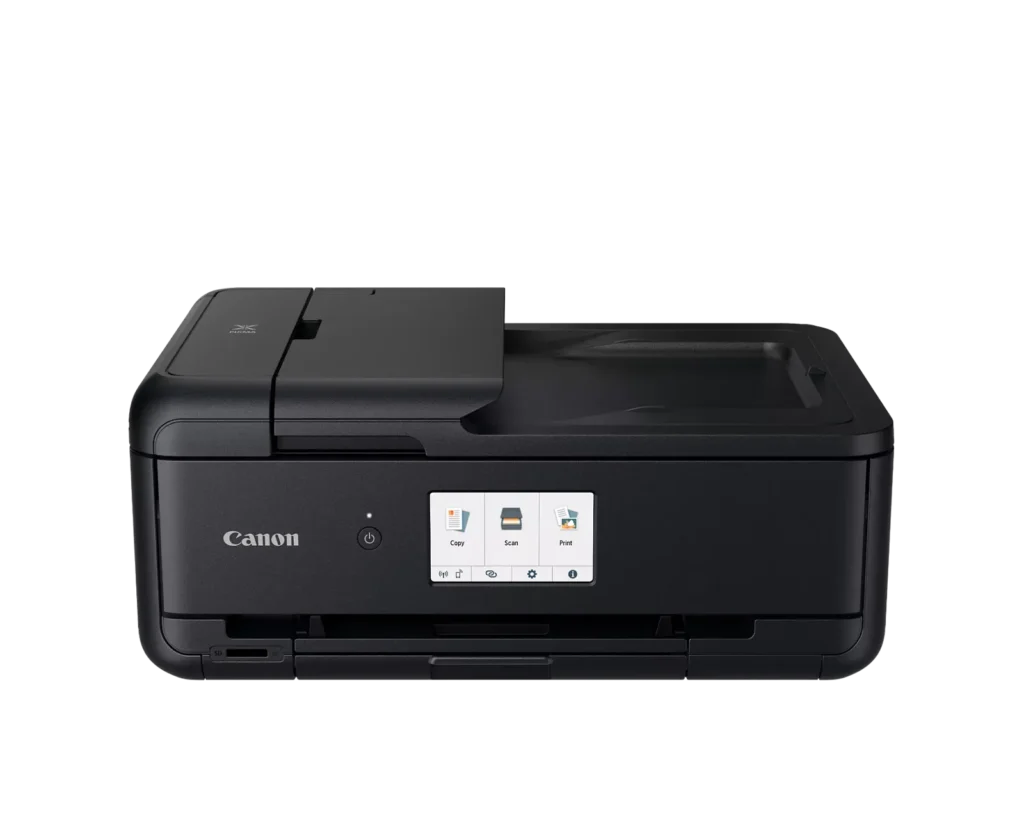
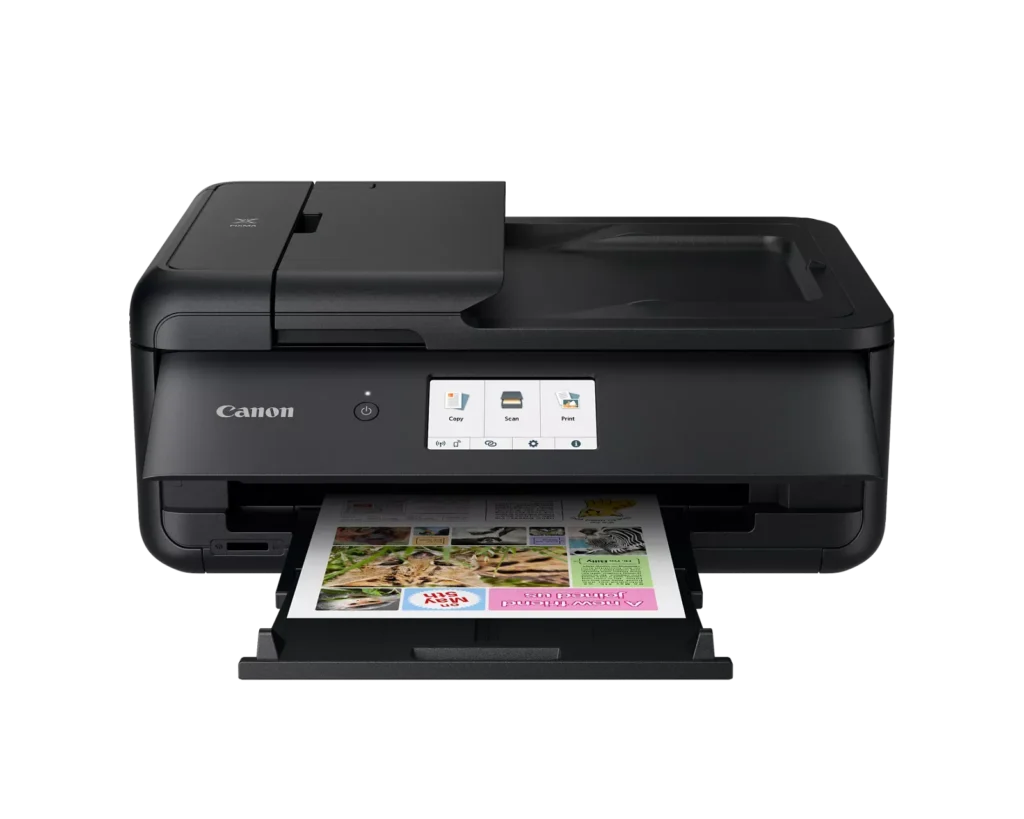
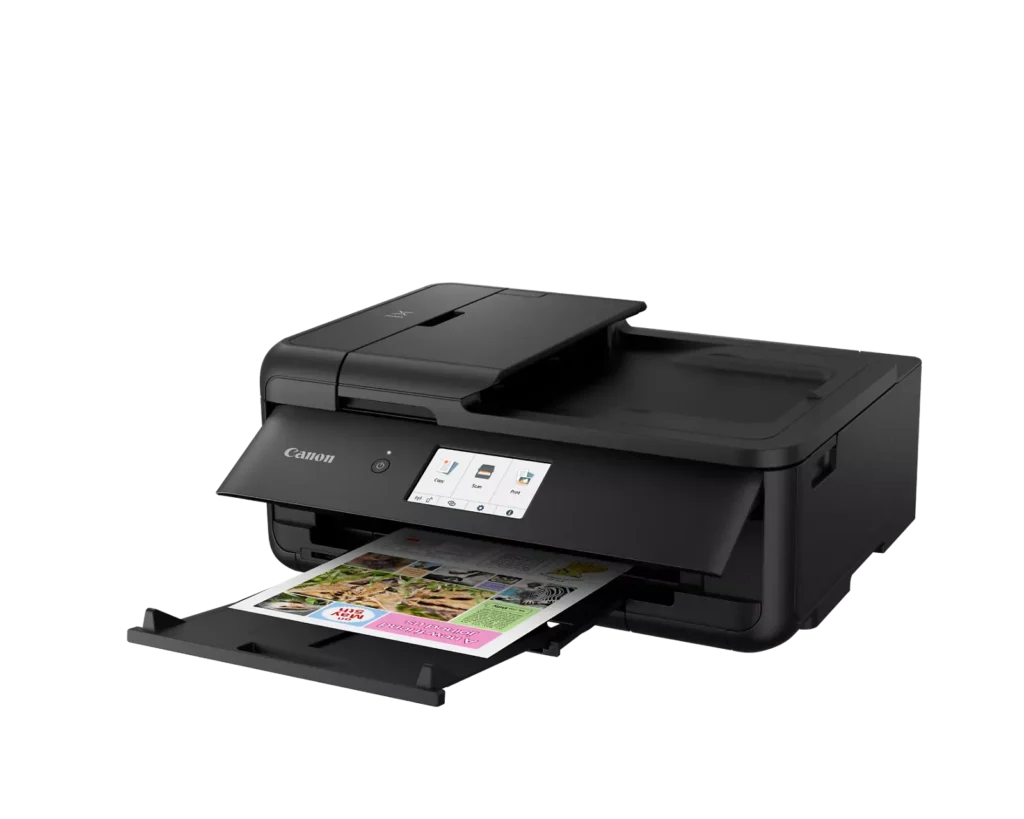
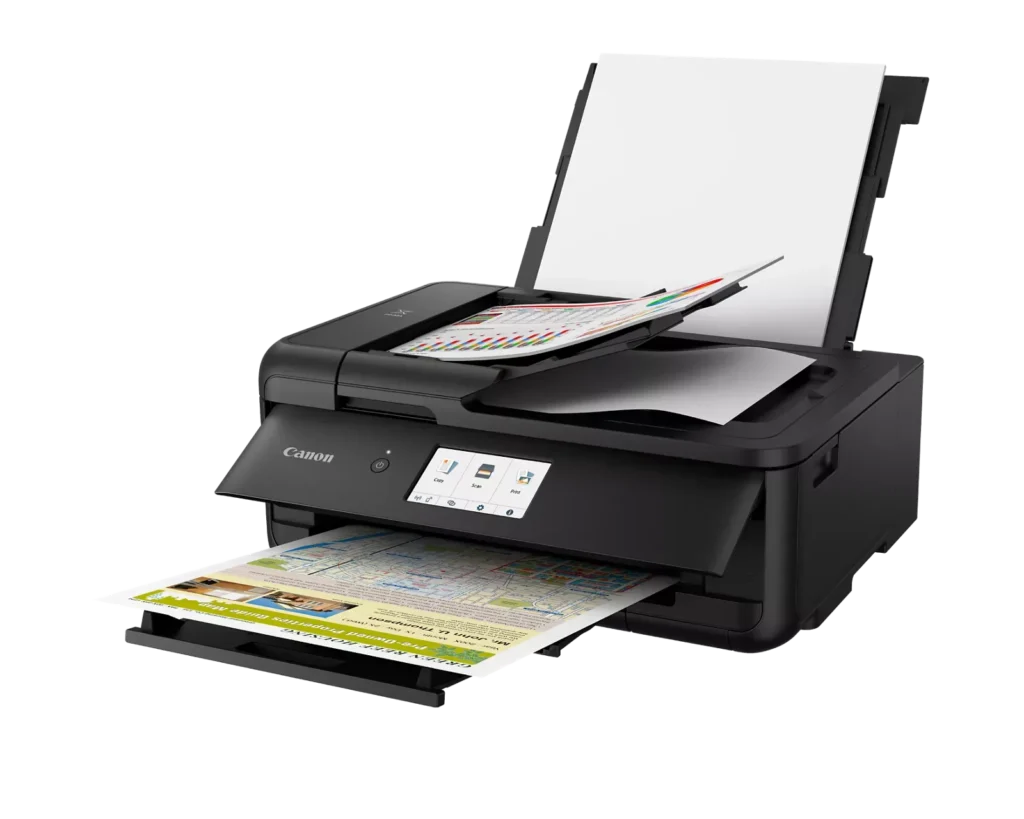
| Versatile Large Format Printing | The PIXMA TS9520a handles a wide range of media sizes, including 11" x 17" (Tabloid) for large documents and 12" x 12" square paper, making it an ideal choice for scrapbooking, crafting, and professional presentations. |
|---|---|
| 5-Color Individual Ink System | Utilizes a hybrid ink system with four dye-based inks for vivid colors and a pigment-based black ink for sharp, crisp text. The individual cartridge design allows you to replace only the specific color that runs out. |
| Comprehensive Wireless Connectivity | Easily print from your smartphone or tablet using the Canon PRINT app, Apple AirPrint, or Mopria Print Service. It also features built-in Wi-Fi, Ethernet for wired networking, and an integrated SD memory card slot for direct photo printing. |
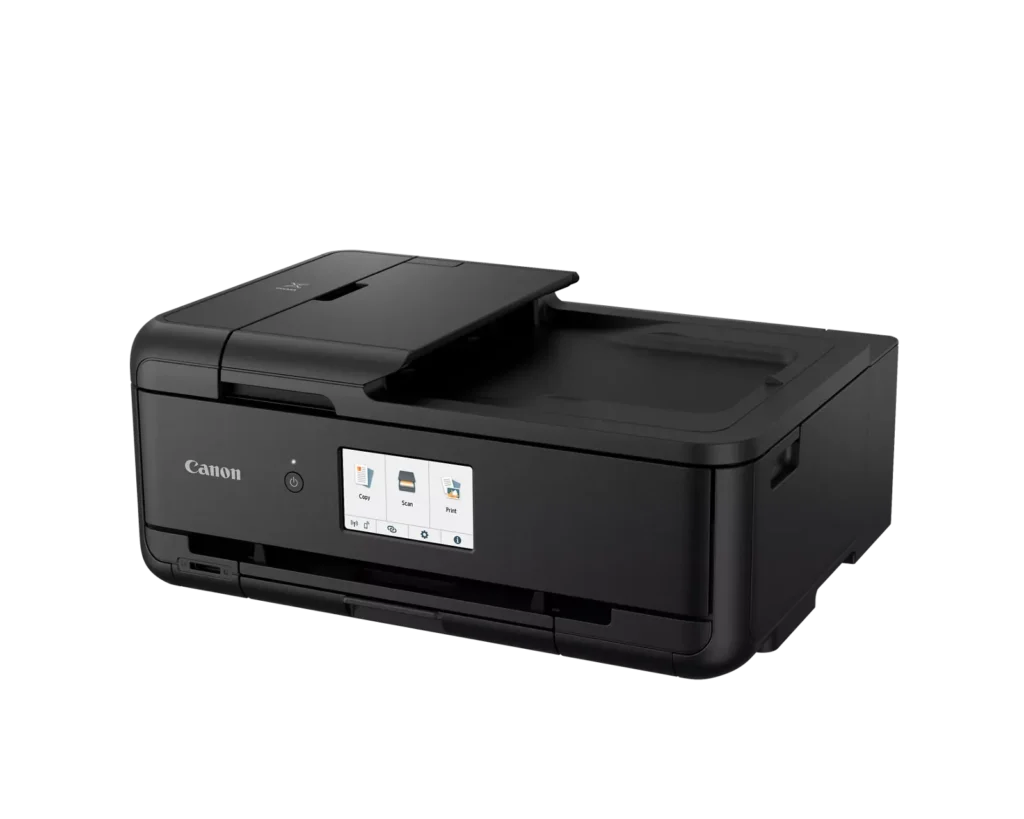
| Intuitive 4.3" Touchscreen Interface | Navigate printer settings, select premade printable patterns, and manage copy or scan jobs effortlessly via the large, easy-to-read 4.3-inch LCD touchscreen display. |
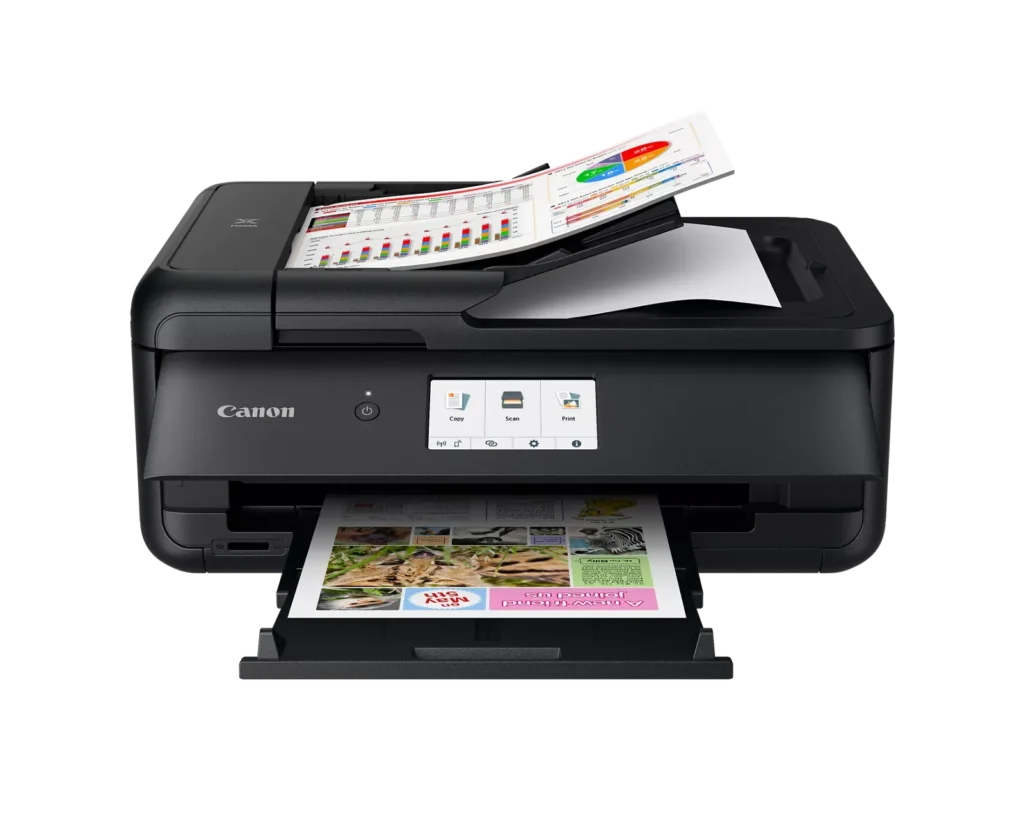
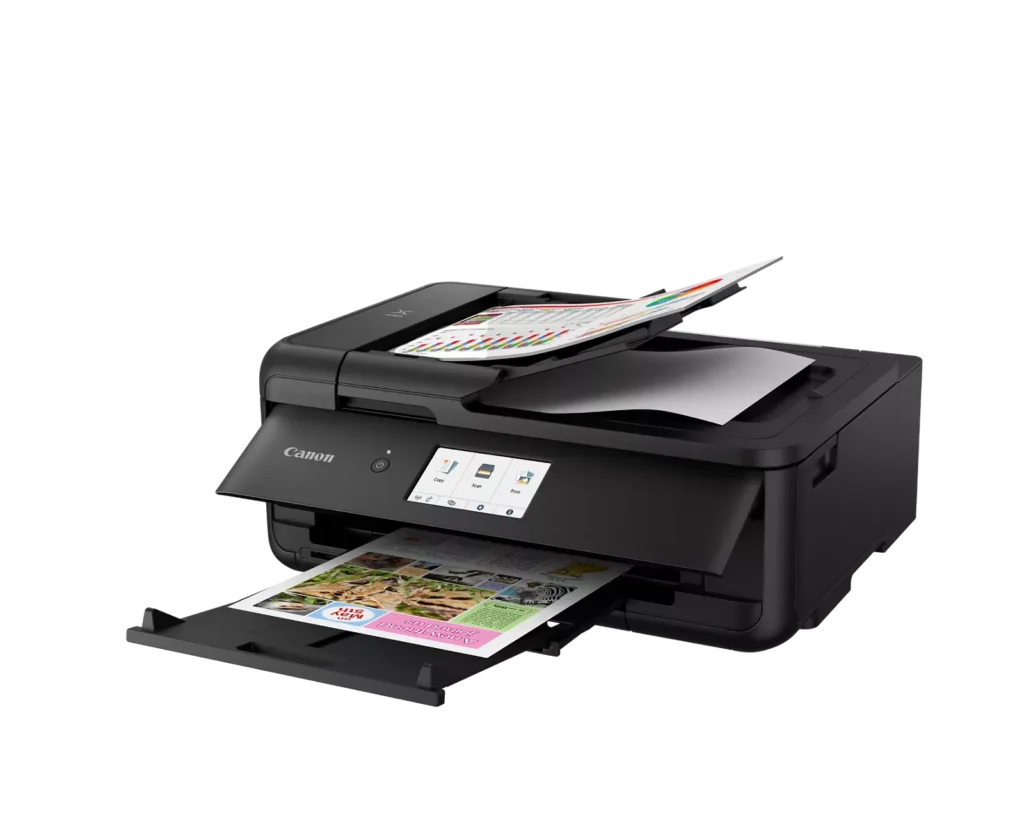
| Enhanced Productivity Features | Equipped with a 20-sheet Auto Document Feeder (ADF) for quick multi-page scanning and copying, as well as Auto 2-Sided (Duplex) printing to help reduce paper consumption and save time. |
Pros & Cons
Pros
- Versatile Media Support: The printer handles a wide range of media sizes and types, including 11×17 (A3) paper, legal-sized documents, and direct printing onto CD/DVD discs.
- High Print Quality: Users consistently report sharp, professional-looking text and excellent photo quality with accurate colors, often surpassing commercial printing services.
- Individual Ink Cartridges: The five-cartridge system allows users to replace only the specific colors that run out, and many reviewers successfully used more affordable third-party ink refills.
Cons
- Inconvenient Manual Design: A major point of frustration is that the front operational panel and paper tray must be manually opened for the printer to function, making remote or unattended printing difficult.
- Unreliable Wireless Connectivity: Many reviewers experienced frequent Wi-Fi drops, difficulty connecting to 5G networks, and compatibility issues with modern security protocols like WPA3.
- Frequent Paper Jams: A significant number of users reported persistent paper jams and feeding errors, sometimes occurring immediately out of the box or requiring the machine to be moved to access the rear door.
You might also like
Customer Reviews
Showing reviews 71-80 of 131
-
Good quality low ink price
Verified purchase Verified purchase: This reviewer bought the product.MKieffer March 9, 2025Review source: AmazonPrint quality very good. Ink is much less than HP. Issues: be carefull unpacking ink or use gloves, can get messy. Setup instructions need rework. I use win 11 and got stuck near end of setup and had to guess at final step. Got it setup without help, but not as easy as other device setups. I would purchase again so far
-
Very good printer
Verified purchase Verified purchase: This reviewer bought the product.Nevada Geezer March 7, 2025Review source: AmazonHave had zero issues with the Canon PIXMA TS9520 (non-a version). Bought this one as a backup replacement for whenever the original 9520 begins to experience old-age problems.
-
Best printer
Verified purchase Verified purchase: This reviewer bought the product.Big buyer March 2, 2025Review source: AmazonGreat printer. No getting stuck with HP overpriced ink supplies. Takes off brand ink. Very easy install.
-
Need help as soon as I bought this.
Verified purchase Verified purchase: This reviewer bought the product.Adam Sakry February 28, 2025Review source: AmazonI just plugged my new printer in that I received today, 2/28/25, and right away it comes up with a printer error. I have not yet asked it to print anything. I am just trying to get it started. Someone please help, I have shut it off numerous times, I made sure the ink cartridges are snapped in place, but I don’t think the carriage for the ink cartridges is okay, but not sure.
-
Uses the same ink cartridges that old printer used, was able to use my old cartridges
Verified purchase Verified purchase: This reviewer bought the product.Marke February 27, 2025Review source: AmazonEasy to set on my Mac, works just like the other Canon it replaced
-
Subpar
Verified purchase Verified purchase: This reviewer bought the product.Oliver Holistic February 25, 2025Review source: AmazonEasy to set up and impressive features. The print quality however is very lackluster. Will be returning.
-
problems with startup
Verified purchase Verified purchase: This reviewer bought the product.nwuser February 18, 2025Review source: AmazonThe problems with start up: the ink cartridges that came with the machine had very drippy runny ink, a real mess. I hope the replacement cartridges don’t have the same problem.
Also, the lid does not open very high so they are hard to see
The online instructions were a little overly complicated and could have been more concise.
I’m hoping this Canon will be as good as the older model I had.
-
READ THIS TO FIX OPERATIONAL PANEL BEING OPEN — print quality great, stupid design though
EDW February 3, 2025Review source: AmazonFirst, the fix for 1240 error code (in case you don’t want to read the full review): when you open the operational panel, there’s a white lever on the upper left side that’s held in by a pin. Carefully pry/jiggle this white lever off. This will trigger the black lever behind it to think the operational panel is still open.
Now for the review:
Any quick search will tell you the same thing: yes, unfortunately, the operational panel (error code 1240) needs to be open the entire time to print. This means you need to leave the operational panel open at all times if you want to come back to your desk from another part of the office to items you’ve told it to print with it all ready for you. It’s a stupid design. This is a hazard for the printer, including cleanliness (dust anyone?) and for objects around the printer. It takes up more space. It’s ugly. Things can bump into it, fly into it (morning bagel crumbs anyone?). The panel could break off. The list goes on. Wanna know what Canon’s excuse is for this feature? So people can read the screen more easily. I mean c’mon. STUPID DESIGN CANON!! YOU SHOULD FIRE WHOEVER THOUGHT THIS WOULD BE EFFICIENT!!There is a trick to solving this stupid stupid design. There’s a little white lever on the upper left side underneath the operational panel when you open it. A bit tight as it’s held in by a pin, but if you manage to pry/jiggle it off then the black lever behind it that triggers the printer to know the operational panel is open is tricked into thinking it’s still open when it’s closed. I hope this helps everyone with the space issue and overall design aesthetic of having an open operational panel. No longer will you have to have an ugly bulky printer exposing its guts on your desk.
And no, this does not break any other function of the printer itself. I saw the fix in a Canon forum thread, tried it for myself, and everything still works as it should — perfectly fine, no errors, etc… I promise this is just a stupid design from Canon that can be remedied at home by anyone with half a brain.
-
Canon PIXMA TS9520a
Verified purchase Verified purchase: This reviewer bought the product.DinSLTX February 2, 2025Review source: BestbuyGot this to a Canon MG6120. It is noisier and flimsier than the old printer. Even when set to not disconnect after a period of time, it disconnects and has to be turned off and then on using the button.
Expected more from Canon. Disappointing product. -
Good printer
Incentivized Incentivized review: The reviewer received a benefit for sharing feedback.Queen Bee January 30, 2025Review source: AmazonThis Canon PIXMA TS9520a – Wireless Home All-in-One Inkjet Printer has been printing and scanning very well for my teenage son. It was not hard to connect to wifi or my son’s laptop, but I am having a hard time getting it to link to my phone. I keep getting a printer error message.
We have been using it for a few months, and it still prints beautifully with the original ink cartridges. I have an extra set on hand.
It is easy to load paper and scan items.