Customer Media
Highlights
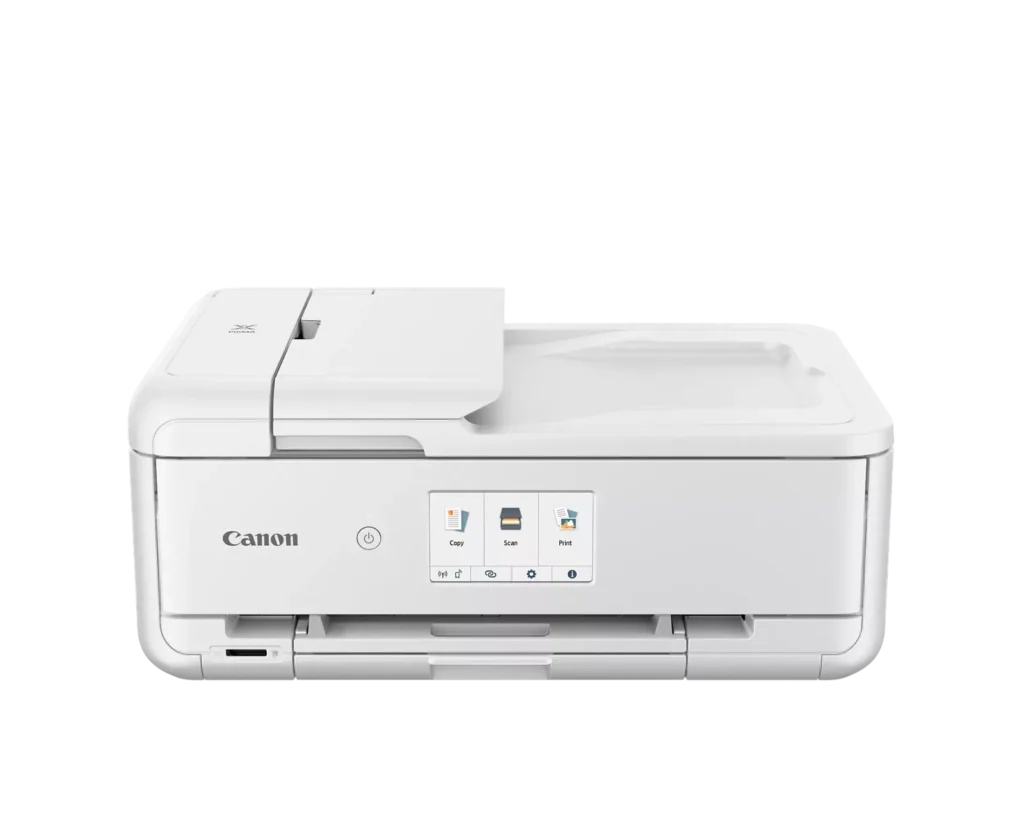
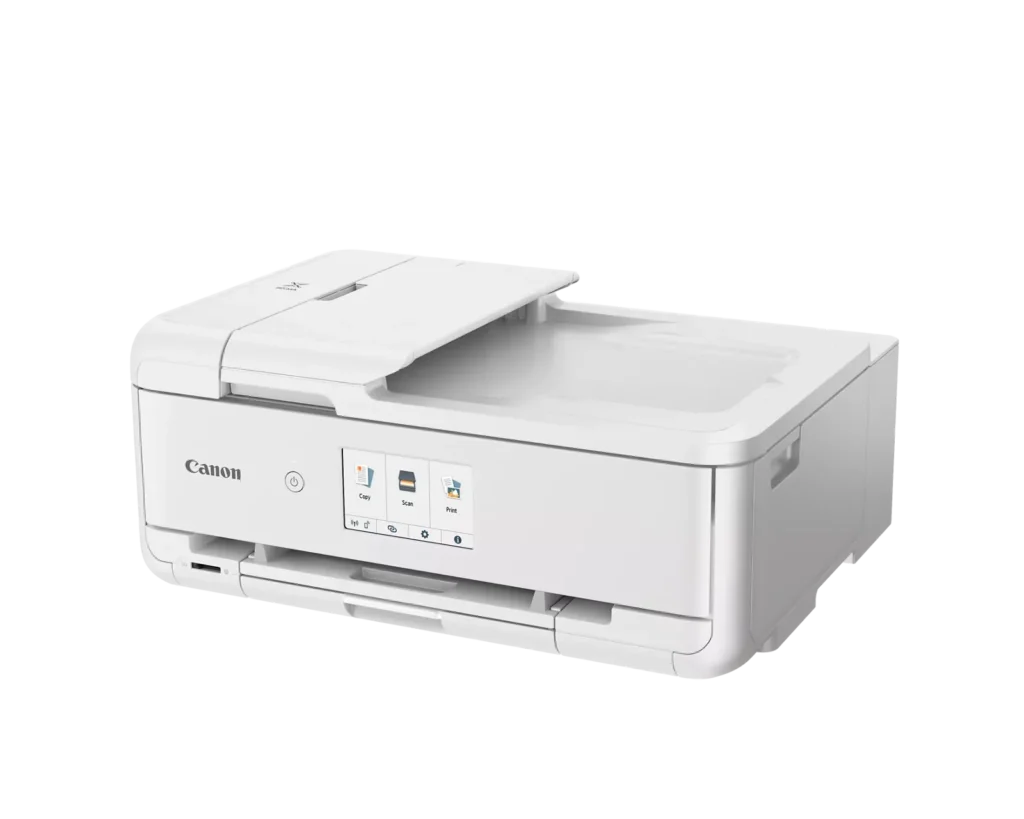
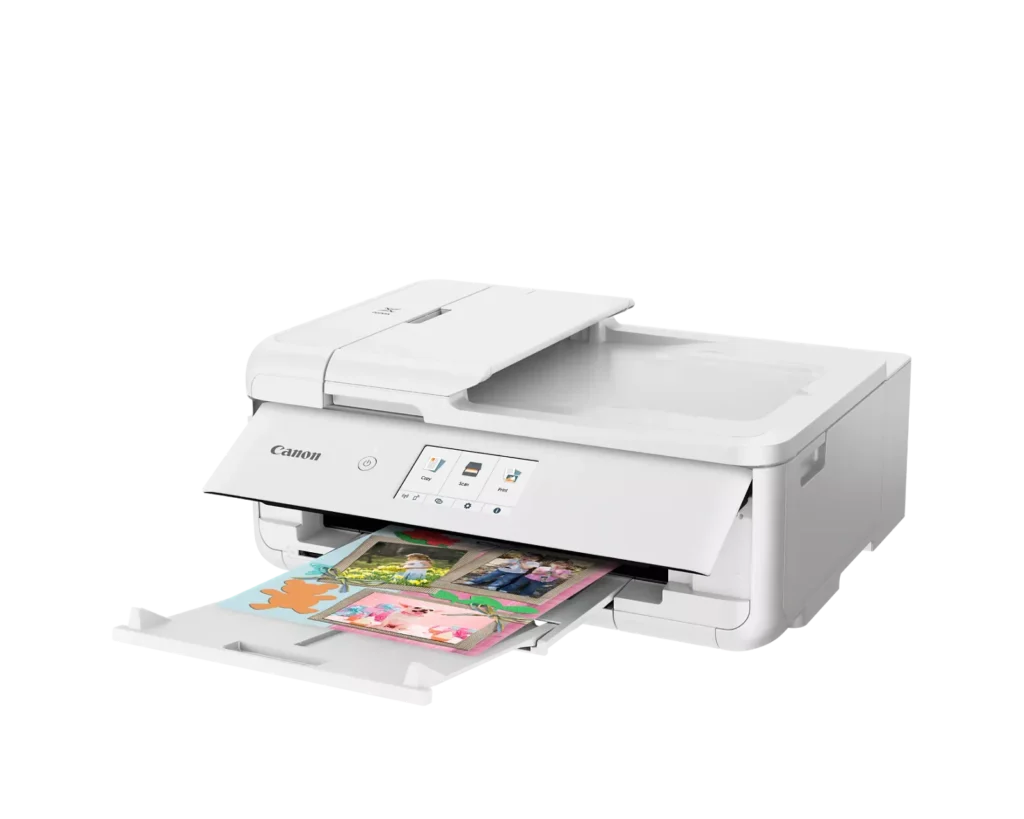
| Versatile Crafting & Large Format Printing | Specifically designed for creators, this printer supports borderless 12" x 12" printing—perfect for scrapbooking—and can handle large documents up to 11" x 17" (Tabloid size) for calendars, posters, and professional-looking projects. |
|---|---|
| 5-Individual Ink System | Utilizes a hybrid ink system with five individual tanks, including a pigment-based black for sharp text and dye-based colors for vivid photos. This efficient design allows you to replace only the specific color that runs out. |
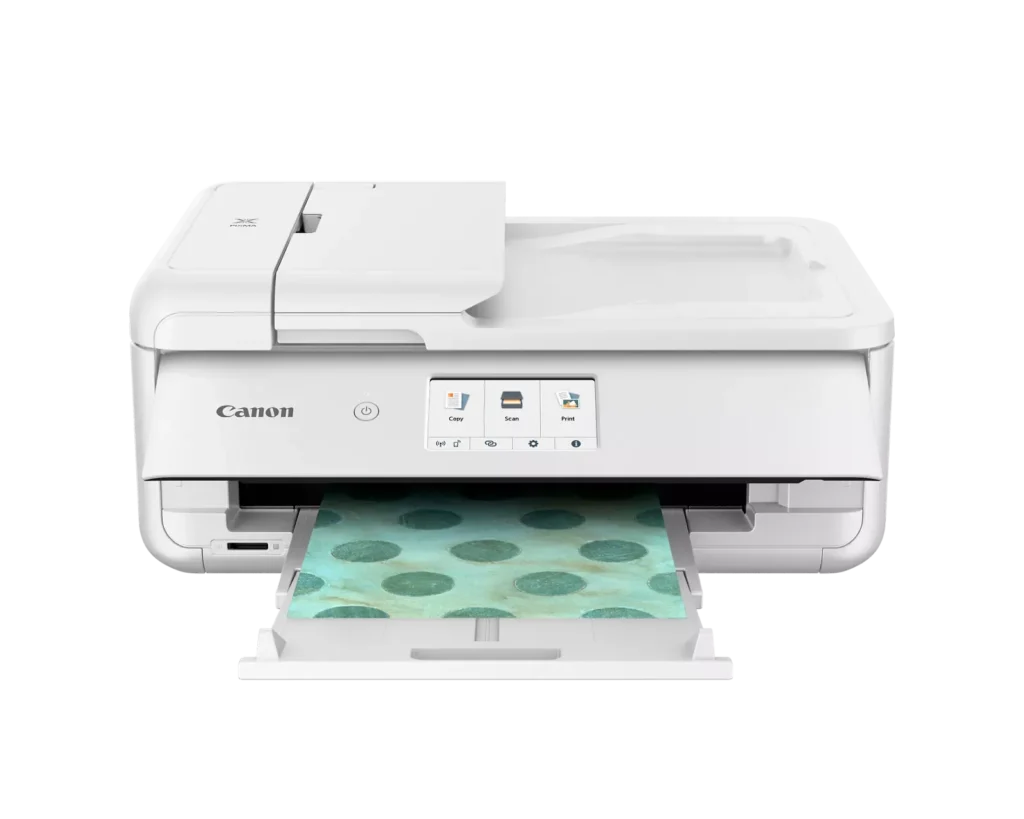
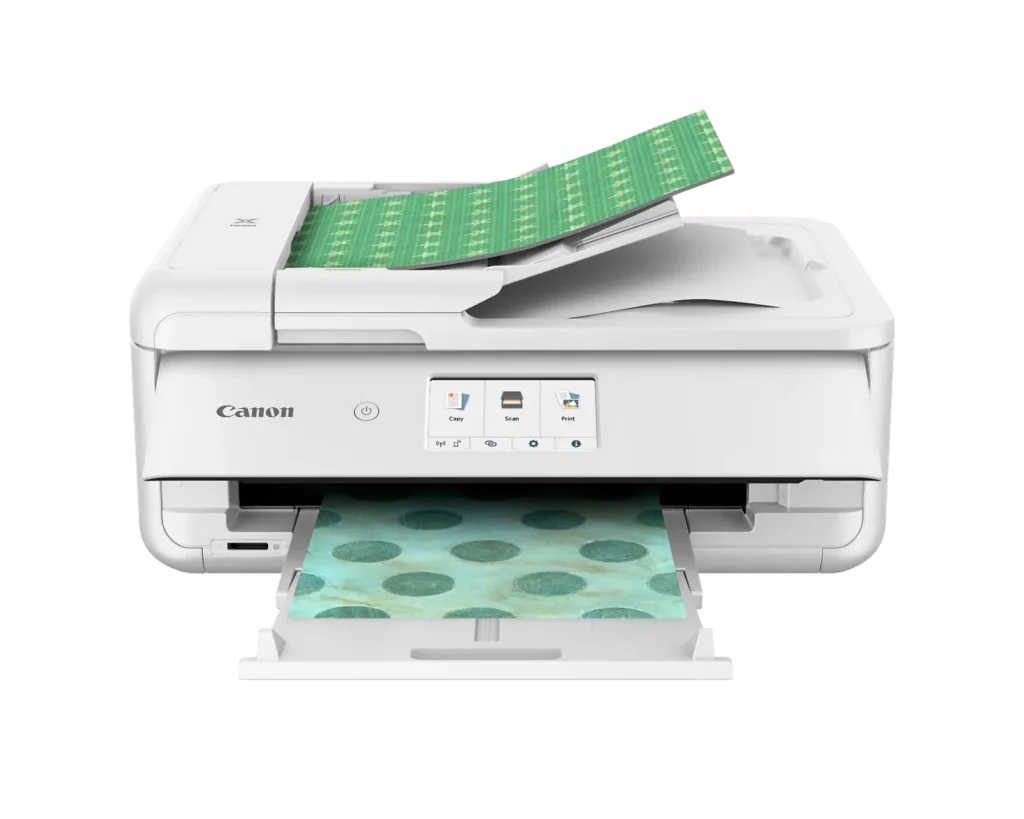
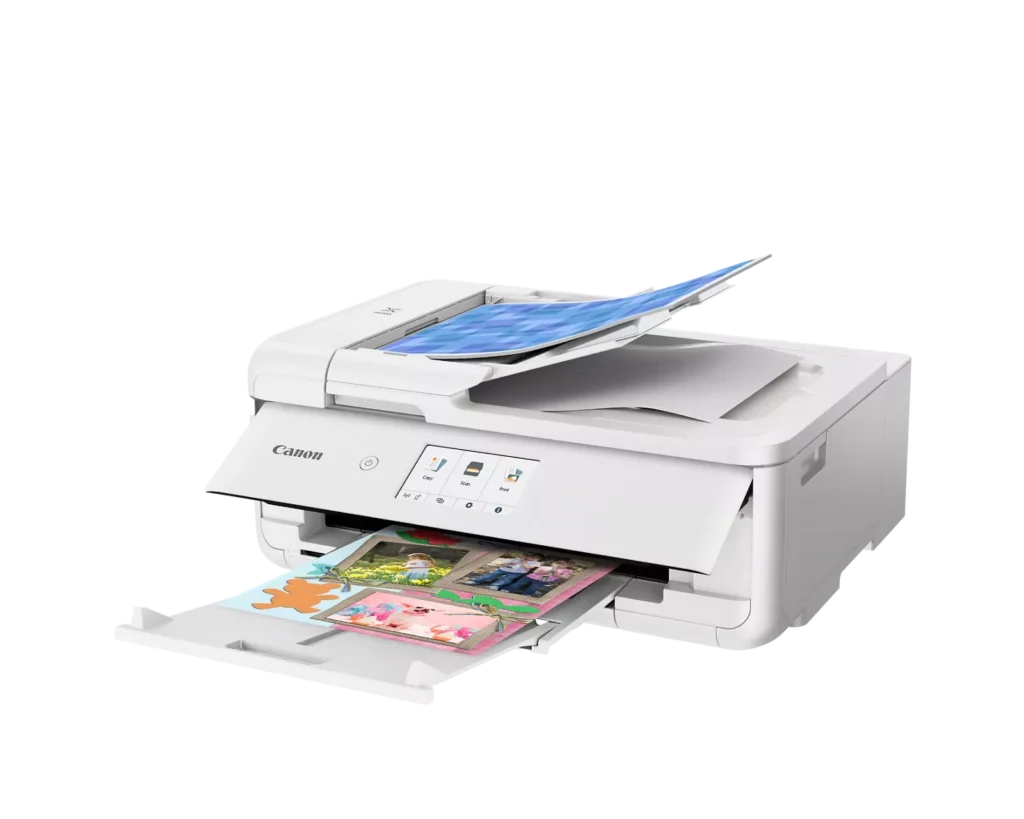
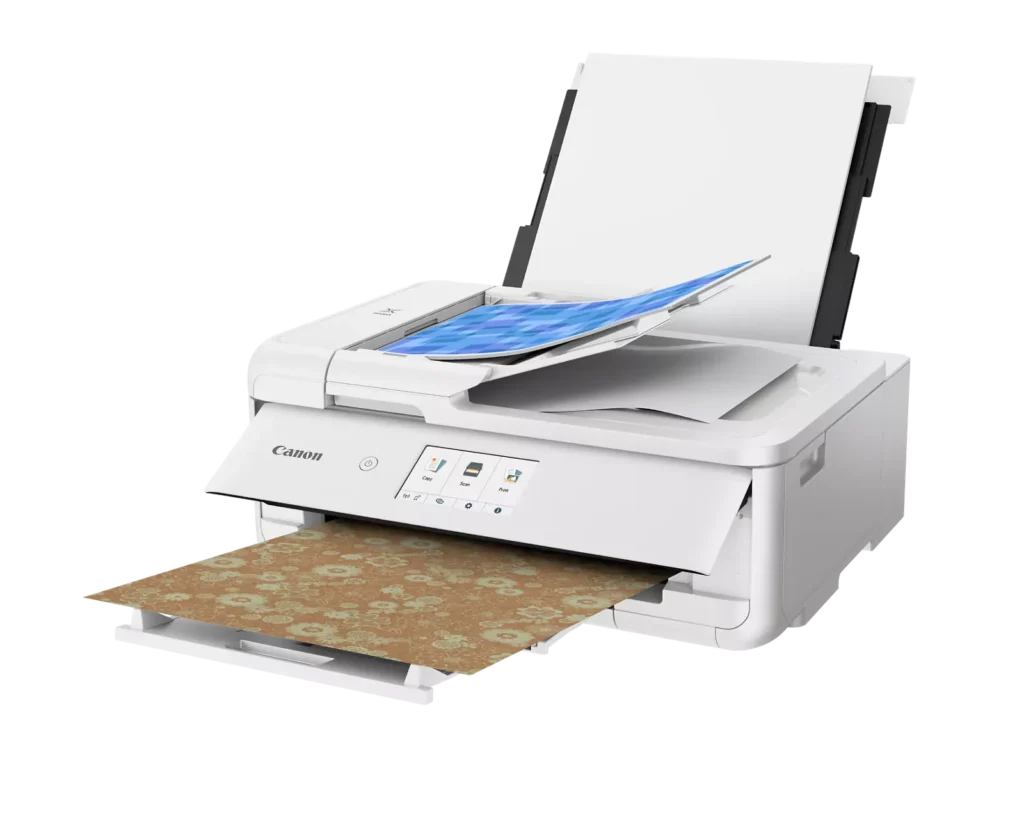
| Flexible Paper Handling & ADF | Features a 200-sheet total capacity with a 100-sheet front cassette and a 100-sheet rear tray that supports heavy cardstock. It also includes a 20-sheet Auto Document Feeder (ADF) for efficient multi-page scanning and copying. |
| Intuitive 4.3" Touchscreen Interface | Navigate functions easily with a large, user-friendly 4.3" LCD touchscreen. The interface provides direct access to 45 built-in printable patterns and templates, making it easy to print custom designs without a computer. |
| Seamless Wireless & Mobile Connectivity | Print effortlessly from your smartphone or tablet using the Canon PRINT app, Apple AirPrint, or Mopria Print Service. It also features a built-in SD memory card slot for direct photo printing and supports Wi-Fi and Ethernet connections. |
Pros & Cons
Pros
- Exceptional Print Quality: Reviews consistently highlight vibrant colors and sharp details, particularly for photos and crafting projects like stickers, magnets, and scrapbooking materials.
- Versatile Media Support: The printer handles a wide range of sizes and types, including 12×12 scrapbooking paper, 11×17 posters, and heavy cardstock, which is highly valued by creative users.
- Useful All-in-One Features: Users appreciate the inclusion of an automatic document feeder (ADF), auto-duplex printing, and borderless printing capabilities that support both office and creative tasks.
Cons
- Connectivity Frustrations: A large number of reviews mention severe difficulties connecting to WiFi, a lack of 5GHz support, and frequent 'offline' errors that require troubleshooting or hardwiring.
- High Ink Consumption: Many users complain that the printer uses ink very quickly, especially during photo printing, and that genuine replacement cartridges are expensive.
- Inconvenient Design Quirks: The requirement to keep the front control panel manually tilted up to print and the small capacity of the paper trays are frequently cited as annoying design flaws.
You might also like
Customer Reviews
Showing reviews 211-220 of 232
-
Compact Quality!
Saitzev May 25, 2024Review source: BestbuyI have been searching for awhile to replace my wife’s printer, but it has been hard to check all the boxes and keep it small enough for her office with limited space. The Canon Pixma TS9521Ca has been perfect for her! It is small enough to be semi discreet in her space, and the functionality on this device is seemingly endless! It prints amazing photos, which is one of the main things she uses a printer for. It even does so when printing remotely from her tablet, which really simplifies printing for her. She also finds the scanner to be very detailed, and has had great success using it for photos and documents as well. Our old printer was very loud when printing, and this one is also much quieter. This makes it much easier for her to use while working, without having to only print between meetings. Overall we couldn’t recommend the Canon Pixma TS9521Ca more! It is a great value, and does an amazing job printing all of the documents, photos, and crafting projects that we use it for every day!
-
Canon delivers a great all-in-one
BluetoothSpeakerSeeker May 25, 2024Review source: BestbuyI recently got the new Canon Pixma TS9521Ca all-in-one printer from Best Buy. My primary uses for my preceding all-in-one devices and this new Canon are relatively basic. I occasionally print work-related documents, and more frequently scan, copy, and print personal content. This Canon does everything I need, and for those people who are more creative there are features like handling 12-by-12-inch scrapbooking paper size; I just don’t use all these functions.
Setup of this device is easy. In the few years since I last got a new printer the process has become much simpler. Included in the box was a barcode which I scanned with my phone and that routed me to instructions (primarily video-based). Notably, that process included phone-based wireless network configuration, a big improvement over the previous need to enter network SSID and password information on a small printer screen. Kudos to Canon! The unboxing through configuration process took me about 10 minutes.
Adding the printer to my home PCs was also easy, with Windows 11 printer settings readily finding the new Canon on my home network.
Not surprisingly, the most important characteristic for me is print quality. The TS9521 prints as well as or better than any printer I’ve owned, and is equal to the laser printers I use when I’m in my work office. Also important is print speed, and the Canon is very fast. Though I don’t typically print photos at home I tested that function using the photo paper sampler provided in the box. Both my wife and I were surprised how well this worked. Not only was it fast, but the quality was just as good as we get when we print photos from our local drugstore!
Also important to me is scanning and copying. I’ve done both with the TS9521 using the auto document feeder and directly on the scanner glass. It’s easy to do this from the Canon’s built-in screen and/or using the Canon Inkjet Smart Connect app I downloaded from the Windows Store. I also like the ease of copying (and printing) double-sided documents.
The Pixma TS9521Ca is a stylish-looking high-quality all-in-one device. For those needing to upgrade or replace a printer, this is a great choice!Read More
-
I does most in an easy way!
JamexRZ May 24, 2024Review source: BestbuyGreat all in one printer. It came very well packed and I was surprised on how hefty was the box, the printer has weight to it, you can tell its well built.
Setup was easy, not my first foray with Canon printers. They include all the necessary inks to get you started (I was greatly surprised they also include a second, larger black tank) and a power cord. They do not include any printer USB cable, however its not needed as its a wireless enabled printer. Once I turned it on and inserted all the inks and the alignment was done, I downloaded their latest “TS9500 series Full Driver & Software Package” from their website to get it all setup on my Wi-fi network.
I love how convenient it is and gives you many options. 1st you can load up 100 sheets of paper in the lower cassette and use those to print, or you can also load up paper on the rear tray. 2nd, you can either use the flatbed or the auto document feeder to make copies or scan. I love the auto document feeder and have not have the need to open and use the flatbed. Just insert whatever documents you want to either scan or copy and the all in one will automatically “suck in” the pages and scan/copy them for you. 3rd, it supports many paper sizes, envelopes, photo papers etc. 4th, it does support auto 2 sided printing/copy. I love this feature as it saves lots of paper (it will automatically flip your page and print on both sides if you want).
The printer has also a nice touch screen that is easy to navigate should you need to use it, but other than using it for on the fly copies, I just use the included Canon software to manage it from my PC.
Print quality is very good and its very quiet when printing, albeit a little slower than other printers I have, but not by much.
If you are looking for a good quality and easy to use all in one for your home or small office, this is the one to get. Replacement ink tanks are very affordable too!
-
A Creative Powerhouse with Some Caveats
Discount Computer Service May 24, 2024Review source: BestbuyThe Canon PIXMA TS9521C is an intriguing addition to Canon’s lineup, especially designed with the crafting community in mind. As a tech enthusiast with a penchant for multifunctional devices, I found this printer to be a compelling mix of versatility and specialized features.First off, the TS9521C’s standout feature is its ability to handle a wide variety of media types and sizes. From standard documents to intricate scrapbook pages, this printer is a creative powerhouse. It supports 12” x 12” borderless prints, which is a dream come true for scrapbookers and crafters who need that extra bit of space. The inclusion of a rear paper feed and a multipurpose tray further enhances its versatility, allowing users to print on thicker media like cardstock, envelopes, and even CDs.The print quality is superb for both text and graphics. With a five-color individual ink system, including a pigment-based black for crisp text, the TS9521C delivers vibrant and sharp prints consistently. The printer also supports a wide color gamut, making it suitable for photo enthusiasts who demand high-quality prints.On the connectivity front, the TS9521C is well-equipped with options like Wi-Fi, Bluetooth, and Ethernet, ensuring it can fit seamlessly into any home or office setup. The support for various mobile printing options, including AirPrint, Google Cloud Print, and the Canon PRINT app, makes it easy to print directly from smartphones and tablets.However, the TS9521C is not without its shortcomings. One of the most significant drawbacks is its speed. While the print quality is high, the printing process can be slow, especially for high-resolution photos and complex craft projects. This can be a downside for users who require quick turnaround times.Another area where the TS9521C could improve is its user interface. The touchscreen, while functional, is not as responsive or intuitive as some of its competitors. Navigating through the settings and options can sometimes feel cumbersome, which detracts from an otherwise smooth user experience.Additionally, the cost of ink is a concern. While the individual ink tanks are convenient and can save money in the long run, the initial cost of replacing all five cartridges can add up quickly. Users who print frequently might find themselves spending a considerable amount on ink.In terms of physical footprint, the TS9521C is quite large. It might be a tight fit for small desks or limited spaces, which could be a dealbreaker for users with constrained work areas.Overall, the Canon PIXMA TS9521C earns a solid 4 out of 5 stars. Its versatility, high print quality, and extensive media support make it an excellent choice for crafters and creative professionals. However, its slower print speeds, somewhat clunky user interface, and high ink costs keep it from achieving a perfect score. If you can overlook these minor drawbacks, the TS9521C is a reliable and capable companion for your creative endeavors.Read More
-
Top Shelf Ink-jet Printer for both Docs & Photos
YourMainDude May 23, 2024Review source: BestbuyThe Canon – Pixma TS9521Ca Wireless All-In-One Inkjet Printer is a good choice if someone is looking for a AIO that produces fantastic results for both document & photo printing.
Setup:
Unboxing the Pixma was straightforward and required no assembly whatsoever. Remove a series of blue security tape strips around the unit, attached the power cord and load paper – and you’re off to the races.This was one of the easiest and fastest home printers I’ve touched with respect to connecting to a home WiFi network and it only took a couple, three minutes. The initial print-head alignment took significantly more time but nothing I would call egregious. Thankfully, there is a set up wizard via the control panel screen that guides you all the way to the end – with ease. There are also many Canon tutorial videos online, if you find that more helpful. One thing I can testify 1st hand is that Canon has some of the best “support” in the business.
Absent here is refillable ink tanks, so you’ll have to deal with cartridges – which are easy enough to install. Fair warning though, because if you’re not careful and paying attention, these particular Canon cartridges are prone to leaking a bit of ink during installation. I experienced this with the Cyan module and it could have been something as simple as a touch of overfill at the factory. Just pay close attention as you unwrap & handle them, as YMMV.
Next time I will wear latex gloves just to be safe and to avoid the blue meanies.
Build:
The articulating, flip-up control panel stretches across nearly the entire printer and does feel a tad bit flimsy but it can be positioned across a multitude of angles and it does house an appropriately large, bright and useful touch screen. Compared to many other printers in the same price category, this touch screen feels like a real luxury. Why on earth other mfg’s incorporate such tiny screens is beyond me…I was surprised to see that there was only a SD card slot on the front of the unit. No Type-A USB slot. I can get use to that, but I would have highly preferred both SD & USB located on the front.
The auto-feed mechanism feels a lot sturdier as does the main hinged panel, above the scanner glass.
The rear paper feed mechanism also feels a bit flimsy to me as well. Not entirely what I expected from Canon, as I also own a Canon laser AIO that is built like a tank that get a lot of use.
The front paper tray is too limited relating to capacity for my liking and its missing fax functionality, for those care and/or need that. I personally do not.
Performance.
Compared to other competing brands, I found the Canon – Pixma TS9521Ca to be smoother sounding in operation, a bit peppier in terms of speed but putting those two areas aside – what really impresses me the most is the quality of the printing– which really matters the most IMHO.Documents produced are some of the best I’ve seen coming from an ink-jet printer and the photo quality IS THE BEST, in recent years. I have a series of reference images I like to use to gauge the quality of any color printer and I’ve shared two of those within this review. One graphical art type picture to show how clean a printer can render against larger areas of white while maintaining color pop & evenness along with a second real life, outdoor photo of a meadow in the Ozarks. This second photo is key to evaluating a printer’s ability to render subtle color tones & changes across the paper medium. I also use a series of portraits and people-oriented compositions to check for flesh tone rendering and overall natural color balance but I choose not to share those in my reviews.
In all cases and printing with the included glossy photo stock that accompanied the unit, the Canon – Pixma TS9521Ca Wireless All-In-One Inkjet Printer did an amazing job with the entire portfolio of test images I use. I dare say that this printer generates photo’s better any color ink-jet printer I’ve ever owned or used before, and that it is head & shoulders better than most big-box, photo labs. I’ve seen no streaking, edge bleeding or color shift of any sort. I am truly blown away.
I did notice that when printing documents in Standard mode there was a bit of detectable lower saturation point compared to brands “E” and “H” that I’ve recently used, but it’s pretty subtle and probably a good thing in terms of ink efficiency overall. This is after all a cartridge-based machine and every drop counts!
Summary:
Overall, I think the Pixma TS9521Ca is a quality machine, nits about flimsy build quality aside and the proof in the pudding with this unit is all in the “output”. A lot of consumer grade ink-jet AIO’s claim to be photo printers but frequently fall short in terms of quality. This Canon Pixma is not one of those.The price may seem a little steep for a consumer printer but I think printing quality is worth paying more for and certainly – if & when it goes on sale – this would be the printer garnering my highest recommendations – hands down. It’s just that good!
I dinged the score a full Star because that’s just how it works. But in all honesty, this machine is easily a 4.5/5 Star product depending on one’s tastes. I would have preferred the construction to be more robust & inclusive for the price. But that’s just me…
Pros:
Fairly straight-forward to setup and get going
Excellent color rendition across documents & photos
Fast and smooth sounding in operation
Responds to print queues quickly over a home WiFi network and has a useful Status pop-up (Windows 11) during print jobs that includes showing current ink levels per color
Scanning & copying is clear & quick, producing top notch results
The Canon Easy Photo application (which you can download from the product support page) is really handy & designed with purpose
Full-sized SD card slot on the front
Nice, big touch panel display!Notables:
Feels a little flimsy in the pull tray, front paper tray, rear-feed tray and control panel portions of the designCons:
No front located USB port
Front paper tray capacity is too low for its price-point
Careful with the ink cartridges; prone to becoming messy if you’re not paying attention -
A Print Shop For The Home
Batlacit May 23, 2024Review source: BestbuyOn the box this printer came in Canon proudly declares it to be “the crafter’s all-in-one.” After spending a few days with it I can confirm that there’s a lot here for someone into DIY crafting to love, but with some caveats potential buyers should be aware of.
At first glance the TS9521Ca could easily be mistaken for any Canon all-in-one inkjet. It takes up surprisingly little space given the size of the media it’s designed to handle, owing largely to the fact that the large rear paper tray can be slid invisibly into the main body of the printer when not in use. The design has the typical Canon hallmarks as well, with lots of gentle curves, matte finishes, and hidden mechanisms designed to keep it from looking overly industrial. Most of the setup process involved finding all the places they’d secured panels and moving parts with tape before plugging it in – once that was done going through the initial calibration process and getting it added to my home network via push-button WPS only required a few minutes and two sheets of printing paper. No special drivers or utilities were needed on my PC or phone to start using the printer, though they are of course available for anyone who wants them.
At this point the TS9521Ca was able to show it was a very capable little multifunction inkjet. I’ve always found Canons to be very precise printers that do an excellent job splitting the difference between photos and documents, and this was no exception. Photos came out crisp and colorful, while text was sharp and thanks to the two separate ink cartridges I didn’t need to worry about using up ink for photos later. Operation was reasonably silent even without turning on the noise control. And borderless prints worked just about perfectly. Even scanning from the printer, often a deeply kludgey job, was made relatively painless with the option to send the scan directly to the cloud storage account of my choice rather than one of the many devices on my home network. Once the back tray came out through, things got a bit wilder.
I do have to give Canon credit here: They’ve stuffed just about every feature I think a DIY enthusiast might think to ask for and a few they probably wouldn’t – like a specialized tray for printing directly onto printable optical media. By default though no one will likely notice until it’s needed. The rear tray, which seems to be capable of handling paper as wide as 12”, unfolds in several segments to let it be however tall it needs to be for poster prints and the CD/DVD tray is very cleverly latched into a hidden compartment beneath the main paper cassette. This does have some downsides though. There are an abundance of small panels and trays that need to be flipped into the right position for less common printer modes and I found it very quick to chastise you for getting one of them in the wrong position but less forthcoming about explaining what’s wrong. Early on in one of my prints for example I accidentally flipped down the access door where you’re meant to feed in the optical media cassette and was told that the tray was missing, which led to a few minutes of fruitlessly removing and reinserting the main cassette before I noticed my mistake. Likewise it took a little trial and error to figure out that a transparent flap in the rear paper tray needed to be dropped down after loading before the printer would begin feeding paper from it. These are definitely minor annoyances, and I suspect most people doing the kind of projects this printer was clearly made for would be able to work them out as I did, but it certainly does make it clear that the designers prioritized offering a broad range of functionality over overall user-friendliness.
As far as how it performs doing these less conventional prints – again I found it excelled. While finding somewhere that actually had 11×17 “tabloid” sized paper in stock proved a little tricky, I was eventually able to track down someone with a single very dusty box of photo paper in their inventory and printed some absolutely gorgeous poster sized maps that I’d be happy to hang on my wall. It’s certainly not something I’d want to be doing every day – by the fourth page I’d managed to completely drain one of the ink cartridges, and when I swapped it out mid-print it restarted the job from the beginning and managed to drain two more before it was finished. I feel like this would have been a great candidate for using ink tanks rather than replaceable carts, or at the very least should have shipped with the optional XXL tanks in the box because having to replace ink carts less than a week after getting a printer seems borderline absurd. But given that I’ve yet to see an ink tank printer that doesn’t have some issues with color accuracy I suppose this might be the best compromise available for the moment.
The rate at which it consumes ink does complicate my thoughts on who I’d recommend this to, though. For a long time my printers saw extremely heavy use, to the point that I was used to replacing ink carts multiple times a year. These days though, I will often go long periods without printing and then do a bunch of really big projects so replacing carts once a year is a bit more typical. And when I did need to do large format printing, I’d go to the print shop. When I add everything up here, I discovered that doing large format printing from home probably doesn’t stand to save me much money unless I plan to do enough of it to justify buying a lot more of the paper and the largest ink cartridges available. Which leads me to think that this perhaps isn’t so much the printer for the occasional crafter looking to make posters for their kids or print out battle maps for a D&D session so much as it is the printer for the person selling posters on their personally Etsy store. If that is you, though, I think you might be very pleased with the TS9521Ca.
-
Powerful, Versatile, and Easy to Use
RedScorpion May 23, 2024Review source: BestbuyThe Canon Pixma TS9521Ca printer, scanner, and copier is one of the best printers I have ever used. Powerful enough for a creative professional, but simple enough for a casual home user. My photo prints look amazing. Whether on glossy or matte finishes, photos look great. I love this thing; I am going to go through so much ink….
Setup: Inside the box you get the printer, power cord, setup instruction guide, five setup ink cartridges, and sample print paper in glossy 4X6, 5X5, semi glossy 5X7, and matte finish 8.5X11. There are two black cartridges. One is the PGI-280 that uses pigment black ink for printing documents on plain paper. The other four tanks are CLI-281, dye-based ink used for photos and images.
Be sure to remove all the tape. There were a few tabs of tape that were particularly hard to see at first. The setup instructions and the printer walk you through installing the ink cartridges and connecting your printer to the network. I connected via WiFi, but it is nice to know that USB and ethernet connections are available as I occasionally prefer to keep things wired. I had no difficulties setting the printer up. I followed the instructions from my phone which had me download the Canon PRINT app to complete installation. I set the printer up on a Windows 11 PC as well as a Samsung Galaxy S22. For other computers, I tested driver only installs from Windows.
I have had no difficulties with printer connection or print quality. Every print has gone through no problems. I have had no calibration issues. The printer is quiet.
Experience: My wife and I are looking at projects we can make with her Cricut and this printer. With its capacity for larger print projects, the TS9521Ca is a great companion for anyone looking to print large documents or work in scrap booking.
Loading paper in the rear or front paper trays was easy. After you load paper in the back tray, make sure that you lower the back plate with roller. I occasionally forget.
The mobile app, and the Windows 11 utilities are as complicated or as simple as you make it. You can get lost in the weeds of details to tweak everything to your liking, but I thought the printer was simple enough that I could get good looking prints within minutes of setting the printer up.
Copies from the top load document reader looked great. Document prints are extremely fast. Duplex printing was noticeably slower, but it does work.My only nitpick is the flatbed scanner. Scans were okay, but I hit the resolution limits of the scanner rather quickly. Scans never looked bad. They were not captured in as high of a resolution as that of a dedicated flatbed scanner. But that really is a nitpick.
Supplies: I have been shopping for replacement cartridges. Best Buy sells ink and photo paper for the Pixma. I have noticed the ink cartridges come in three assorted sizes. You can buy either the regular, XL, or XXL. I will probably stick to combo packs of the XL when available. Canon also has an ink replenishment subscription program. The photos do take a good deal of ink to print. After six days of printing some large prints, I am down to about 70 percent of my cartridges remaining. Depending on how many projects you have per month, you may want to consider those larger cartridges.
Conclusion: The TS9521Ca is an update or refresh of the TS9521C. Both use the same cartridges. TS9521Ca has duplex printing, but no Bluetooth connectivity. That is a fair trade as I never use Bluetooth printing. I cannot say whether this printer is a worthy upgrade for existing owners of the TS9521C, but as a new owner, this printer is great. I hope to be using this printer for years to come. I am so impressed with the ease of use and the quality of the print projects. My friends and family think the prints look amazing. I have already recommended this printer to several friends. So, it is easy to say that I can easily recommend the TS9521Ca. 5/5
-
Fully Featured All-In-One Printer/Scanner/Copier
DotNetJon May 22, 2024Review source: BestbuyI haven’t bought a new all-in-one printer for quite a few years and I’m really impressed with this new one from Canon! The Canon – PIXMA TS9521Ca Wireless All-In-One Inkjet Printer – White does pretty much everything one would want to do with an all-in-one and does it beautifully.
The printer arrived solidly packaged with no issues. Easy to remove from the box and simple instructions to get you up and printing quick! Remove some strategically placed pieces of tape around the printer, plug it in and follow the instructions to get the ink loaded and get it connected to your PC or mobile device. The software on the PC downloaded and installed and was all connected within a few minutes over my wireless network. It didn’t like my 5Ghz network but was able to join my regular wifi network just fine.
The Canon Easy-PhotoPrint Editor software that you can choose to install during setup is quite nice! It lets you print all sorts of things and makes it easy to do so from photos layouts to calendars to poster and all sorts of other things. It will connect to all your cloud photo services if you want to pull photos from there which is quite useful. Some other utility apps get installed as well that let you manage the printer. Canon Printer Assistant Tool, Network Scanner Selector and Scan Utility. You can also install the help printer manual and a shortcut to the online manual which tells you anything you want to know how to do with the printer. You also have the quite nice on printer screen for interacting with the printer. Easy to read and responsive touch-screen control makes it easy and walks you through any action you want to take.
The printer has a very nice aesthetic look and feel to it and seems to be well constructed. There is a back-loader for loading larger paper sizes and photo paper. There is a bottom tray that hold normal paper of various sizes and holds 100 pages. The top loader I believe can also hold 100 pages of paper. So there are lots of options for what type and size of paper you want to print with. The printer prints fast in either black and white or color and printing photos on photo paper also prints pretty fast and look GORGEOUS. I can’t tell the different between photos I would have developed professionally and the photo prints I have done so far on the provided sample paper! Copies copy fast too and look quite close to the original. The scanner works fast as well and lets you send scans directly to your PC. Scans look great and the software makes it simple to find your scans or email them.
I love that you can replace individual ink cartridges of a certain color instead of having to replace all the colors if one color runs low. Installing the ink was easy just be careful not to get too much ink on you or the printer… a little bit ended up on my fingers and on the printer because I wasn’t watching closely enough. A bit of ink transfer happened after removing the packaging and exposing the ink pads. You can register your printer during setup and also setup ink replenishment if you want. You can have the printer send you notifications when it starts running low as well. Obviously the amount you print will determine how often you need to purchase refills.
Connecting to and printing from your mobile devices will be just as easy as from a PC. I downloaded the app to my iPhone within a couple minutes and was connected and sending prints to the printer a couple minutes later. Very nice!
I’ve always had good experiences with Canon printers over the last 25 years and this appears to be another great experience! This printer should keep me satisfied for years to come. Looking forward to order some more media for printing projects. It is nice that Canon provides some samples in the box! I would definitely recommend this to a friend and the price seems just right for this all-in-one.
-
Some setup issues, but loving it now
FlyingC May 22, 2024Review source: BestbuyI was looking for a wireless all-in-one printer/scanner that I could use with both our Android phones and a Windows PC. My wife mostly wants to use the printer while I mostly use the scanning feature. So far, we’re both happy with this compact Canon all-in-one, but there are a few things I don’t like as well as some great features.
Getting it setup on my home wireless was a bit of a problem. I used the Canon Print app on my Samsung S22 Ultra. It connected to the printer and then transferred the wireless settings to it, but then the printer got an error while connecting to the wireless. It was a little vague and just said something about an incorrect password or other network error. So, I tried it again, making sure the password was correct, but got the same error. Finally, I realized it must not like my 5GHz SSID, so I manually switched it to use the 2.4GHz IoT SSID I have set up. That time it connected on the first try. Later, after reading some of the Canon literature, I finally noticed that it mentioned only 2.4GHz support. If they’re not going to support 5GHz, then it should at least give a better warning in the setup app.
One other minor issue is the power cord receptacle on the back of the printer is very loose and wiggles around when you’re plugging in the cord. I don’t know if this is just something wrong with my unit or if all of them are this way. It hasn’t caused any other problems, though, once I plugged it in and left it alone.
Once through all the setup, things started going much better. From the controls on the printer, you can do some quick functions like copy, scan, and print. You can scan directly to OneDrive, Google drive, Google classroom, Drop Box, etc. I went through the setup to give it access to my OneDrive and it worked great to scan documents and save directly there. Once it has access, you can also select and print documents from there, too.
The scan to smartphone option on the printer appears to just scan the document to their own cloud service, then it gives you a QR code to scan with your phone. That just opens a link in the phone’s browser where you can download the PDF. Not sophisticated, but quick and easy. Using the Canon Print app on your phone does give you a few more options and control.
Scanning with the ADF (auto document feeder) works well, although it’s not super speedy. Dropping the dpi lower helped a little, but not significantly. From the printer control panel, I could select 150 or 300 dpi. From the phone app, I couldn’t seem to select the dpi, but with the Windows Canon Inkjet Smart Connect app I could select 75, 150, 300, or 600 dpi for scans.
My biggest complaint with the ADF scanning is that it’s only one-sided (simplex). When scanning with the printer controls or even the smartphone app, it just scans one side of each paper then creates the output file with no other options. With the Windows Canon IJ Scan Utility, though, you have more control. You can scan one side, then flip the pages over, scan the other side, then use the included PDF editor to rearrange the pages before you save. This worked but was a bit of a pain to go through. A really nice and unexpected feature of the PDF editor, however, is that you can check a box to “create a PDF file that supports keyword search” then it apparently OCRs the text. Very handy!
I’ve talked mostly about the scanning features, but it’s an excellent printer too. I had no trouble figuring out the trays and orientation of the paper because the animations on the printer screen were usually very helpful. It did take me a while to get in the habit of flipping up the controls and pulling out the catch tray before I started printing. Don’t worry, if you forget, the printer reminds you.
The printer came with a selection of Canon photo paper samples, and I used a few to print out some test pictures. The picture quality was outstanding, and the colors were very true to the original image. I usually don’t print too many photos, but these were so nice I may start doing that more often.
The printer also has some built-in templates that you can use to print out things like graph paper, blank checklists, and blank planning calendars. I’m not sure how often I’ll use that, but it’s quick and easy to do directly from the printer control panel if I ever need it.
I had my doubts about this all-in-one at the beginning, but the more I’ve used it the better I like it. Installing the Windows apps was a little confusing because there are multiple apps, particularly for scanning. But once I figured out the IJ Scan Utility was the one I needed, then things started to go smoothly. The PDF user manual is also a whopping 594 pages but that shouldn’t be a worry. It’s very thorough and, of course, searchable. I wondered if maybe Canon hopes everyone prints it out?
Speaking of using ink, that reminds me of another small issue I noticed: Even though I had just put in the new ink cartridges, the “estimated ink levels” that it displayed were already varying amounts below the top mark. (see pic of the status) I know it’s an estimate, but I would have hoped it would be more accurate. It’s not a big deal, but I’ll definitely keep an eye on it as the levels get closer to running out.Read More
-
Incredible photo printing quality!
CatCity May 22, 2024Review source: BestbuyThe photo printing quality for this printing is absolutely incredible. I would have never expected the photos I printed to turn out as nice as they did, it’s almost as if they were developed from film. I can’t find any smudging or lines, just a smooth finish across the paper.
The printer setup is incredibly easy – you simply plug up the printer, follow the prompts, and then download the app once you connect WiFi. My 9 year old son helped me with most of the setup and in installation, and he figured it out really quickly.
The app is really easy use, and the app should auto detect the printer as long it’s connected to your WiFi network. I can easily search and attach photos from my phone, as well as use presets to bring patterns and backgrounds.
The printer is really solid, takes up slightly more space than I was expecting. You need to make sure you have enough room front and back to open all the trays. It also has a screen tilting feature which is very helpful.
Overall, the a really versatile device, that can function as document printer and a craft printer as needed. The input tray takes an array of different paper sizes and types, and can print on thicker pound paper if needed.Read More