Customer Media
Highlights
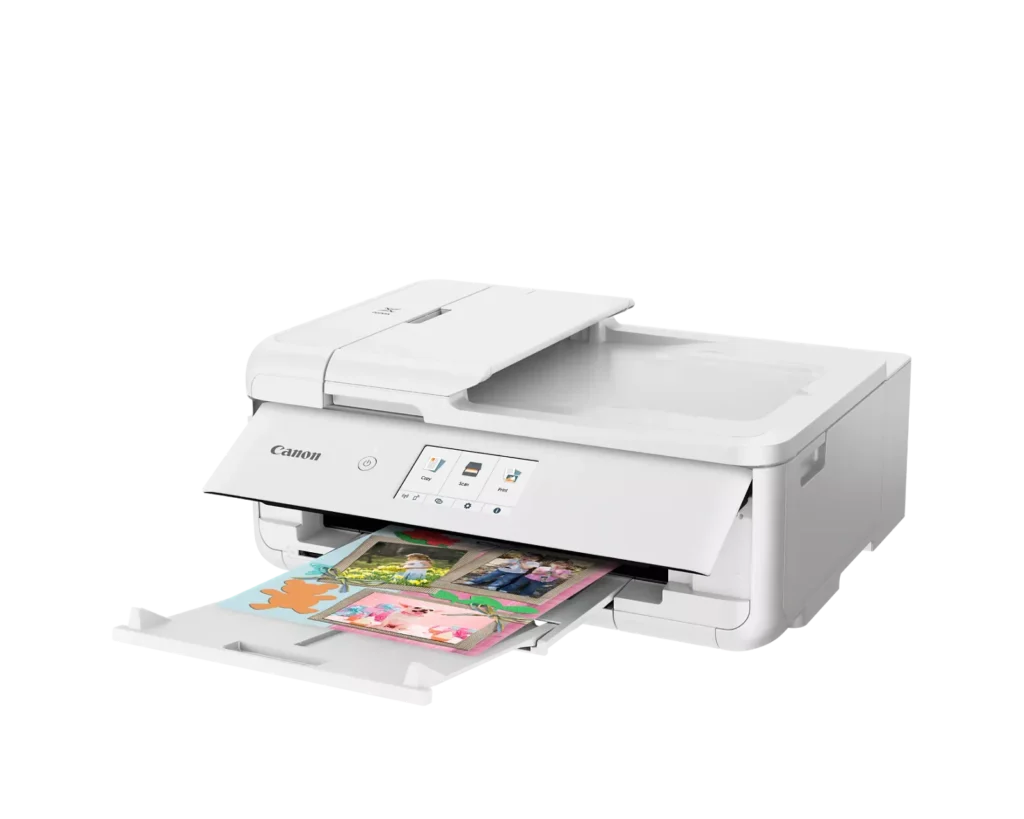
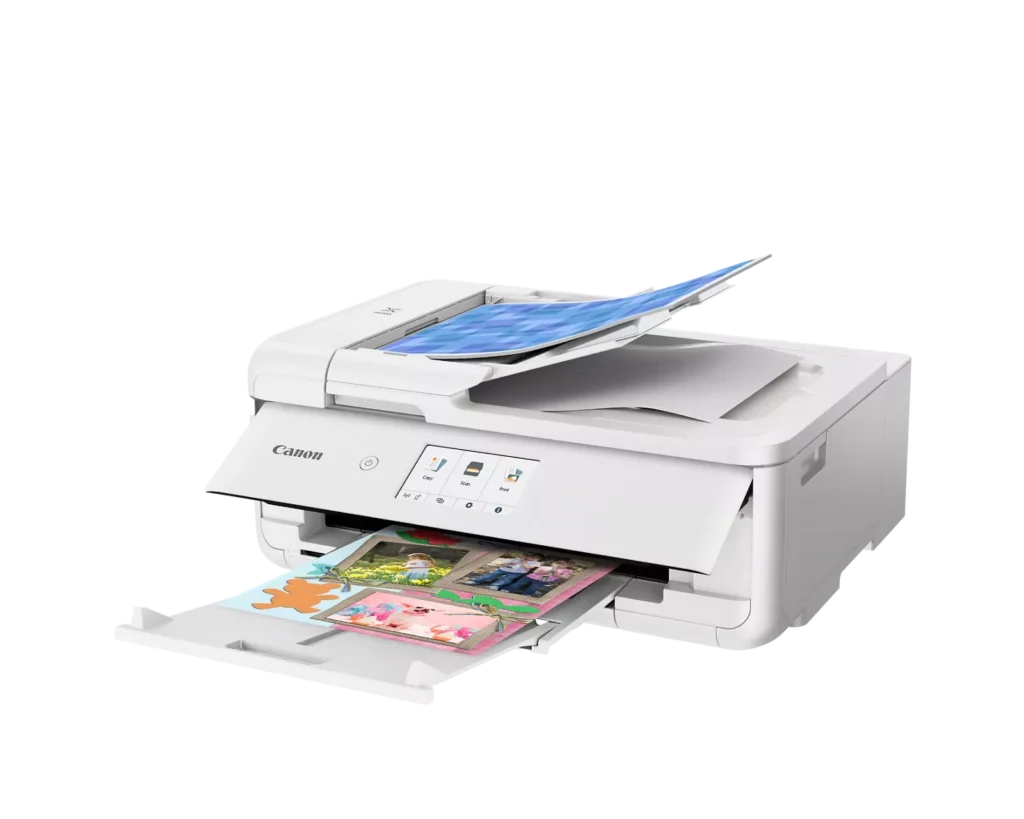
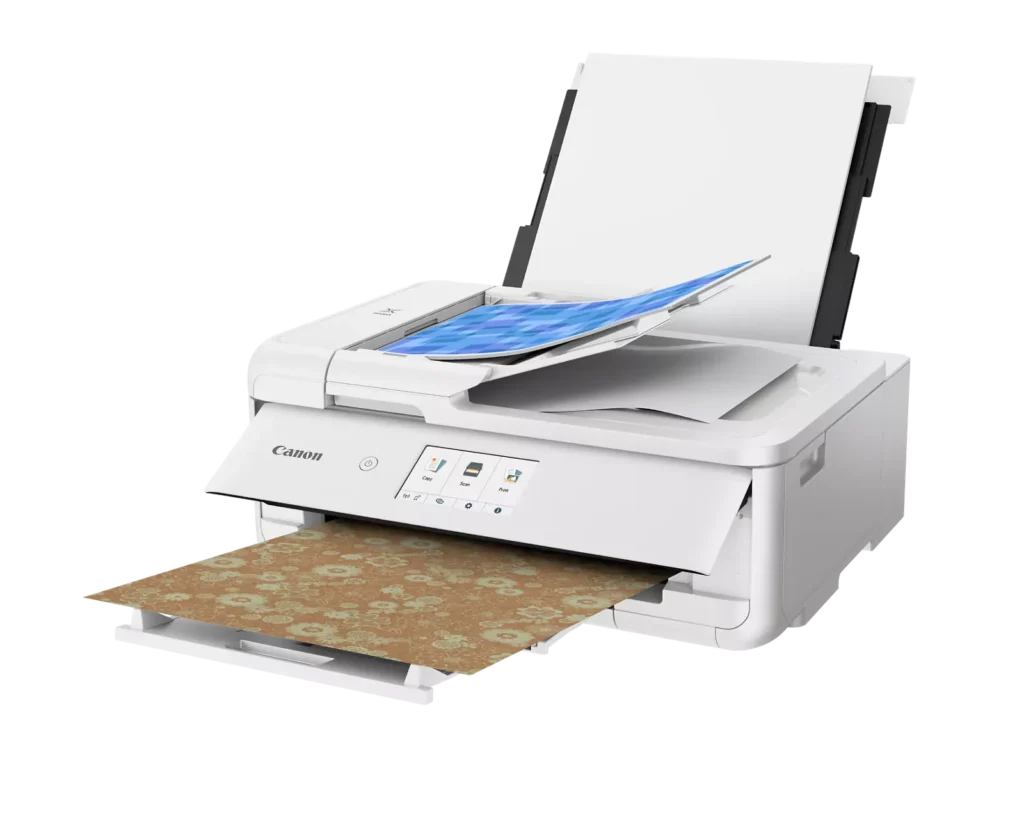
| Versatile Crafting & Large Format Printing | Specifically designed for creators, this printer supports borderless 12" x 12" printing—perfect for scrapbooking—and can handle large documents up to 11" x 17" (Tabloid size) for calendars, posters, and professional-looking projects. |
|---|---|
| 5-Individual Ink System | Utilizes a hybrid ink system with five individual tanks, including a pigment-based black for sharp text and dye-based colors for vivid photos. This efficient design allows you to replace only the specific color that runs out. |
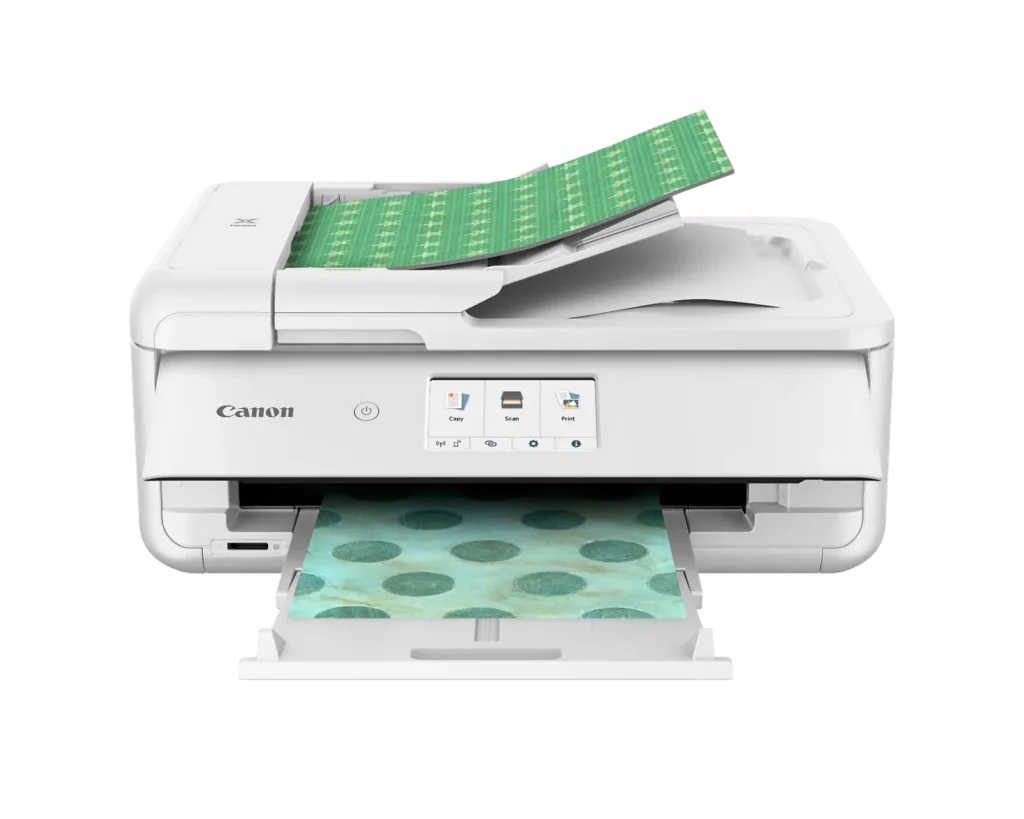
| Flexible Paper Handling & ADF | Features a 200-sheet total capacity with a 100-sheet front cassette and a 100-sheet rear tray that supports heavy cardstock. It also includes a 20-sheet Auto Document Feeder (ADF) for efficient multi-page scanning and copying. |
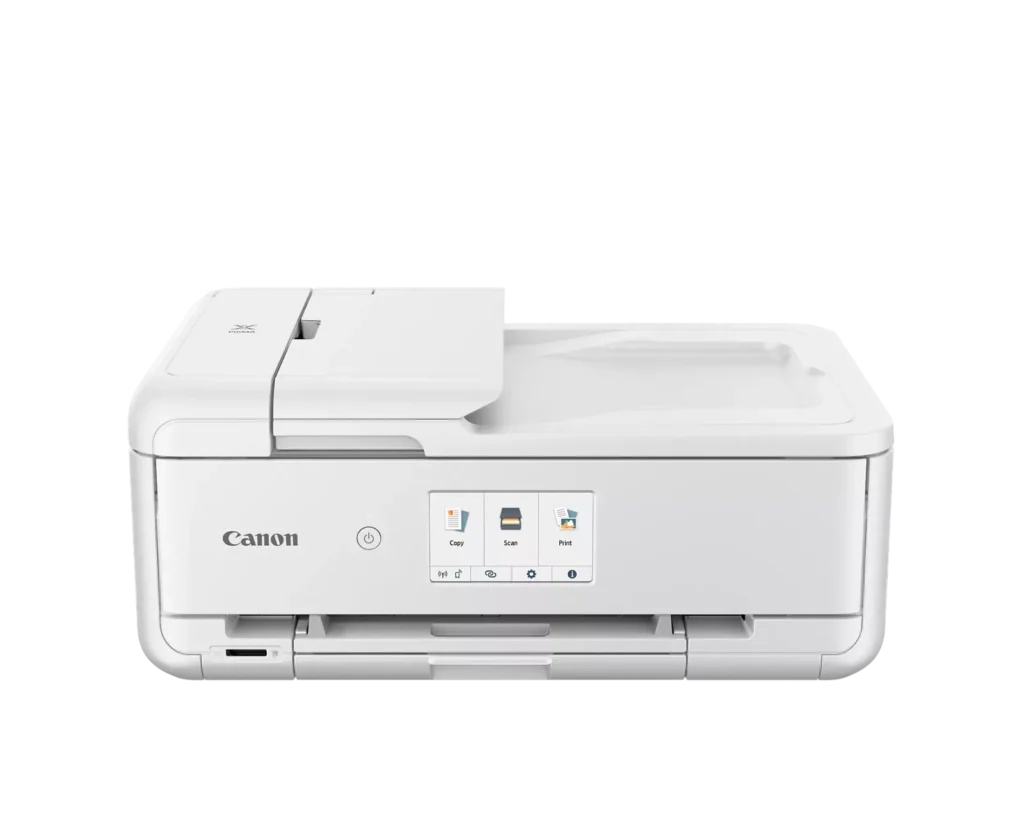
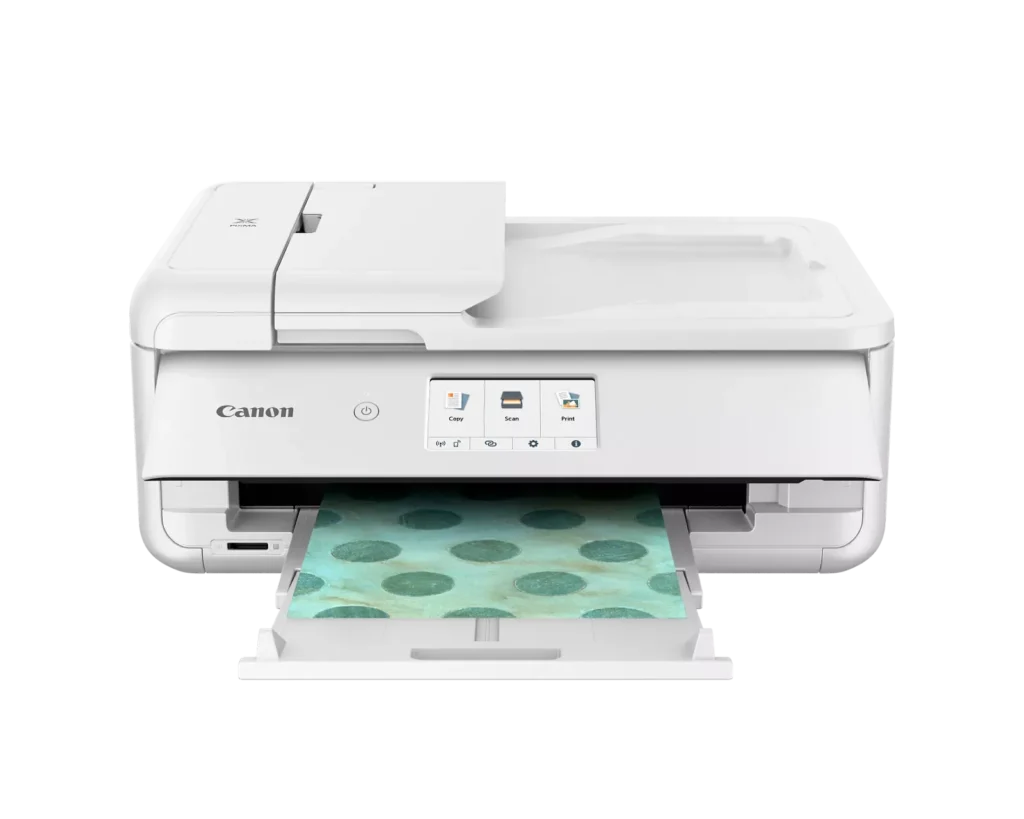
| Intuitive 4.3" Touchscreen Interface | Navigate functions easily with a large, user-friendly 4.3" LCD touchscreen. The interface provides direct access to 45 built-in printable patterns and templates, making it easy to print custom designs without a computer. |
| Seamless Wireless & Mobile Connectivity | Print effortlessly from your smartphone or tablet using the Canon PRINT app, Apple AirPrint, or Mopria Print Service. It also features a built-in SD memory card slot for direct photo printing and supports Wi-Fi and Ethernet connections. |
Pros & Cons
Pros
- Exceptional Print Quality: Reviews consistently highlight vibrant colors and sharp details, particularly for photos and crafting projects like stickers, magnets, and scrapbooking materials.
- Versatile Media Support: The printer handles a wide range of sizes and types, including 12×12 scrapbooking paper, 11×17 posters, and heavy cardstock, which is highly valued by creative users.
- Useful All-in-One Features: Users appreciate the inclusion of an automatic document feeder (ADF), auto-duplex printing, and borderless printing capabilities that support both office and creative tasks.
Cons
- Connectivity Frustrations: A large number of reviews mention severe difficulties connecting to WiFi, a lack of 5GHz support, and frequent 'offline' errors that require troubleshooting or hardwiring.
- High Ink Consumption: Many users complain that the printer uses ink very quickly, especially during photo printing, and that genuine replacement cartridges are expensive.
- Inconvenient Design Quirks: The requirement to keep the front control panel manually tilted up to print and the small capacity of the paper trays are frequently cited as annoying design flaws.
You might also like
Customer Reviews
Showing reviews 221-230 of 232
-
Almost Perfect Printer, Big Loss on Wireless
BradfordBT May 21, 2024Review source: BestbuyI needed a color printer for an upcoming event this summer to print event posters, cards, and informational brochures. I’m mainly focusing on wireless connectivity to connect to multiple devices and print quality, so everything turns out looking professional. I picked up the Canon – PIXMA TS9521Ca Wireless All-In-One Inkjet Printer as I’ve previously had a Canon PIXMA for printing cards and photos that worked great for many years, so decided to stay with a tried-and-true brand.
Pros:
– Multi-function with printing, copying, and scanning across multiple page sizes.
– Great color printing results.
– No Ads for purchasing Ink, but there is a service if you need reoccurring orders!Cons:
– Wireless setup was a mess if it works at all.
– Solving issues tend to only point to webpages or online manuals that have no direct solution to the error received.Out of the box this printer looks amazing. The Large, 4.3 inch LCD Touch Screen that is easy to see and responsive, makes navigation simple and initial setup easy. The online guide takes you through every literal step, and I mean everything. But all of it is very simple, removing all the orange tape, inserting the 5 ink cartridges, and loading the paper. The online guide ends at a point where the printer is ready to work locally, such as scan and print or print from SD card, which is a great if you will mainly use the scanner to print or an SD card.
This is where the Canon PIXMA TS9521Ca completely failed for me, I was able to connect once and print successfully after many tries including modifying my network settings and forcing devices to use the 2.4 GHz band. But this stopped working after a restart of both devices. I tried the Canon app via computer and mobile (android device), tried the Wireless Direct connect for both without consistent success on both attempts. I think this is mainly due to using a Mesh Wireless network and how the network banding works out. The provided troubleshooting guides all point to webforms or threads, that don’t have specific error codes or solutions for specific problems. It’s kind of a guessing game to figure out what works for your specific problem.
Either way, I ended up just plugging this in via ethernet and was able to connect right away without issue! Even via mobile, so long as printer network sharing is enabled in the router settings. Once the printer was successfully connected to the internet, there were also options to print via cloud storage such as Google Photo, Dropbox, OneDrive to name a few. This is convenient considering the issue with the wireless printing.
Print quality was amazing, both for colored and black & white I found the print was crisp and clean. The photo paper prints, printed on the provided sample Semi-Gloss 5×5 paper came out looking like professional prints! The Semi-Gloss and Glossy prints really make the colors pop out. I tested out a few prints of the event material on card stock, all of which came out perfect. The print speed was slower than most printers I’ve used, including older and current but the Canon PIXMA TS9521Ca was noticeably slower but the quality was miles better. Printing on different paper quality makes quite the difference, with glossier paper popping out the color more.
The Canon PIXMA TS9521Ca comes with 5 standard sized ink cartridges, 4 for color printing and 1 for black and white. Canon provides estimates for Print Yield on the PIXMA TS9521Ca by size of cartridge to be: Standard – 200 black & whites / 250 color, XL – 400 black & white / 500 color, and XXL – 600 black & white / 800 color. This is all based on mixed use printing, so your results may vary based on your use. The average life of an ink cartridge is 6 months after opening, so you will want to buy refills based on your usage within a 6-month period. I will have to order an XL cartridge before the provided standard ones run out, but Canon does make it easy with their own ink & toner subscription program that has no contracts or annual fees, you just pick your ink or toner, set the schedule, and it orders, plus cancel any time without fees or nonsense. Props given to Canon for not forcing service contracts or reoccurring subscriptions on their customers.
Overall, I’ve had a lot of great printing results with Cannon printers in the past, but either this models wireless is defective, or doesn’t work well with our setup and potential buyers should consider your network setup before buying this model. But print quality is outstanding, even with the lack of wireless functionality, we have been using this to print out cards and material that looks fantastic! If I can figure out the issue with the wireless, this would get full marks and be a highly recommended printer for hobbyists and crafters!Read More
-
Feature-rich, decent app, but may be ink-thirsty
Chris May 21, 2024Review source: BestbuyPROS
Setup and WiFi config was easy with the help of the Canon PRINT Android app and video walkthroughs.
The app is nearly fully featured, and I found that I was able to do almost everything I wanted (one major exception, see below). I appreciate having the ability to send scans to my phone. Photo printing from the app is really convenient. Though I rarely print photos these days, the app makes it easy, especially if the photo already resides on my phone. (Document printing from the app, on the other hand, is not great. Again, see below.)
Having a PGBK cartridge (black pigment-based document ink) for black and white document printing is great because it’s most of what I do.
The scanning function is fine. I can’t complain about the speed or resolution. After years of using my smartphone to scan documents (and sometimes photos), pretty much any multifunction scanner is a major step up for me. I’m sure the auto document feeder will come in handy some day, but as the years go on, more documents are natively digital and I haven’t had to scan stacks of pages in a long time.
Duplex printing is smooth and jam-free so far and doesn’t sound like the machine is grinding itself to death like some other printers I’ve had.
The onboard touchscreen interface is very easy to use.
Noise is not excessive to me. There is a quiet mode, but it slows printing down, so I’m not using it.
CONS
One (major) drawback of the app as of May 2024 is the lack of the ability to print in draft quality and/or using only the PGBK cartridge. The Windows driver of course provides these options, but the app does not, and Canon really ought to change this. As black and white document printing is the most of what I do, I would almost never print from the app, because I don’t want to waste ink on quality I don’t need and “colors” I won’t see. If I want to conserve ink printing documents residing on my phone, I will need to transfer them to my desktop and print them there.
Ink seems to go really fast. I thought the included cartridges were low-volume starters, but according to Canon’s website, they are standard cartridges. After maybe 10 or so test prints of less than normal text density (about half of those printed using draft and/or PGBK only), and one 4×6 color photo, the color cartridges are 5/6 full and the black cartridges are 9/10 full. Maybe the website is wrong about the type of cartridges included, but at this rate I can’t imagine hitting the claimed page yields. I’m going to have to keep an eye on this. I sure hope it doesn’t blow through as much ink as it appears to have during my setup and testing.
MEH
It’s big and heavy. I guess that’s par for the course with multifunction printers, but I’ve been using a tiny home office monochrome laser that my kid is taking to college, and this Canon that will replace it is three times bigger. The heft felt more like a laser printer than an inkjet. It also takes up a third of my desk. I’m going to have to get a separate cart or stand.
Disc media printing. It’s cool that it’s there, but I haven’t burned a disc in probably 10 years, and even when I did, a sharpie sufficed. I’ll literally never use this feature.
CONCLUSION
It’s a good printer. I’ve not said anything about print speed and quality. At this price point, it’s fine just like all the rest. The issues are going to be ink consumption and the one feature missing in the app as described above. If it turns out to be an ink beast and Canon never updates the app, this printer would be two, maybe three out of five stars.Read More
-
Alot for the money
yogidang May 21, 2024Review source: BestbuyI think I’ve been through more printers from more brands than the average person. From printers for my business to printers at home for work and for my kids school work. We have different needs so we use different printers. If you really break it down, the costs of ink can and usually ends up costing more than the printer itself. So let me tell you where I think this particular Canon fits in. The short of it, it is the best printer for any student or anyone that needs a simple do it all printer. Because, it does everything it states, well. Setting the printer up is pretty straight forward. You download the Canon app, which is pretty good compared to some others imo. Scan the QR code for installations and follow the instructions. This is an all in one but does not have a fax feature. I think that that feature is no longer needed but just be aware before purchasing. The copy and print feature is a bit slow but works fine. Printing documents and such is quite good and comes out crisp and clear. Photos are ok and will be good for most people. Scanning documents is also ok, but a lot slower than my other printers but I figure most people wouldn’t know or care. The 2 best feature, in my opinion, is the generous lcd screen. So many printers now comes with a tiny little screen who isn’t good with my sausage size fingers and my old eyes, LOL. This one is easy to scroll and use. It also has a sd card reader, which surprisingly many printers don’t have any more. With all this wireless printing, I don’t think a lot of people would need it. But I still use a DSLR camera and appreciate the feature. The only negative is printing is slow and it uses 5 different ink cartridges which gets me worried about how much I will have to replace it. Other than that, I think its a great choice.
-
Excellent printer for photography enthusiasts
Techenthusiast1 May 20, 2024Review source: BestbuyThe Canon PIXMA TS9521Ca Wireless All-In-One inkjet printer sports a sleek and modern design with a compact footprint, making it easy to fit into most home or office spaces. The intuitive 4.3-inch touchscreen display provides a user-friendly interface, allowing for easy navigation and control. Its robust build quality ensures durability, while the stylish finish adds a touch of elegance to any workspace.
The TS9521Ca delivers exceptional print quality with a resolution of up to 4800 x 1200 dpi. Whether printing photos, graphics, or text documents, the results are sharp and vibrant, thanks to the 5-color individual ink system. I tested printing some stock photography images on regular 8×11 heavyweight paper and the results were stunning. At the best setting, they were as good as the quality one would get from a color laser printer.
This printer supports a wide range of media types and sizes, including 12″ x 12″ scrapbooking paper, making it perfect for crafting projects. The auto document feeder adds to its versatility for everyday office tasks. With built-in WiFi (802.11b/g/n/ac), Bluetooth, and support for various mobile printing solutions like AirPrint, Google Cloud Print, and the Canon PRINT app, the TS9521Ca offers seamless wireless printing from smartphones, tablets, and computers. However, the lack of support for 5GHz WiFi networks was disappointing; only 2.4 GHz networks are supported. There is no excuse not to have 5GHz support in 2024 as it is a common and widespread standard now.
The TS9521Ca is particularly geared towards crafters with features such as built-in templates for cards, calendars, and other crafts. It also supports borderless printing and comes with software that provides additional creative options.
The flatbed scanner and the automatic document feeder (ADF) provide high-quality scanning and copying. The ADF can handle multi-page documents up to legal size, enhancing productivity. This is a great time saver when dealing with large documents as scanning each individual page manually is a chore. However, note that the ADF does not support duplex scanning. The performance of the TS9521Ca is impressive across all functions. Print speeds are satisfactory, with up to 15 pages per minute for black and white and 10 pages per minute for color. The printer handles high-resolution photo printing exceptionally well, producing detailed and vibrant images. The scanning and copying functions are reliable, with the ADF significantly speeding up the process for multi-page documents.
Setting up the PIXMA TS9521Ca is straightforward, with clear instructions provided in the box. For more detailed instructions on using the printer’s various functions I found the online manual to be very easy to use. The touchscreen interface is highly responsive and intuitive, making it easy for users of all tech levels to operate the printer. The inclusion of an SD card slot and USB port allows for direct photo printing, adding to the convenience for photographers. Also, the individual ink tank system allows one to replace the heavily used colors, like black, without having to replace all the colors.
The Canon PIXMA TS9521Ca Wireless All-In-One Inkjet Printer is an outstanding choice for those who need a versatile, high-quality printer that excels in both photo printing and everyday document tasks. Its array of creative features makes it particularly appealing to crafters and DIY enthusiasts. I highly recommend this printer if you are photographer looking for a reliable printer.
-
Nicely Featured High Quality Home Printer
Anonymous May 20, 2024Review source: BestbuyThe Canon TS9521Ca combines exceptional scan and print quality with a rich set of features and capabilities. Supporting documentation and software make it easy to set up and use. I’m using the printer with Windows 10 and 11 desktop PCs, a Windows 10 laptop and a Galaxy Note 10, all with up to date system software.
Setup
The shipping box had typical wear and a corner dent. The printer was well protected with formed styrofoam pieces and in pristine condition when unboxed. In addition to the printer, the package contains ink and a power cord, sample photo paper of various sizes, warranty and safety information, and a setup instructions card. The card directs you to a website with instructions for completing setup.
The first step is to remove blue plastic tape securing various covers and the ink carriage. The printer is then plugged in, powered on, ink cartridges and paper are installed and it automatically performs an alignment step. Online videos make all of this very easy.
Setup continues by downloading and running Canon installation software. The installation software requires the printer to be connected to the computer, which can be done with a USB cable (not supplied), an ethernet cable (not supplied) or wirelessly. I chose to connect wirelessly and did it manually instead of automatically, allowing me to select the correct SSID from those visible and supply the password. Once the printer is connected and visible to the installation software, it proceeds with driver and application software installation, creates a link to the online manual on the desktop, offers to print a test page and optionally makes this the default printer.
Operation
The online manual is well organized and very useful. It has general information about the printer itself, links to related documentation, and does a great job presenting the various functions that are available and describing how to use them. Instructions are generally detailed and clear, and the online manual is organized in such a way that it is easy to quickly explore the available printing, copying and scanning capabilities.
Scanned images are clear and sharp. Scanning an item as a document produces a different result than scanning the same item as an image. The resolution doesn’t change, but colors are more accurate when scanned as an image. The ability to scan documents to PDF is wonderful. The included IJ Scan Utility has a PDF Editor function that controls scan and makes this easy. The ADF (automatic document feeder) holds up to 20 sheets and can be used in Simplex (single-sided) or Manual Duplex (double-sided) mode. Manual Duplex requires that you manually rotate the scanned sheets and re-load them into the ADF to scan the second side. Documents larger than 20 sheets are accumulated into a single PDF as successive 20-sheet sections are scanned.
Printing to various sizes of plain paper, photo paper and even to printable CDs/DVDs is supported. There is a borderless printing option that covers the entire page, which is great when creating things like posters, cards or calendars. Borderless printing typically produces some cropping, which is noted in the online manual. Print color and clarity are impressive, and the photo print quality with the included photo paper is just amazing. I will definitely be printing more photos.
Copy operation is controlled from the front panel and generally supports available input sources and output destinations, resulting in a rich set of useful copy functions. Interesting special copy functions are implemented, such as the ability to copy two or four pages onto a single page, copying photos, and more.
Software
In addition to drivers and online manual, installed software includes IJ Scan Utility, ScanGear, Easy-PhotoPrint Editor and Easy-WebPrint EX. IJ Scan Utility made it easy to convert a few old technical papers to PDF, and I used Easy-PhotoPrint Editor to set up and print a photo. The PDF conversion recognizes text, allowing copy/paste from the PDF document. Easy-PhotoPrint Editor supplies basic templates allowing you to personalize photo layouts, calendars, cards, collages and more. Application software user interfaces feel a bit dated, but most importantly they are stable and functional.
I installed the Canon PRINT app on my Note 10 though the Google Play Store. It was easy to print a photo from my phone, and to scan an image to a file saved on my phone. Operations such as copy, document print and others are also supported, but functionality is somewhat limited when compared to the same operations run from the front panel or from Windows application software.
Issues
The only removable storage interface is an SD slot, and an SD adapter is required for other supported formats like microSD. USB flash drives are not supported, which seems like an odd feature choice.
The front panel must be partway open in order to print. This isn’t a problem, but it is something to get used to. The printer beeps and displays a message on the front panel if you forget, and printing proceeds after you open the front panel and dismiss the message.
Verdict
The Canon TS9521Ca is a stable, well designed, high quality product. It supports the things I typically do with a home printer and much more, and does it all very well based on everything I’ve tried. No problems or instabilities were encountered using the printer and supporting software. Based on my initial experience with this printer I highly recommend it, and I am eager to do more with it.
-
Much More Than Just a Printer
Janine May 20, 2024Review source: BestbuyCanon is one of my ‘go-to’ favorite brands for home office printers. I’ve owned and regularly used many well-known brand named printers over the years, and Canon has always lived up to my needs, and expectations.
Setting up this printer was a straightforward process, since it is fairly similar to my other Canon printer; the one this is replacing.
Of course, there’s an app to use in conjunction with this Canon PIXMA TS9521Ca All-in-One inkjet printer, but that is a good thing. A very good thing. The app itself is easy to navigate, and makes using the printer wirelessly, and from your mobile devices, truly a breeze.
While operating, the printer isn’t overly loud. And though the printer isn’t “compact” by any means, it also doesn’t take up a lot of room either. The LCD touch screen ‘control panel’ display is actually more responsive than my previous Canon printer, so that’s an improvement there. Speed and quality of printing for color and black & white documents was wonderful.
I very much prefer being able to print photos by loading the paper into a specific slot on the backside of the machine, rather than in the shared paper tray. This printer has that feature.
Replacement ink are the same cartridges from my previous Canon printer, which I appreciate. They’ve even included some sample photo paper sheets to get you started.
This model Canon Pixma inkjet printer is “crafter friendly.” And with the free Poster Artist software, you can create flyers, posters, calendars, menus, banners, photo collages, and more via your PC connected to the printer. As a writer and photo enthusiast, this feature is of particular interest to me.
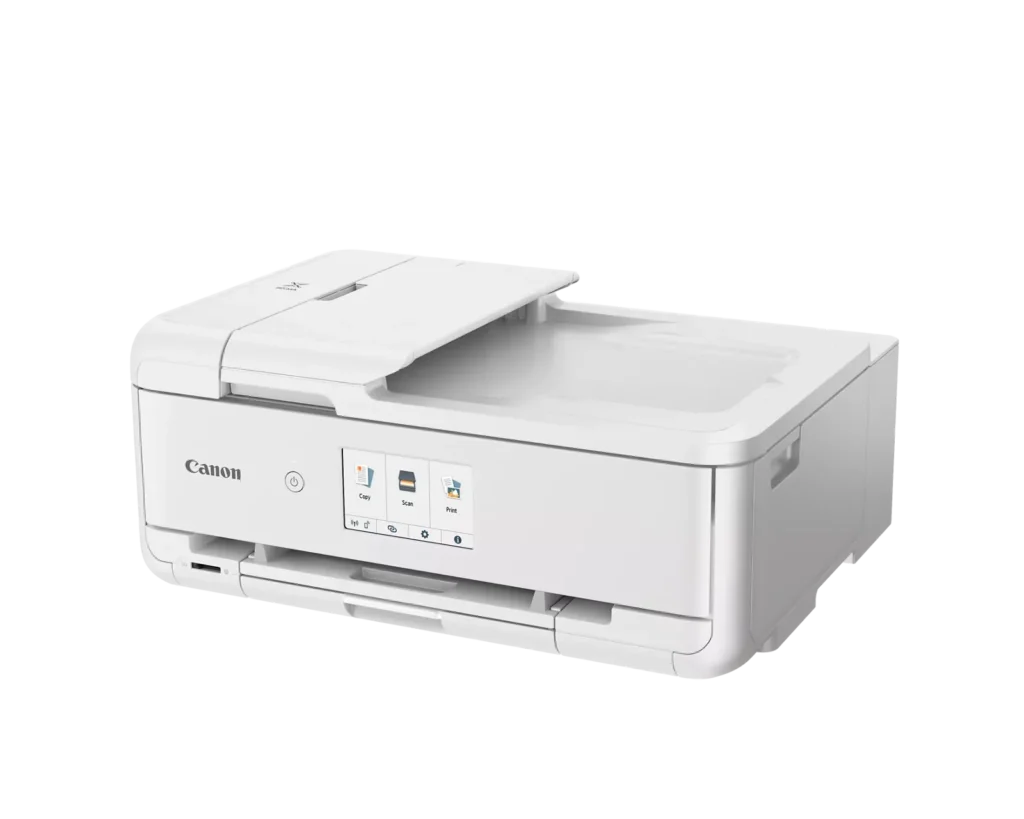
Purely as an aesthetic preference, I really like that the printer is offered in white which is a contrast to the basic black a great many electronics are these days. I try to blend with, or compliment rather, the color palette of the various technology devices I have around my home, and home office.
The only feature I miss from my previous Canon printer, is the ability to fax. I hadn’t used it, but it was nice to have that option.
Overall, this Canon PIXMA TS9521Ca All-in-One inkjet printer is of the standard Canon quality and performance I’m familiar with, and the brand is known for. And while the price may seem a bit “more on the expensive side”, this printer should serve you well for years to come.Read More
-
Quality printing & features
ScubaSteve May 20, 2024Review source: BestbuyThis printer packs a wealth of features in a compact package. Setup was straightforward and easy. You just have to power on, follow the prompts, install the print cartridges, connect to your network and it is ready to go. Print time is fast and colors are the quality you would expect from Canon’s picture background. The scanner is quick, and the color quality is top notch as well. It would be nice if the paper tray was a little larger, but this is fine, since the printer is tailored toward crafting versus mass print jobs. Print cartridge replacements are economically priced and you have the option to subscribe to a monthly subscription plan. Plans start at a price per page or go up to $9.99 per month for 200 pages per month. Unused pages roll over to the next month, so you don’t lose any unused printing. Firmware updates are seamless as well from the easy-to-read LCD screen. The entire front panel can be adjusted to make the screen easier to read depending on what level the printer is placed. Printing is also not very loud so the printer can be placed virtually anywhere.
-
Quality Home Craft / Photography Printer
NatureLover2 May 20, 2024Review source: BestbuyThe PIXMA TS9521Ca Wireless All-In-One Inkjet Printer is the latest addition to Canon’s impressive line of consumer, office and professional photo printers. It was developed to meet the needs of small scale creatives and crafters who want high quality photographic reproduction with versatile, easy to use software and the ability to print directly and wirelessly from multiple sources.
When my TS9521Ca arrived, I unpacked the unit. In the box, I found that Canon had provided an 8-1/2″ x 11″ (Letter-sized) Matte Photo Paper Sampler and a mixed size (5″ x7″, 4″ x 6″ and 5″ x 5″) Photo Paper Sampler in mixed Glosses. This was a true bonus.
Continuing setup, I removed all the blue packing tape from the printer. I scanned the QR bar code on the setup instruction card and downloaded the Canon Print application onto my Android phone and proceded to follow the instructions through set-up. First plugging in the printer, installing the (5) CLI 280 / 281 series individual ink cartridges (Magenta, Black (used for plain paper), Yellow, Pigment Black (used for photo papers), and Cyan). I was thrilled that the cartridges were individual and not all-in-one, like some other printers that I have encountered, which left me having to buy a new, expensive cartridge when one color ran out and wasting all the remaining ink.
Per the app’s instruction, I loaded plain white letter quality paper into the front paper cassette (tray) that takes up to 100 sheets and proceded to run the printer alignment. Gone are the days of printing the alignment sheet and manually typing in which columns or boxes were off, then running the print again. This printer prints the alignment test sheet, then automatically draws it back in to scan it and to self-adjust. The process is fast, efficient and effective.
After alignment, the application takes you to wireless setup. Your phone or computer must be on the same wireless network to make this work. (Remember to have your wireless network password ready.) The setup was quick for me and without any hitches. I was able to run a print test sheet successfully from my phone.
At this point, I stopped using my phone for setup. I personally don’t see the point of photographing, photo editing and printing from my phone. I am getting older and a small screen does not do it for looking at composition and detail. I do take pictures with my phone; mainly, when I don’t have my professional camera ready or need to quickly send a pic for an email or text. Otherwise, my good photos get downloaded to my computer where I can see them at size and can easily edit if necessary. So, I went to the Canon website and easily found and downloaded all the drivers and applications for the TS9521Ca, which are generically named the TS9500 (IJ) series.
Once the software was downloaded and installed, I setup the wireless between the computer and the TS9521Ca. All went quickly and smoothly and I was able to run a successful test print.
Now was the moment I was really waiting for: time to print some photos. I got out some sheets of Canon Paper Plus Glossy II, placed them in the Rear Paper Tray (this tray holds up to 100 sheets, also). I chose a photo downloaded to my computer from my phone to print. In the print dialog, I chose the Landscape Orientation, Automatically Select Paper Tray, Letter 8.50″ x 11.00″ Paper Size, Full Page Photo Size, Normal Page Margins, Fill Page (Borderless) Fit, and left the Quality Setting at Automatic, then hit Print.
It took less than a minute for the TS9521Ca to wirelessly receive the photo info and begin to print. It took much less than 2 minutes to output an impressive, very high-quality glossy print.
After that success, I utilized the provided Easy Photo-Print Editor application to choose a calendar template, upload a photo and print the result on one of the 8.50″ x 11.00″ Matte Photo papers from the Sampler. The resulting print was beautiful.
I am thrilled to have this easy to use, high-quality, small format (up to 12″ x 12″) photo printer with the additional scan and duplex copy capabilities of an All-in-One. It allows me to print stunning quality photos without having to setup my large format professional Canon printer.
I highly recommend the Canon – PIXMA TS9521Ca Wireless All-In-One Inkjet Printer for your smaller projects.Read More
-
Almost perfect, missing one feature
3Tcubed May 20, 2024Review source: BestbuyI’ve wanted a larger format printer for some time. This printer has a 100 page “internal” paper tray that holds letter and A4 paper. It’s rear feeder (100 page capacity) can hold many more sizes including: Letter, Legal, A4, A5, B5, 4”x6”, 5”x7”, 7”x10”, 8”x10”, 3.5”x3.5”, 5”x5”, envelopes, labels and custom sizes. The rear feeder does not support duplexing (double sided printing). Another “hidden” feature of this printer is that each of its ink tanks can be either the standard, XL, or XXL size (equating to approximately 250,500 or 800 pages per cartridge. It comes with standard size ink cartridges. Its scanner has 2 resolutions, 600×600 for the ADF and up to 1200×2400 for the flatbed scanner (this is as good as almost any standalone flatbed scanner you can find). The auto document feeder can be used for either scanning or copying, when scanning it can attach to an email, scan to PDF, save to PC, scan to the Canon PRINT app and Wireless Scanning back to your iOS/Android device. The printer has many connectivity options; Hi-Speed USB, Ethernet, PictBridge, Wi-Fi (802.11b/g/n/ac wireless networking, 2.4 GHz) and a memory card slot. Note: it does not support 5GHz WiFi (this is a disappointment for me -1 star); I have other older, far less expensive printers that support 5G WiFi. And it can print from almost any OS: Windows 7-11, MacOS X-14.5, Android, Chromebook and Amazon Alexa and from Mobile printing Solutions based on iOS & Android. The 4.3″ touch color makes setup and use very easy, this includes previews of scans and thumbnails from SD cards. The printer is on the large size at: 18.5”x14.5″x7.6” and it weighs in at 21.3 lbs.
The printer includes a variety of software/drivers for both Windows and iOS: the Canon PRINT app, Easy-PhotoPrint Editor Software, a Scan Utility and some other utilities/tools. If you follow the setup instructions from the provided QR code it will walk you through the physical printer unboxing and set up, networking choices, printer configuration and software installation. Even without installing any software I was able to print to the printer from my iPhone, Android Tablet, Windows 11 Notebook and Apple iPad. (no software installed on any of these devices, and they could find and print to the newly installed printer – my how things have changed – for the better).
From windows I printed out a B/W document. The first page took about 12s each additional about 4s (close to their claimed 15ppm B/W printing). A color text document took 13s for the first page and 6s for each additional, if not double sided. When printing double sided there is about a 3s pause in between each duplexed page. I will probably scan five times more images than I ever print on this printer/scanner. The scan quality is very important to me. And I was not disappointed, the quality is superb. When scanning without their scanning software, I ran into it telling me that the image could not be aligned properly, skipping this it seemed to work fine. With their scanning software I didn’t encounter this issue. You can scan multiple pictures/documents if each is separated by 1/16″, this seems to work well with each image being saved to an individually named file. Scanning at 600×600 was fairly fast, at 1200×1200 it took its time and seemed like it was going back and forth, but the quality of the scan was exceptional. I used the copy function to duplicate a printed picture, it was so close to exact, I asked my wife if she could tell the difference, she promptly cheated and turned them over.
I need to add that the Canon online manual for this printer and associated software goes beyond comprehensive. It has information for beginners to the most experienced, with a layout that is easy to follow, and skip to what you’re looking for. It is a great example of how online documentation should be done (and why you no longer get a “book” with your printer trying to explain its use). I printed out the “network” setup of the printer and it included information that required 3 pages, there are so many options on how you can use this printer. I love that I can print on 11×17 paper for some of my presentations, it might just change the way some get done. The quality of the B/W print is just as crisp as my 1200×1200 laser printer (but not nearly as fast 36ppm). All and all, it is a very impressive modern printer, checking almost all of the feature boxes. Why they omitted 5G support is puzzling, it is too bad. I also wish the internal print tray held more than 100 pages.Read More
-
Great Printer for Small Graphics Designer
SwigglesMilam May 19, 2024Review source: BestbuyThe Canon PIXMA TS9521Ca is an all-in-one printer that prints, copies, and scans. It can either print in black/white or color and uses the typical five (5) cartridges of ink – CMYK and an additional Black. Setup was easy by using the QR code the manufacturer has positioned as the first thing you see when you open the box. This printer is mostly designed for photo printing, printing on cardstock, making brochures, greeting cards, etc. One of its nicest features is that you can print on 11×17 Legal size paper, and the automatic double sided print feature works on this size as it does on all other types of paper. You can set the printer to print single sided if needed or desired. Wireless printing is all that I ever use anymore since I am not just printing from a desktop or laptop but from all types of mobile devices too. This was easy to set up and works very well. Cannon boasts a print resolution of up to 4800 x 1200 dpi and the printed copies are quite good. The colors are true and vibrant which makes this an excellent option for a small business graphics designer.
I find the paper trays, etc. to be very limiting, but the printer is designed to support a variety of types of paper and sizes, which is definitely a plus. There is a rear paper tray that holds up to one hundred (100) sheets of plain paper or twenty (20) sheets of 4×6 photo paper or ten (10) sheets of 5 x 7 photo paper. There is also a front cassette that holds up to one hundred (100) sheets of plain paper. The printer supports borderless printing which is another nice feature, and it can print from a variety of SD Memory Card sizes. There is also an automatic document feed that holds up to twenty (20) pages. The flat bed is great for printing from bound books or any type of thick document. Other especially useful copy features include a Photo Fade Restoration function and the Reduction/Enlargement capability from 25% to 400%.
Scanning can take place from the auto document feeder and can be attached to an email or saved as a multipage pdf on your computer. Scanning resolution is 1200 x 2400 dpi if using the flatbed or 600 x 600 dpi if using the automatic document feeder. The size limitation of the flatbed is Letter size of 8.5” x 11.7.” A larger Legal-size paper can be scanned using the ADF feature but that is limited to five (5) sheets of Legal plain paper as opposed to the twenty (20) sheets that can be scanned of Letter size paper. As with all printers using cartridges, there are standards size ink cartridges and XL size ink cartridges. This model uses XXL cartridges too. The standard cartridges average two hundred (200) printed copies in Black and two hundred-fifty (250) printed copies in Color. The XL ink cartridges average four hundred (400) printed copies in black and five hundred (500) printed copies in color, but the XXL boasts an average of six hundred (600) printed copies in black and eight hundred (800) printed copies in color.
The printer’s footprint is compact at 18.5” L x 14.5” W x7.6” H but in use with all the paper trays, LED positioned for use, etc. it takes up slightly more space. The printer weighs 21.3 lbs. which still makes it easy to move when needed. This is a nice printer for making cards, brochures, documents, etc. and the printed color that it produces makes a genuinely nice, finished presentation.