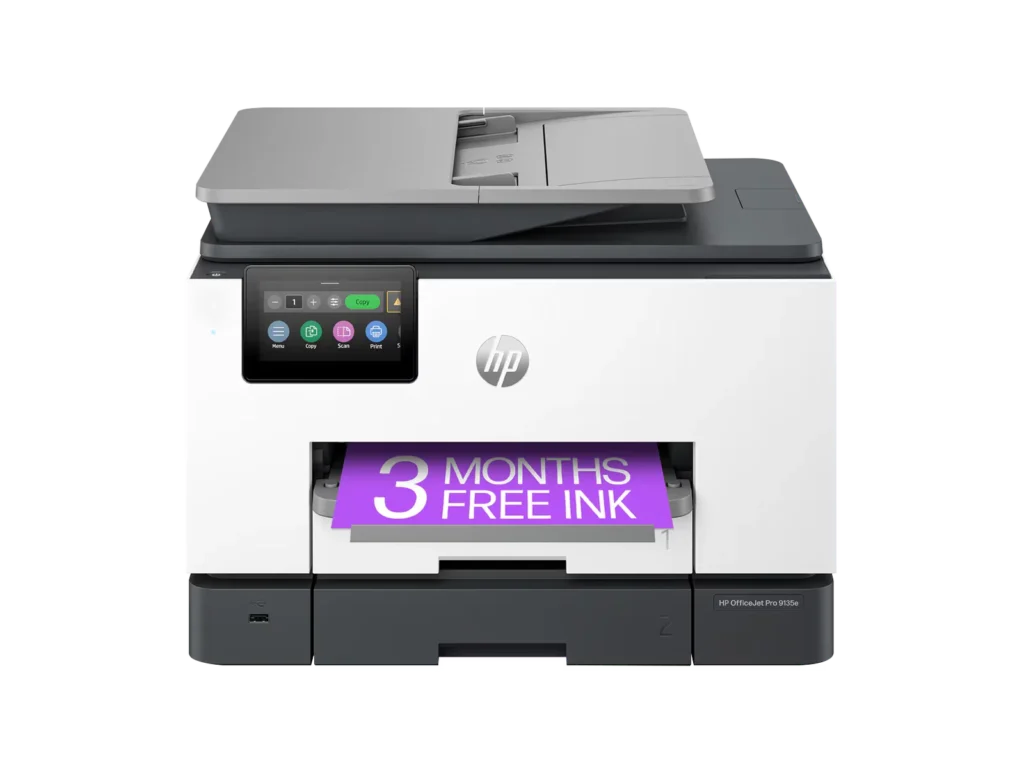
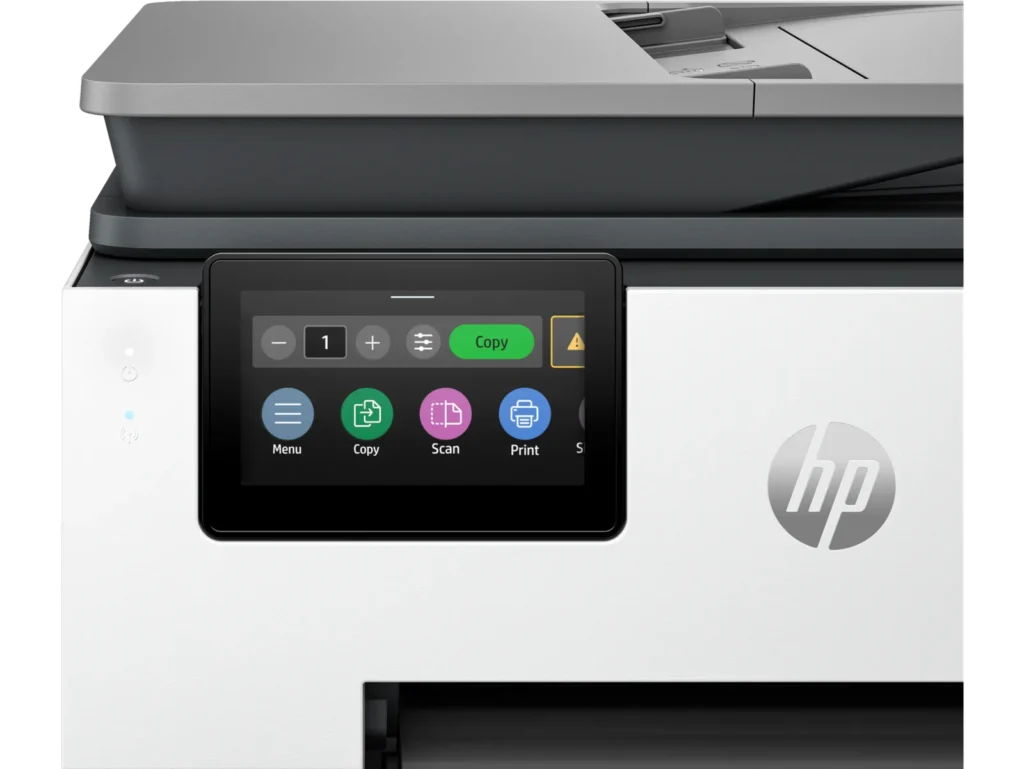
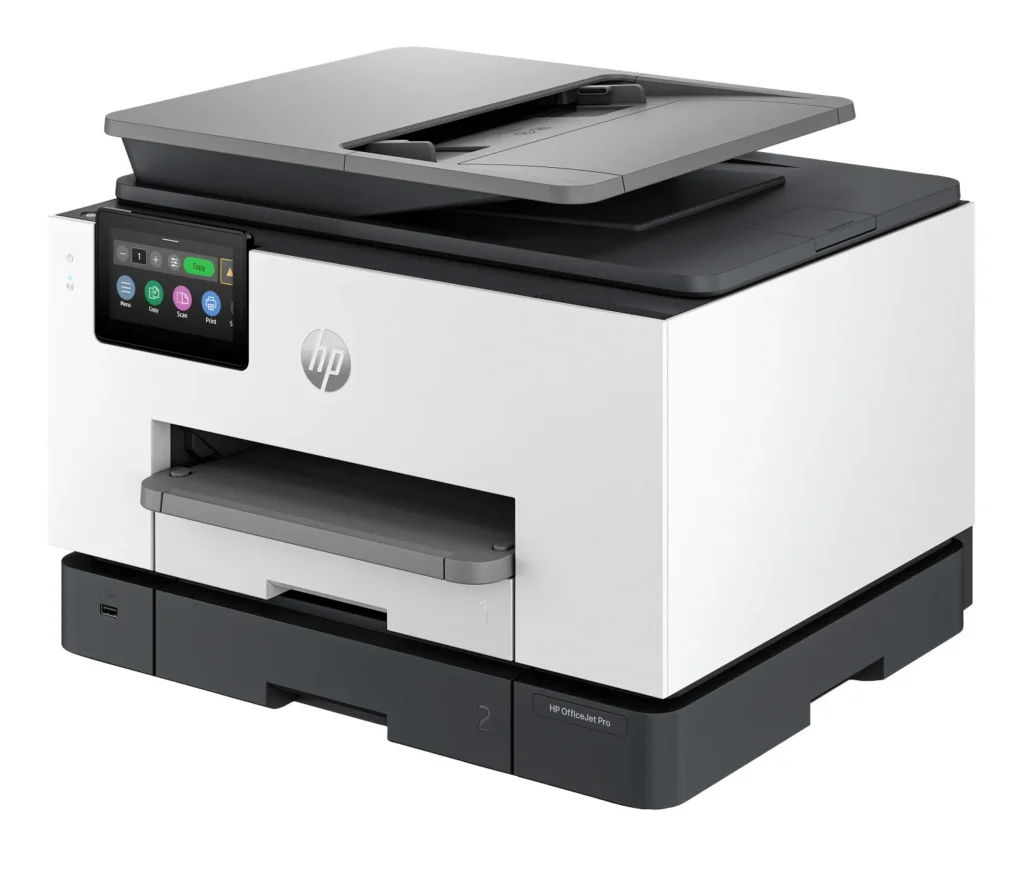
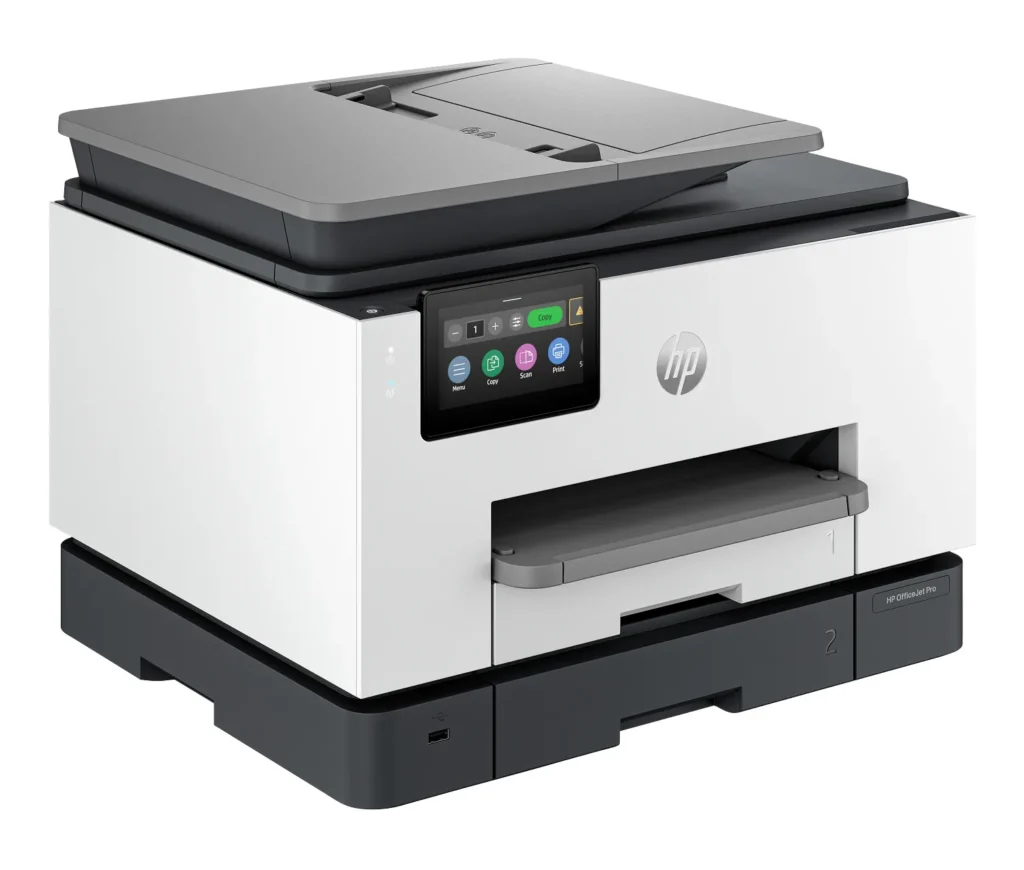
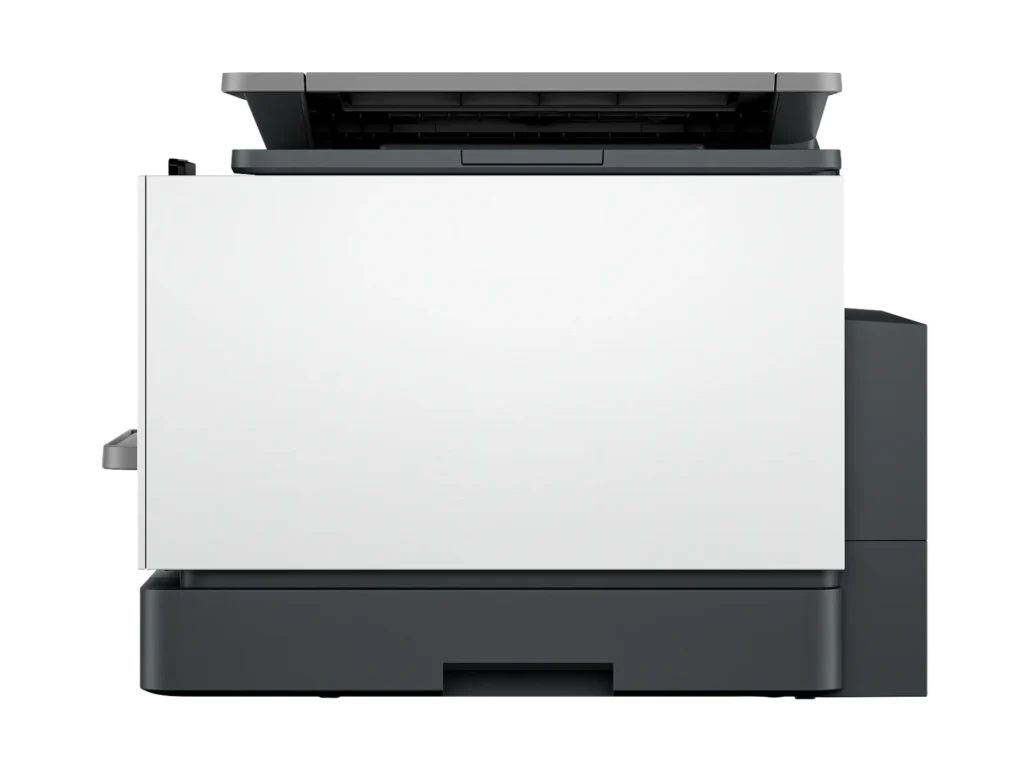
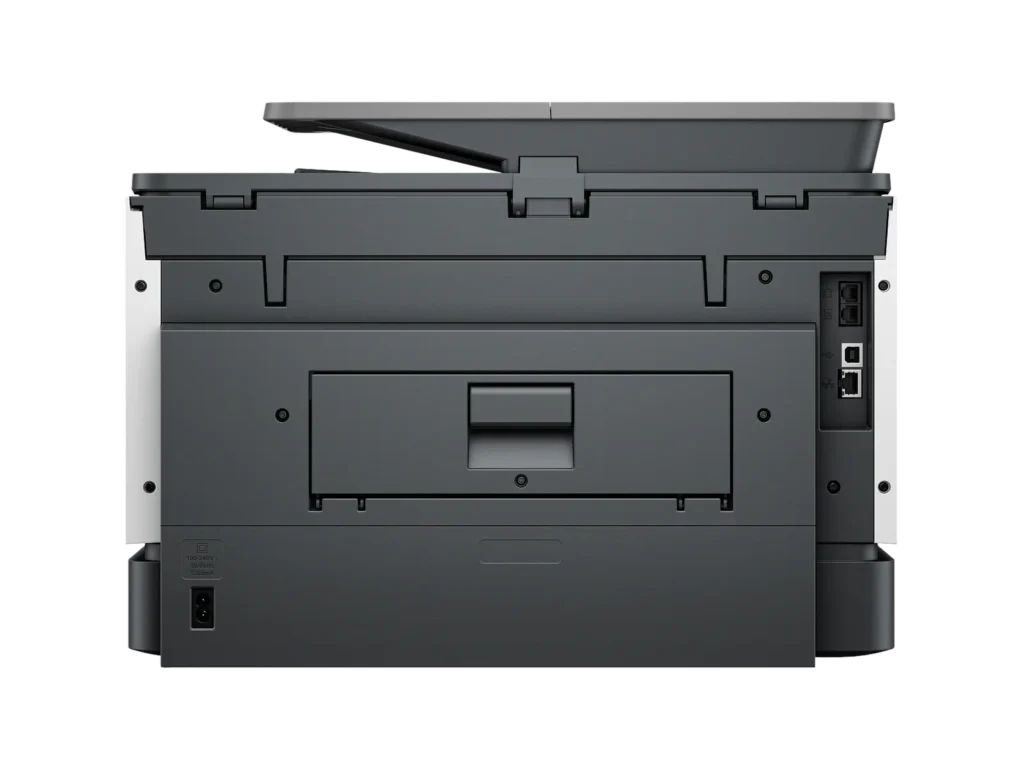
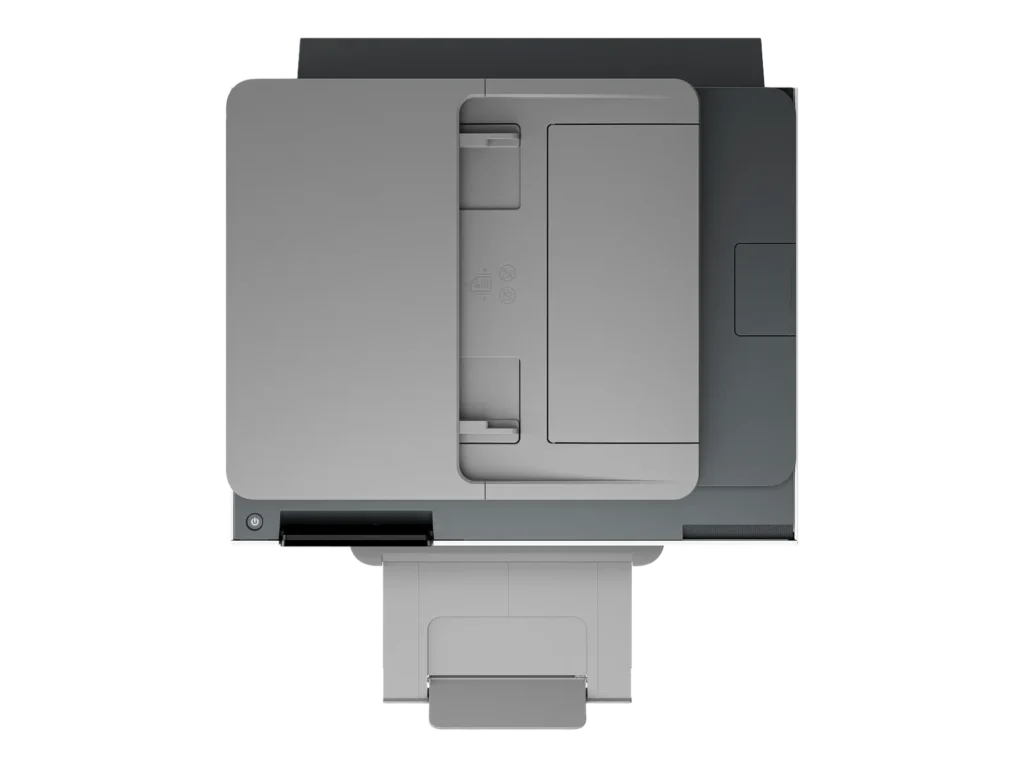
Customer Media
Highlights
| Blazing Fast Print Speeds | Experience rapid printing with speeds up to 25 pages per minute (ppm) for black and white documents and 20 ppm for color documents, ensuring efficient workflow for busy offices. |
|---|---|
| High Capacity & Automatic Duplexing | Equipped with a substantial 500-sheet paper capacity, split across two 250-sheet input trays, and featuring automatic two-sided printing and single-pass duplex scanning, this printer is designed for high-volume tasks and enhanced productivity. |
| AI-Enabled Smart Features | The HP OfficeJet Pro 9135e is AI-enabled to intuitively adapt to your workflow and offers perfectly formatted prints with HP AI, alongside seamless integration with HP's easy-to-use print app for cloud sharing and multi-device printing. |
| Reliable Connectivity & Robust Security | Stay connected with HP's self-healing dual-band Wi-Fi that automatically reconnects, and protect your network from cyberthreats with HP Wolf Pro Security, ensuring your multifunction printer stays up to date and secure. |
| Versatile All-in-One Functionality | This all-in-one inkjet printer provides comprehensive functionality, allowing you to print, copy, scan, and fax, making it a versatile solution for diverse office needs. |
Pros & Cons
Pros
- Excellent Print Quality: The printer consistently delivers crisp, clear, and vibrant prints for both documents and photos, with many reviewers noting its professional or laser-like quality.
- Fast Printing and Scanning: Users appreciate the high speed of printing, especially for basic jobs, and the efficiency of features like automatic two-sided printing and one-pass duplex scanning.
- Versatile All-in-One Features: The device is highly valued for its comprehensive functionalities including printing, scanning, copying, and faxing, along with practical features like dual paper trays and seamless mobile printing via the HP Smart app.
Cons
- Connectivity and Setup Challenges: Many customers found the initial setup complicated and time-consuming, often encountering difficulties with wireless connectivity, frequent disconnections, and the printer not being recognized by devices, sometimes requiring multiple reboots or extensive troubleshooting.
- High Ink Costs and Restrictive Policies: A major point of dissatisfaction is the high cost of HP's proprietary ink cartridges and the mandatory nature of the HP Instant Ink subscription, with some users reporting the printer becoming unusable if non-HP ink is detected or the subscription is cancelled.
- Noise and Mechanical Issues: Several reviewers noted the printer is considerably noisy during operation. Other mechanical problems include frequent paper jams, the output tray bending printed pages, and the scanner feeder being unreliable or slow.
Customer Fit
- Primary audience: Home-office professionals or small-business owners who need fast, dependable color printing and scanning for daily paperwork.
- Secondary audience: Families and remote workers printing homework, invoices, or photos who value easy wireless control and compact size.
- Ideal scenarios: Typical uses include home offices printing client files, scanning multi-page contracts, or producing marketing flyers and reports.
Customer Reviews
Showing reviews 451-460 of 729
-
Won't recognize hp cartridges
Verified purchase Verified purchase: This reviewer bought the product.James E. December 9, 2024Review source: AmazonFails to recognize correct hp ink cartridges even after all the plugging and unplugging etc. Ready to defenestrate this tasky failing device.
-
Nice Product, a little noisy
Verified purchase Verified purchase: This reviewer bought the product. Incentivized Incentivized review: The reviewer received a benefit for sharing feedback.Steeleyes125 December 9, 2024Review source: BestbuyThe copier makes nice copies. They are clear and look great in both color and black and white. The HP Smart app is great and easy to use for all functions. The only negative so far has been it’s a bit louder than I would like. But for the cost it was worth a little noise.
-
Great Printer
Verified purchase Verified purchase: This reviewer bought the product.Tony Holloway December 8, 2024Review source: AmazonI needed to replace a broken HP printer, and selected the HP OfficeJet Pro 9135e All-in-One Printer. It was easy to set up and has a ton of features. I work from home so this all in one printer does everything needed to get the jobs done. I highly recommend this printer
-
Defective in a month's time
Verified purchase Verified purchase: This reviewer bought the product.Carmen Harris December 8, 2024Review source: AmazonBought this printer in October and by end of November the scanner stopped working. HP had to replace and the replaced one was defective with printing. Highly upset that in a month’s time a new printer would be defective.
-
Thus printer is a disaster
Verified purchase Verified purchase: This reviewer bought the product. Incentivized Incentivized review: The reviewer received a benefit for sharing feedback.WilliamPeyser December 8, 2024Review source: BestbuyFirst the good news. The HP OfficeJet Pro 9135e is fast. Now the bad news. The positive reviews can’t be trusted. The truth is, this printer is so poorly designed that it shouldn’t even be on the market.
It’s a cheap looking, ugly, square-cornered box. It’s noisy unless you use Quiet Mode, which slows it down. Worst of all, there’s no way to stop a print job in progress.
You can’t leave envelopes or labels in Tray 1. If you do, the printer will grab them every time it runs out of letter paper in Tray 2, creating a huge paper jam.
If Tray 1 is empty when the paper in Tray 2 runs out, the printer ought to continue printing when more paper is loaded. It won’t. The user has to intervene by pressing buttons on the control panel.
1. Printer runs out of paper in Tray 2 and stops printing. Control panel displays an “Out of paper” message. DO NOT press “OK.”
2. Load paper into Tray 2, and close the drawer.
3. The message on the control panel changes to, “Did you change the paper?” Press “OK.” This message persists for only a few seconds, so be sure to press “OK” immediately. If the message doesn’t appear, open and close the paper drawer until it does.
4. Control panel displays the “Out of paper” message again. This time, press “OK.” Printing will resume.
If the user fails to follow this procedure exactly, the printer will stop printing after the current job completes and won’t print anything more. The control panel will continue to display an “Out of paper” message even though paper has been fully loaded. The only way to get the printer to start printing again is to reset it by unplugging it and plugging it back in or by turning it off with the power button and waiting for it to boot.
The same remedy applies when it refuses to print after a software update. Unplug it and plug it back in, or turn it off and wait for it to boot.
It shouldn’t need updates in the first place. The product should have been finished before it was brought to market. The updates improve the printer’s performance not one iota anyway.
This printer turns pressing an application’s Print button into an adventure. The user never knows whether it’s going to print or not. When it doesn’t, no explanatory message appears on either the control panel or the computer screen. Nothing will print, but the user doesn’t know why. The baffled user has no recourse but to reset the printer. When he/she presses the power button to turn it off, the notification, “Error printing” may appear. How helpful!
Sometimes, it loses contact with the wireless network. When it does, and the user tries to print, the notification, “Printer offline” appears on the computer screen. In this case, pressing the power button to reset it won’t work. The power button has no effect at all. The printer has to be unplugged and plugged back in to get it to print.
You can avoid the wireless connectivity problem by connecting the printer to your router by an Ethernet cable or to your computer by a USB cable (neither supplied). Do this after the initial WiFi setup.
However, even after the printer is connected to the router or computer, it frequently refuses to print. There’s never any apparent reason except that the software controlling the printer is defective. Every time the printer balks, the user has to press the power button and wait while the printer shuts down and reboots before it finally starts to print again.
HP’s warranty is worthless. If you’re fed up with struggling with this printer, and you think you’ll get a better one if you return it to HP, you’ve never been more mistaken. The “replacement” you’ll receive will have no ink and no printhead. If you try to install the ink and printhead from your original printer in the “replacement,” you’ll find that you can’t. The “replacement” lacks not just ink cartridges and printhead. It’s also missing the mechanism that holds them in place. It’s a useless shell.
If you’re foolish enough to buy this printer after reading this and other negative reviews, you will get exactly what you deserve for your foolishness: a horrible printer. Be sure to buy it form a retailer that offers a generous return window.
-
Home Office Printer
Verified purchase Verified purchase: This reviewer bought the product. Incentivized Incentivized review: The reviewer received a benefit for sharing feedback.PaulM December 8, 2024Review source: BestbuyThis is an excellent home office printer. My wife is a school teacher and uses it extensively. It prints great color and is very fast.
-
Absolute Worst Printer
Verified purchase Verified purchase: This reviewer bought the product.Larry C. December 7, 2024Review source: AmazonUsing a printer should be simple, this thing needs restarted every time we use it. It should not take 20 minutes to copy a single page document! Turn it on, copy, scan, or print should be easy.
-
Printer review
Verified purchase Verified purchase: This reviewer bought the product. Incentivized Incentivized review: The reviewer received a benefit for sharing feedback.GINGER123 December 6, 2024Review source: BestbuyGreat printer!…………………….
…….
… -
HP 9135e
Verified purchase Verified purchase: This reviewer bought the product. Incentivized Incentivized review: The reviewer received a benefit for sharing feedback.Jonf69 December 4, 2024Review source: BestbuyBought this for my wife is working from home and she loves it. The second tray we set up for envelopes which has been a huge benefit.
-
Yellow ink keeps going out
Verified purchase Verified purchase: This reviewer bought the product.Victoria Platt December 3, 2024Review source: AmazonThe yellow ink has gone out 2 times before the other cartridges are even close to going out! Not sure why the yellow would be the first to go as we are not printing a bunch of yellow copies but other then that the printer is working properly.