No images available for this model.
Imagery for this model matches or very closely resembles the visuals shown for similar versions. Please review the nearby models for a reliable reference.
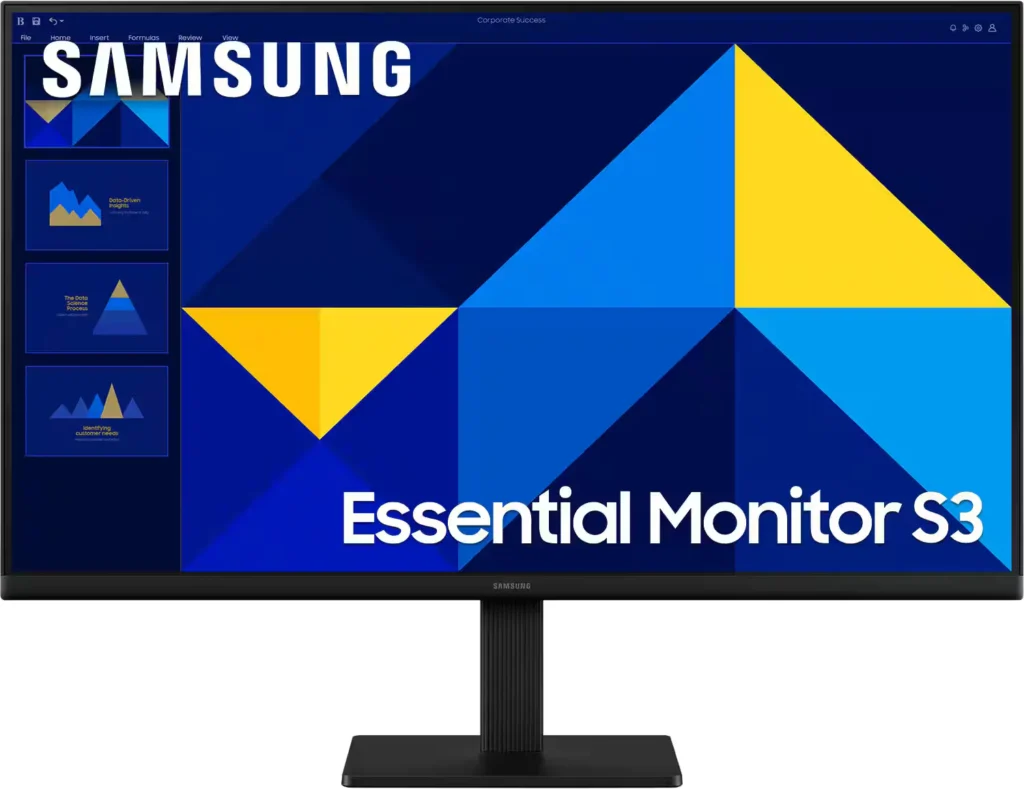
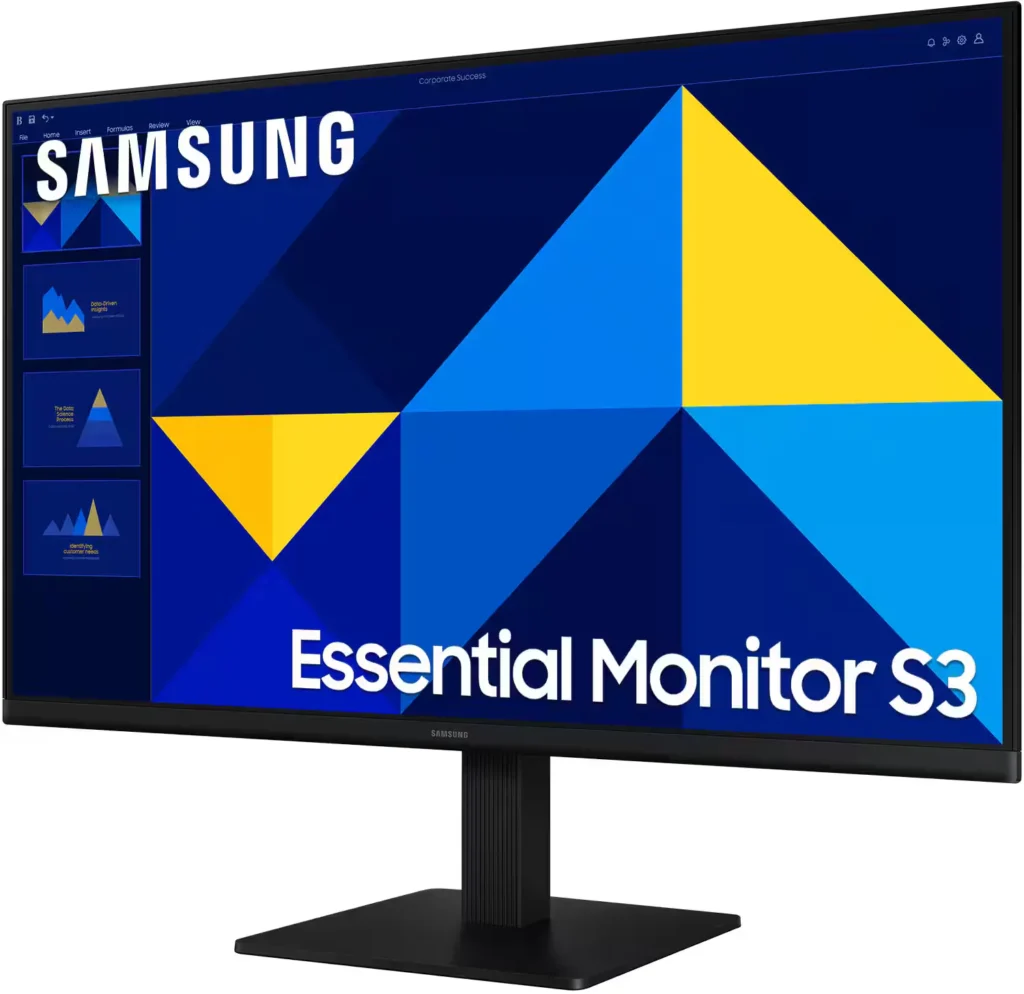
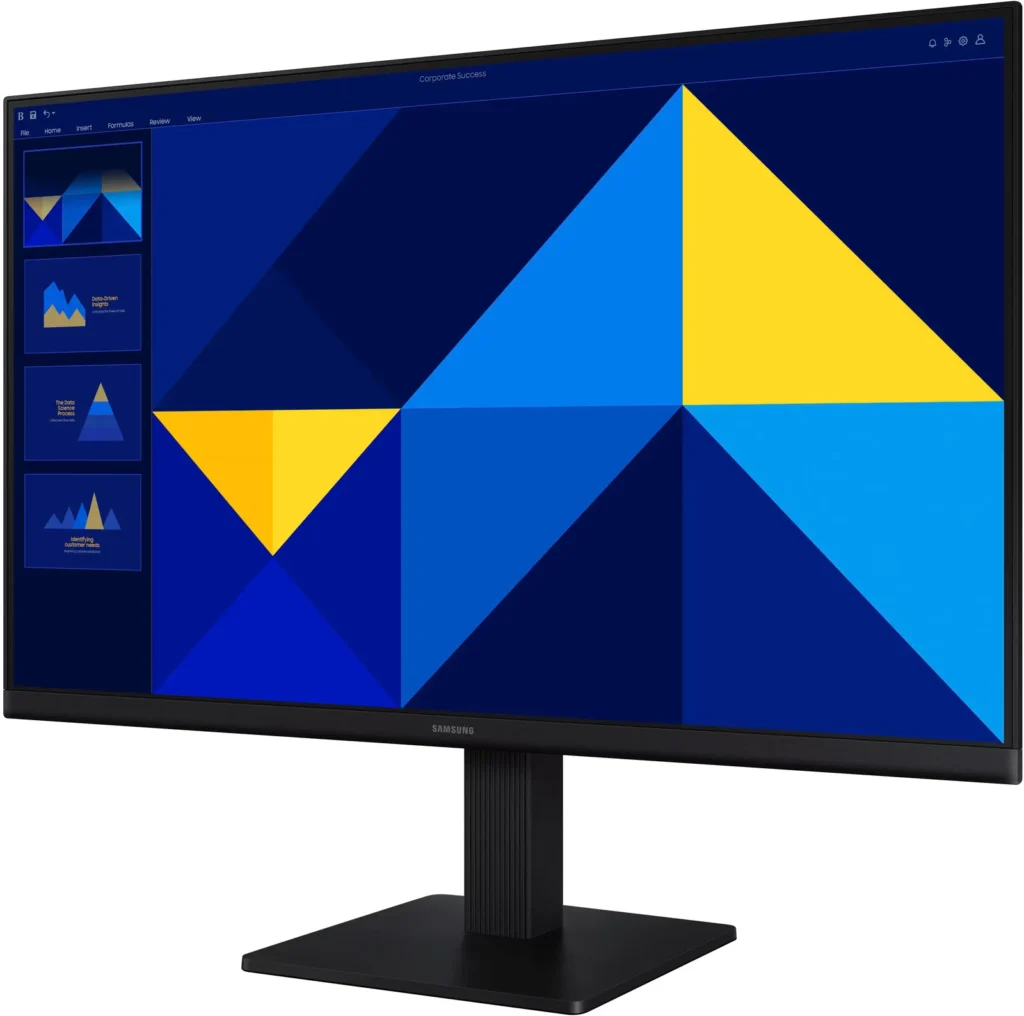
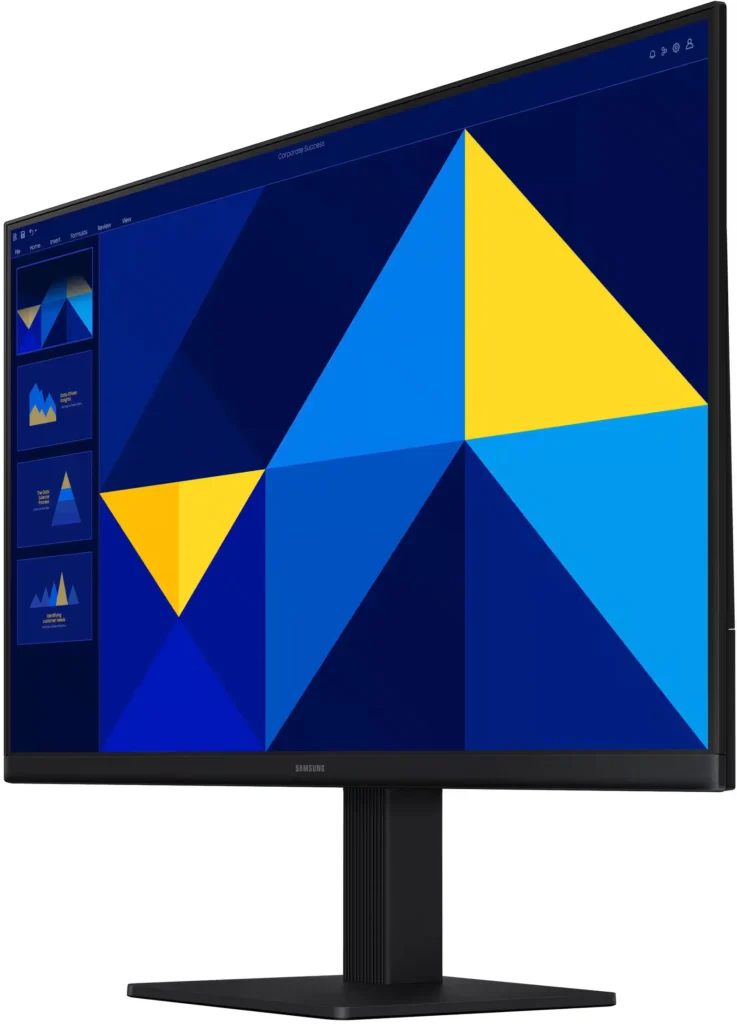
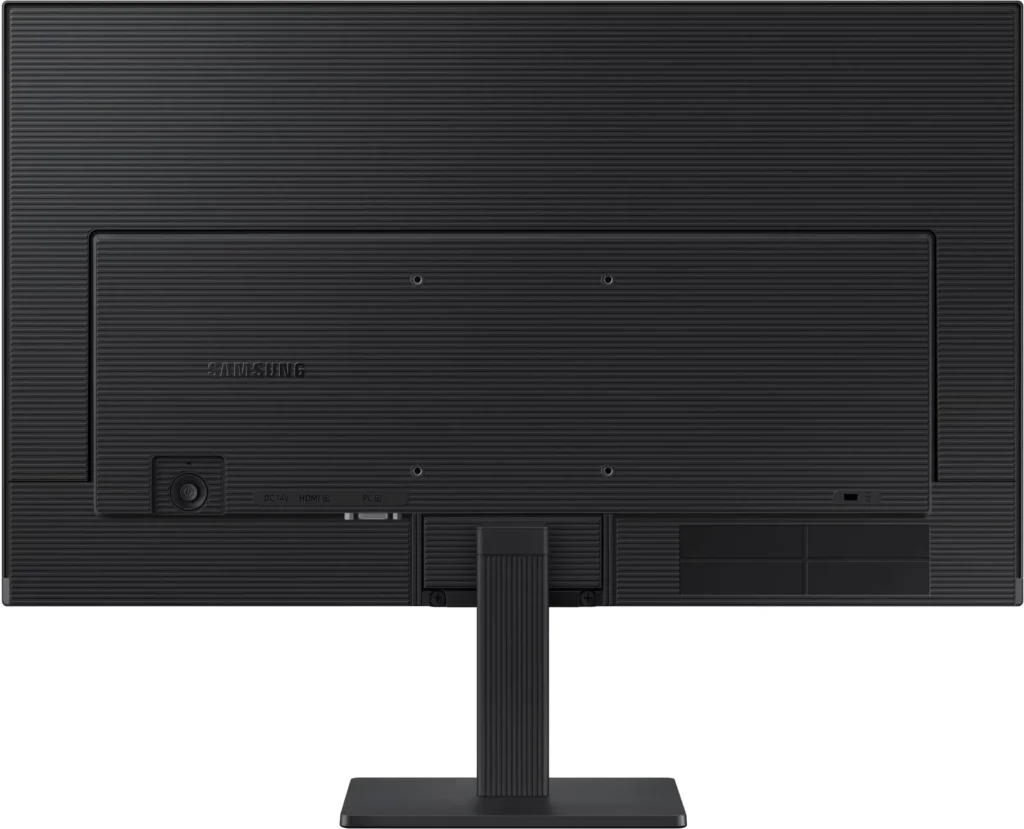
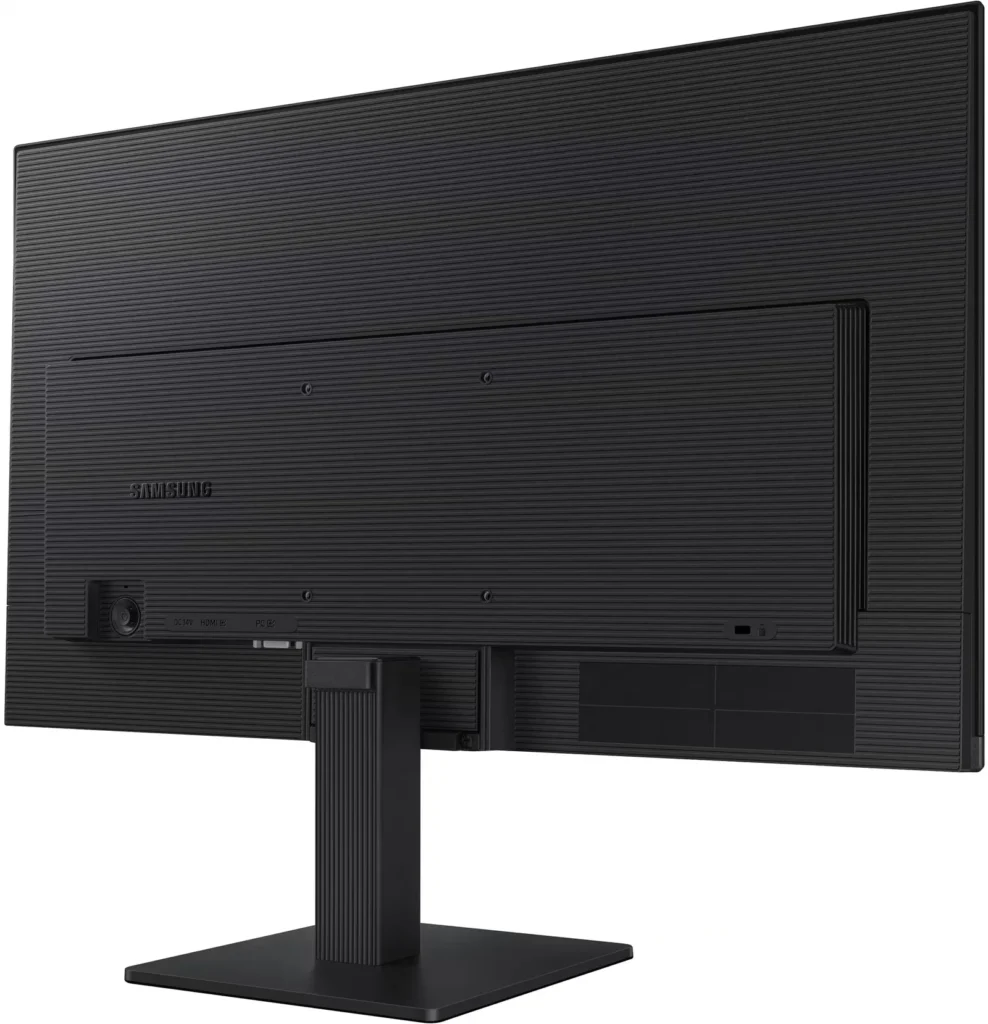
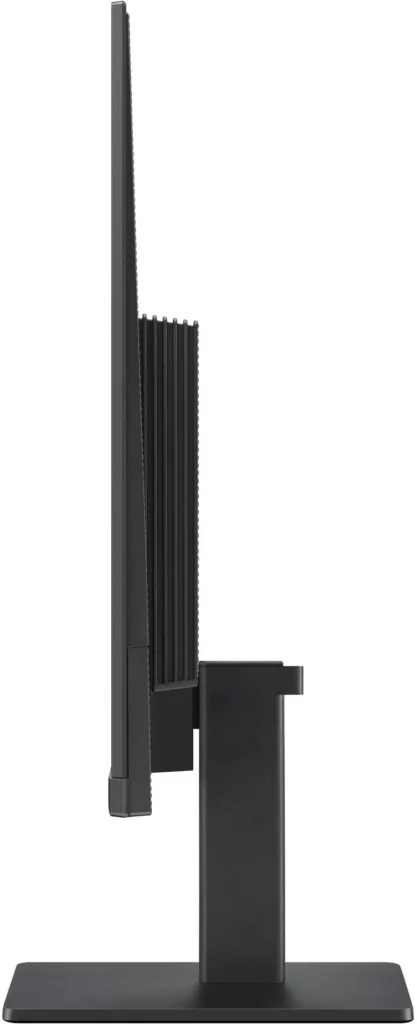
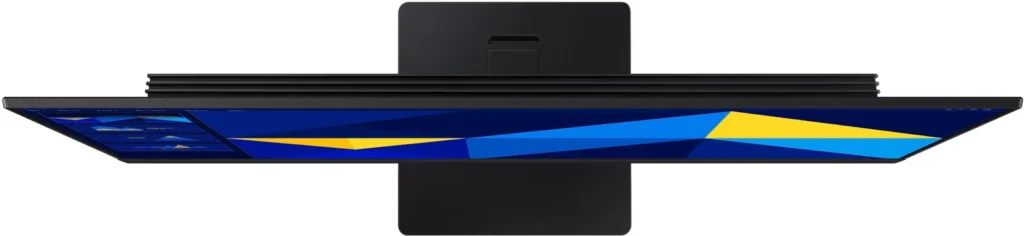
No images available for this model.
Imagery for this model matches or very closely resembles the visuals shown for similar versions. Please review the nearby models for a reliable reference.
Customer Media
Highlights
| Vivid IPS Panel Technology | The IPS panel delivers a stunning color experience across the entire display, maintaining consistent brightness and clarity from any viewpoint with a wide 178° viewing angle. |
|---|---|
| Smooth 100Hz Refresh Rate | A 100Hz refresh rate reduces lag and motion blur compared to standard 60Hz displays, providing smoother performance for creative projects, video playback, and everyday business tasks. |
| Advanced Eye Comfort Features | Equipped with Eye Saver Mode and Flicker Free technology, this monitor reduces blue light emissions and screen flickering to minimize eye strain during long work sessions. |
| Optimized Game Mode | Instantly adjust color and image contrast to see scenes more clearly and spot details in dark areas, providing a competitive edge for entertainment and creative work. |
| Modern Super-Slim Design | Featuring a sleek, lightweight aesthetic with ultra-thin border bezels, this monitor maximizes screen space and integrates seamlessly into any professional workspace. |
Pros & Cons
Pros
- Excellent Value for Price: Reviewers consistently highlight the monitor as a cost-effective solution, offering high-quality IPS visuals and a sleek design at a very competitive price point for both home and office use.
- Vibrant Picture Quality: The IPS panel provides sharp, crisp images with accurate colors and wide viewing angles, making it highly suitable for productivity tasks, photo editing, and streaming content.
- Smooth 100Hz Refresh Rate: The 100Hz refresh rate is noted as a significant upgrade over standard 60Hz displays, providing a noticeably smoother experience for scrolling through documents and casual gaming.
Cons
- Awkward Control Placement: The single joystick-style button for power and settings is located on the back of the monitor, making it difficult to reach and unintuitive to navigate for many users.
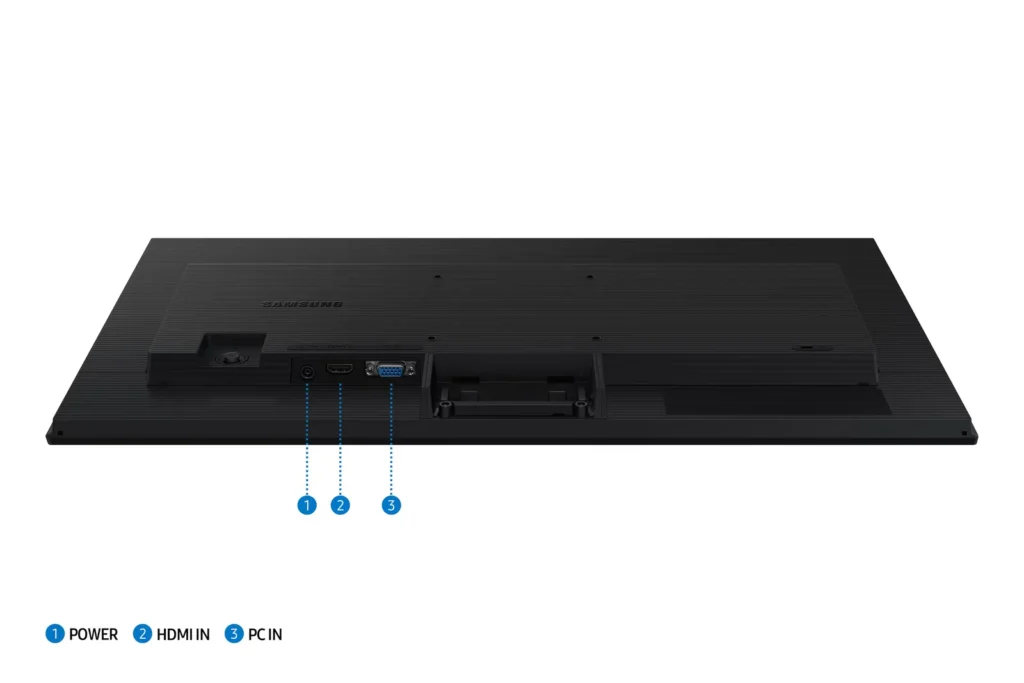
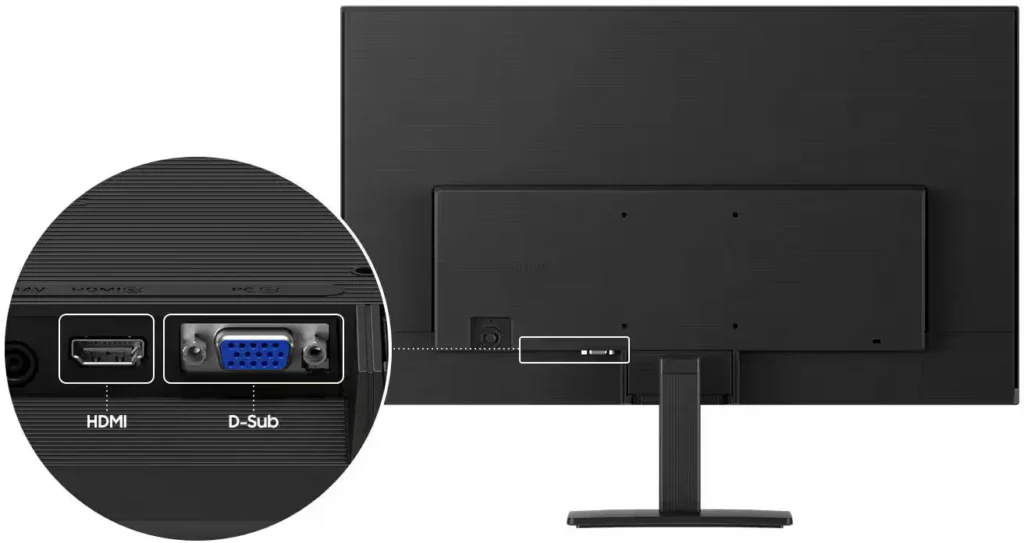
- Limited Connectivity and Features: The monitor lacks modern essentials like DisplayPort, USB-C, and built-in speakers, and several users were disappointed by the absence of a headphone jack on certain models.
- Basic and Flimsy Stand: The included stand is not height-adjustable and has been described as flimsy, with several users reporting significant difficulty during assembly due to misaligned screw holes.
You might also like
Customer Reviews
Showing reviews 931-940 of 996
-
Great Business monitor
OmieOne April 17, 2025Review source: BestbuyTalk about a throwback monitor, I haven’t seen a d-sub (VGA Connector) on monitor in a long time and it is handy for older KVM switches esp for home labs, so that is a nice thing to have since I have old hardware and the 24″ size is perfect for my Rack, without having to give into my bad eyes with a smaller monitor, though if you can run HDMI, you do get 100hz which is so much nicer even for daily office use at least for me then a 60hz monitor after my home gaming monitors got me used to smoother screens and its nice to have a secondary office monitor that can do 100Hz instead of the usual 60hz. Its an IPS panel so you get a great picture and for my use I didn’t really notice too much light bleed, if you want a secondary monitor for streaming movies this worked really well I found, it had the right brightness and colors seemed good to me. This is defintely aimed at businesses though because of the d-sub connector as they are the only ones using d-sub, or people with homelabs using older hardware. Either way I think this is a great monitor for those uese and am enjoying it.
-
A Very Good Inexpensive Monitor
backerly April 17, 2025Review source: BestbuyThe Samsung S-3 (S30-GD) IPS LED FHD 100hz Monitor is a basic monitor that has many of the features found in higher end monitors including:
– Monitor tilt and pan capability to suit user preferences
– The monitor comes set to the lowest brightness setting which can be adjusted higher as needed
– Power cord and HDMI cable are included
– The monitor is easily assembled for use; it took me under 5 minutes to set it up
– Is powered on using a joystick-like button on back of the monitor which can also be used to access the monitor settings menu
– The monitor has a 5 millisecond response time
– Eye Saver mode reduces blue light and screen flickering to protect user vision and enhance comfort especially when using the monitor extensively
– Maximum resolution is 1920×1080
– No speakers or camera are included
– The monitor is very lightweight and of a space saving designThe Samsung S3 monitor provides excellent color, 100hz performance and is a great budget monitor for everyday use browsing the internet, sendingRead More
-
Great replacement monitor.
Verified purchase Verified purchase: This reviewer bought the product.Tom Jones April 17, 2025Review source: Amazongreat color and brightness. Love it
-
Nice Looking Budget Friendly – Great For Office
DaveW April 15, 2025Review source: BestbuyThe Samsung LS24D300GANXZA is a 24” 100Hz IPS monitor with HDMI and VGA ports. This is a pretty basic monitor that works well for casual gaming or in an office setting, and it won’t break the bank.
Build Quality/Design
Construction and build quality are solid. There are no frills to this monitor – what you see is what you get. It has a basic fixed height stand that that can tilt from-2° to +21°. Like most monitors this stand is detachable if you prefer to use a mount on the 100×100 VESA mount pattern. For a monitor hovering around the 100 dollar mark it has a good build. Even though it’s a basic stand it holds the monitor securely and it doesn’t feel wobbly.
The panel uses a frameless ultra-thin bezel design. The bezel edge is right at 2.4mm, but there is still a ~5mm black border around the image on the screen. This is similar to my other frameless monitors, which is the style I prefer when making multi-monitor setups.
Panel quality looks good as well. It has a low gloss finish so bright overhead lights aren’t reflected. I adjusted a few settings from the initial startup to match my other monitors, but it looked pretty good out of the box.
There is a singular joystick button on the back of the monitor on the lower right quadrant. The joystick can be pressed like a button to power the monitor on/off. To access the menus is just a mattery of pushing the joystick in on of the directions. The onscreen display shows you how to navigate through the menus to adjust the settings that you need to. I’m typically on the fence about joystick controls because they are often stuck on the back like this, and no setting is a single button press away. However, contrast that to monitors with multiple buttons that I can’t remember what each one does, I’d call it a toss up.
Screen Quality
The panel itself provides a good picture. Its 250 (200 min) nits brightness isn’t going to blow you away, but its more than good enough for your average display uses. With that being said the monitor does not support HDR since HDR requires a 400nit+ display. The panel is a 23.8” 1920 x 1080p FHD with a 100Hz refresh rate and a 91.8ppi pixel density. The screen produces sharp detail in a text document or a spreadsheet, which is the bulk of most office tasks. Playing a video or a game on the monitor looks good as well. Again nothing to write home about but it’s perfectly serviceable in this role and at this price point. Since this is an IPS panel the off-angle viewing is pretty good at 178° for vert/horz. The color range is 72% NTSC which is similar to 100% sRGB, and equates to a decently wide color gamut. Higher range monitors use DCI-P3 color space, but those panels are only necessary if you require extremely accurate color reproduction.
For gaming the panel supports Freesync over its HDMI connection and has a 100Hz refresh rate. At 100Hz I feel like that is a solid refresh rate for the casual gamer. I feel like 120-144 is the really the ideal range since most games on even old hardware can hit those refresh rates if you tone down your settings. However, I will play games where my FPS tops out in the 70’s, which means this monitor wouldn’t be a bottleneck. I would be fine using this monitor as a gaming display when I want to drive something off one of my gaming laptops. I’ll take a 24” display over a 14 or 15.6” display 90% of the time.
For right now I have the panel set up at my workstation in the office. I had a nice 24” display, but it had a high gloss screen that reflected the windows and overhead lights too much. I swapped this display in and it was such a significant improvement. Text looks good, my modeling software displays well, and running AutoCAD with the black background has plenty of contrast/sharpness. I really like it for an office display so far.
Overall, this is a good entry level display. It doesn’t really have any fancy/special features, but it does a good job providing a solid display experience. The biggest limitation to this panel is the source connection. VGA has its place, and its’ nice to have to connect to older hardware. However, it would be really beneficial to have a DisplayPort connection. If you only have DisplayPort on your PC, you will be stuck using a DisplayPort to VGA adapter in order to use this panel. DisplayPort cannot be connected to HDMI. That’s how my current setup is at the office, because my tower only has DisplayPort outputs. Other than that shortcoming I don’t have anything negative to say about the monitor.
-
Great value monitor for every-day tasks.
Rhostam April 15, 2025Review source: BestbuySamsung – 24″ S3 (S30GD) IPS LED FHD 100Hz Monitor
Summary: Great value monitor for every-day tasks.
Use: We needed a second external display to complement a setup to be used by our ILs in our ADU. This display works well enough for that role. We also occasionally host our nephews so something that would work as a gaming monitor would be a perk. The laptop display works fine, but too small for browsing, etc.
Given the price point, we didn’t expect bells and whistles. The refresh rate and display size are adequate. It is unassuming and takes up a modest amount of desk space.
We tested it by putting it through its paces as a desktop monitor for browsing use, and also a little bit of gaming. This isn’t going to win prizes for the latter.
Following are a few pros and cons. Please keep in mind the price point.
Pros:
* Screen. Size and HD resolution are fine for a light-use secondary display. Brightness/contrast and viewing angles are all adequate. Refresh rate of 60-100Hz and 5 ms response time make this usable for all basic uses, and some light gaming.
* Quality. We noticed some bleeding along the edges for dark screens. In a darkened room, this becomes really noticeable.
* Setup. The assembly is pretty standard. Screw the base and snap the stand into place.
* Connectivity. 1 x HDMI 1.4 port. That’s it.
* Price. For what you’re getting, it is priced fairly.Cons:
* At this price point, I am getting what I pay for and nothing more – a secondary monitor for a guest computer.Read More -
Perfect for with the work environment
Incentivized Incentivized review: The reviewer received a benefit for sharing feedback.drewchadwick April 14, 2025Review source: AmazonFirst thing to know is that this is a no-frills monitor. It is intended to be a good solution for getting work done. And if you look in the picture, you can see we mounted it in the Control booth of the auditorium of our school. In this capacity, it works fantastically. Well it does include a reasonable stand that simply latches into place, we chose to use the VESA mount to put it on a dual mount arm above the soundboard.
The monitor can be set to be very bright, which is helpful in a very dark setting like a Control booth. Image quality is standard and was not tested easing gaming graphics: as it is used for audio control software. In that capacity, it is ideal. It is simply plug-in play in the windows environment as are all monitors. The Christmas and sharpness of the image is very good and there is essentially zero latency. One of the nicest features of all is that it does not produce a significant amount of heat. This can be important in a close quarters environment. This monitor is used with a simple HDMI duplexer attached to a Windows 11 pro PC. I’ve always had Samsung monitors: fancy ones for gaming and basic ones for productivity. I couldn’t be more happy with this one in the Price was just right.
-
Nice new terminal
Verified purchase Verified purchase: This reviewer bought the product.Kristin F. April 13, 2025Review source: AmazonJust unboxed and plugged in my new terminal and I got a screen that looks lightning bolts of purple and white. Does the OEM do qualify checks on their product or was it dropped by USPS.
-
Basic, no frills monitor
callmeageeth April 11, 2025Review source: BestbuyIf you need a quality monitor for basic tasks, or for work, this Samsung S3 model is a great option I’d recommend. While it’s certainly a serviceable gaming monitor, there are better monitors out there to fill your needs.
GETTING STARTED
Like most monitors, you’ll need to install the stand to attach the monitor (or use the screw holes in the back to mount it). There is no mounting hardware. There is no tiny screwdriver either to help you screw the base stand to the monitor. Inside the box is the monitor, two pieces of the stand, a power cord, an HDMI cord, and an instruction manual.The manual clearly lays out how to install the base stand, but honestly, it’s dead simple as there’s really only one way to do it. After that, you simply plug in the power cable and the HDMI cable and you’re off and running.
DESIGN
The design is boring, yet at the same time elegant. There are minimal bezels, so the 24 inches of the screen extends all the way to the monitor’s edges. It’s black plastic, which makes it extremely light and thin (other than some metal to weigh the monitor down inside the base stand). It’s distraction free. At its thinnest point, it gets close to OLED thin, which is quite impressive. But I doubt this was designed to “stick out.”I will add I was very pleased with the small size of the power brick. I very much dislike large power bricks for any device and appreciate Samsung creating such a small one. My guess is the power brick exists to make the monitor smaller/lighter, but this one is small.
SPECS
It’s 1080p LED with 100hz refresh rate. For most tasks and things the average person does on a computer it’s more than adequate. There’s no RGB lights, no syncing with GPUs, and the refresh rate is nothing to write home about. Again, this is your basic working, productivity device.It only has one HDMI port. I don’t need more than one, but I would have preferred DisplayPort (although I can’t really articulate why, as my GPU has HDMI port in addition to DisplayPort). But it works out well when using my laptop which uses HDMI. It does have a VGA cable, which seems odd to me, but I guess that’s for legacy devices.
The biggest downside to me is the limited movement adjustments the base allows of you. I had hoped to convert this to portrait landscape as a secondary monitor, but that plan was foiled. It’s landscape only (absent some sort of “arm” to attach to the mounting holes in the back). And it only tilts up and down. It has a surprising amount of range in that regard. And it also, oddly, swivels a hair left and right (as if you could rotate it to portrait mode) but that’s not the case.
PERFORMANCE
The colors are plenty vibrant and accurate, so no worries there, it’s a Samsung display after all.
If you’ve ever had the benefit of using a computer with a high refresh rate, it’s pretty cool. It makes everything look and run smoother. It’s hard going back to 60hz. The 100hz is a happy medium, a little better than “normal” monitors but not quite as nice as some newer laptops for example which pump out really high refresh rates. Watching videos was OK, but not something I’d personally do as my laptop (13 inch) has a higher resolution screen and it’s clearly not as good as my 4K TV. But it’s serviceable. Same goes for gaming. The gaming performance was good. I noticed little to no “tearing” of the visuals, but again, my laptop’s built in screen has a much higher resolution and refresh rate. I prefer the larger screen when I need multiple windows/tabs open to get work done but when I want to play games or watch movies, I much prefer the higher resolution of my smaller screen. But it really all depends on the user and your needs. If I was a dedicated gamer, I wouldn’t recommend this screen, but if you just need a bigger monitor and you will occasionally game, etc., then this will work just fine.The IPS panel means you have great viewing angles. Granted you’re mostly going to be looking at it straight on, it’s bright, legible and clear from many different viewing angles
CONCLUSION
I’ve said it several times, but this is a no frills business monitor. Or for someone on a budget. Perfectly acceptable 23 inch monitor for 95% of people out there. Great color, easy to use and setup, little fuss, but don’t expect all the bells and whistles and customization of bigger and more expensive monitors out there. -
Ballin on a Budget
BarackObama April 11, 2025Review source: BestbuyBudget monitors can be a hit or miss. This Samsung 24” S3 monitor is certainly a hit. After having used this for the past couple of days, I have been surprised by how this monitor has performed. Of course, at this price point, the monitor does have its cons. This is my review of the Samsung 24” S3 Monitor.
*TLDR at the bottom
==============
IN THE BOX/SETUP:
Let’s start with what’s in the box. In the box, you get a 24” Samsung monitor, external power supply/cord, HDMI cable, and some documentation.Setup is straightforward. Although, I am not a fan of screwing in the base to the monitor. Make sure you are working on a flat surface when doing this! After the base is connected to the monitor, plug in some cables, and you are ready to get going!
==============
FIRST IMPRESSIONS:
One of the first items you will notice about this monitor is the weight. This monitor is very lightweight, which is likely due to the plastic base and the design of the thin monitor with no power supply built into it. The monitor also has thin bezels. I was also surprised by how bright this monitor can get. It has a peak brightness of 250 nits, which may seem low to some, but looking at it is a different story. Some downsides to this monitor are the lack of horizontal or vertical adjustment. The only adjustment this monitor has is tilt, which is not a lot. The monitor also lacks input options. There is only 1 HDMI port and 1 VGA port available. Some PCs still have VGA, but this analog interface is starting to be phased out. If you plan for this to be your only monitor, you will need either external speakers or headphones because there are no speakers built into this one.==============
FEATURES:
Let’s start with some prominent physical features. The monitor has a bright blue LED on the right-rear side, positioned above the power button, which also works as a joystick to access the OSD menu for the monitor. In my opinion, the joystick is too far to the left to reach comfortably back there, but at least it is easy to use. Finally, the monitor also has an IPS display, which offers great viewing angles.Let’s move on to software. The monitor offers up to a 100Hz refresh rate, which is sufficient for smooth gameplay for casual gamers, and this refresh rate should be great for those who plan to use this monitor as an office monitor. More competitive gamers won’t find the 100Hz refresh rate satisfying as motion blur is more obvious in games with fast and twitchy motions. A neat feature this monitor has is Game Mode. Game Mode enhances visual clarity for games by adjusting colors and by “brightening up your screen. Finally, the monitor has Eye Saver Mode, which is great for nighttime. This mode darkens your screen and adds a blue light filter, which significantly reduces eye strain. It would be neat if there was a schedule setting available for this setting to automatically have this mode turned on, but after going through the menu, there doesn’t seem to be one. Luckily, Windows does have a built-in night light if needed.
==============
PERFORMANCE (PC and PS5):
Now, let’s start with the performance! As a side note, my PC is using an NVIDIA RTX 3070 GPU. Also, to maximize performance, make sure to go to display settings to set the refresh rate of the monitor to the maximum possible setting, which, in this case, is 100Hz.On PC, I mostly played Rise of the Tomb Raider and used the monitor as an office monitor. While gaming, I was able to set my graphics settings to the highest setting possible for Rise, and I was averaging 100 fps, which is the maximum this monitor supports. I typically game on higher refresh rates on PC, as a result, 100 isn’t my cup of tea, but it is sufficient to be able to game comfortably. Just don’t expect to be competitive at this refresh rate. I also was able to manually turn on Game Mode. This mode brightens up the screen and enhances visual clarity. While it does make games appear better, the manual work of having to go through the OSD menu and turning this mode on is slightly cumbersome and deters me from turning it on in the first place. For office tasks, like typical web browsing, word processing, etc., the monitor performed great. The IPS display, with great viewing angles, gives the user the ability to set this display at an angle without having to worry about colors being washed out.
As for the PS5’s performance and setup with this monitor, it is mostly plug-and-play, with some slight tweaks in the settings. Once that’s done, the monitor is ready! I played several games on the PS5. But most of my time was focused on The Last of Us 2. Some games on the PS5 offer the ability to set the game to either Fidelity or Performance mode. I tested the game on both settings. Fidelity mode, while it is supposed to prioritize graphics over performance, was a terrible experience with this monitor. A lot of motion blur, terrible blacks during darker scenes, and the overall experience was not ideal for gaming. I quickly switched over to performance mode. This mode was a significant step up from Fidelity mode. There was less motion blur, and the graphics were acceptable. Overall, while the monitor can be used for a PS5, I would recommend looking for a dedicated gaming monitor for the best experience with a PS5.
==============
CONCLUSION/TLDR:
Overall, the Samsung 24” S3 is a great budget PC monitor for office tasks. The monitor can also be used for gaming for a decent gaming experience, but I do not recommend using this if you are on the competitive side of gaming. As a monitor for console gaming, I would recommend looking somewhere else, as I did not have the best experience due to the lack of support for a lot of the PS5’s visuals and gaming enhancements. This budget monitor offers the best bang for your “small” buck if you plan to use it in an office setting. The small bezels allow you to set multiple units up for a seamless and clean setup. If you are on a budget and are looking for an office monitor that can also work as a decent gaming monitor, you should certainly give this one a shot! -
Excellent No-Frills Monitor
Anonymous April 10, 2025Review source: BestbuyThe Samsung S24D300G is a very affordable and great performing 24″ 1920 x 1080 monitor. The image is sharp and clear with good color accuracy, making it great for daily work and for video streaming.
Setup is very simple, the box contains the monitor, stand, power adapter and an HDMI cable. The stand comes as two pieces that are easy to assemble, and which then attach to the back of the monitor with a couple screws. There are also VESA mounting locations on the back of the monitor, and a cable management clip on the back of the monitor at the top of the stand. After connecting the HDMI cable to my Windows 11 HP laptop docking station and powering on the monitor, it was detected and set up as an extended display.
The power button is on the back of the monitor near the bottom right corner. When the monitor is on, the power button is used to open and navigate a settings menu. I experimented with Game Mode and some other settings, but ultimately left the default custom settings in place. They give excellent results for things like web browsing and CAD tools, and produce very natural looking color tones when watching movies.
I’ve used the monitor fairly steadily for several days now to do some project work and to stream video online and from my personal collection. Over this time I’ve really gotten to like the monitor. Colors are warm and natural, and I don’t feel the need to tweak or adjust anything. The laptop has an OLED screen, and while the Samsung IPS panel can’t match its vivid color and contrast, the color hues and levels are comparable. I haven’t noticed any eye strain or other issues with performance or function, it’s just been a solid monitor and I’ve become very comfortable using it with the laptop. Its overall appearance is clean and simple with a very thin bezel along the top and side edges. The base provides a nice location for a small portable speaker that I use for sound when watching video.
As the title indicates, this is a basic no-frills monitor. HDMI and VGA are the only two connection options, which should be supported in most newer and legacy systems. There is no internal sound or 3.5mm jack for audio out to an external speaker. The screen has some tilt adjustment, but the height is not adjustable. Given the quality of the display image and price point, I don’t miss the frills at all.
If you’re looking for an inexpensive, nice-sized monitor for a second screen and video streaming, the Samsung S24D300G is definitely worth considering. The size, appearance, image quality and price point make it a very attractive choice.Read More